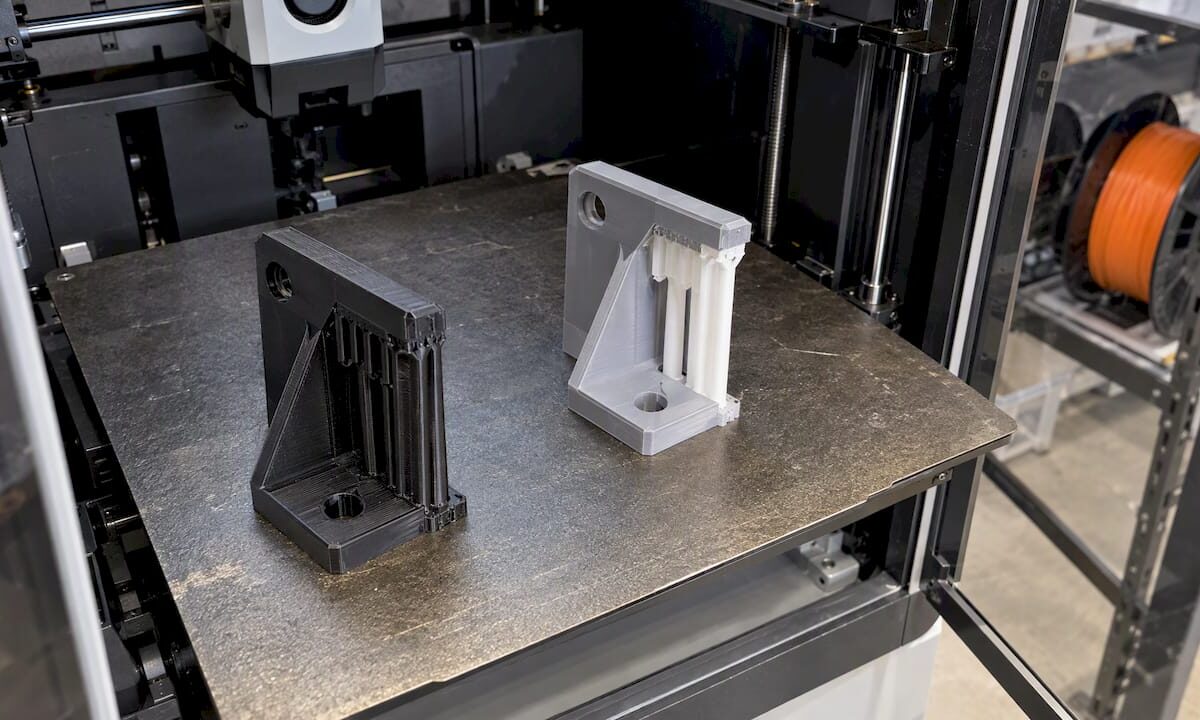
FDM brackets printed with contrasting supports

Support Material Choices for FDM: Matching Supports to Your Filament

The right support material depends on the filament you are printing, the geometry under the overhang, and whether the printer can run more than one material. In most cases, a part that needs only external supports can use its own filament with a tuned interface. A part with enclosed cavities or moving assemblies usually needs a soluble support. A part in nylon, polycarbonate or fiber-filled filament needs a pairing chosen for adhesion, because the wrong combination fails mid-print. This guide walks through each decision in that order, with the interface settings that decide how cleanly the supports come off.

CC 3D Labs
Print Parts With the Right Support
CC 3D Labs prints prototypes and functional parts in materials including PLA, PETG, ABS, ASA, PC, and carbon-fiber nylon.

Explore 3D printing

TL;DR

  • Try to design supports out first: overhangs up to about 45 degrees from vertical generally print without them, and orientation changes how many you need.
  • Use the model filament for simple external supports, a dedicated breakaway filament for easier manual removal, and a soluble material for internal geometry.
  • Pairing matters more than preference: PVA supports PLA but not PETG, and PVA with PC or PP leads to print failure.
  • Top Z distance and interface layers control surface quality and removal effort. Dedicated support filament typically uses 0, model filament about 0.2 mm.
  • Remove supports within about 2 hours on moisture-sensitive materials such as nylon and PVA.

Table of Contents

What support material is

FDM printers build a part layer by layer, and a layer cannot be deposited on empty air. Wherever the model has an overhang, a bridge or an island that starts mid-air, the slicer generates a temporary structure underneath. Support material is whatever filament forms that structure. It is removed after printing, either by hand, by cutting, or by dissolving it.

A support has two parts. The base is the sparse structure that rises from the build plate or the model. The interface is the dense set of layers directly under the model surface. According to the Bambu Lab Wiki on supports, those interface layers dictate the surface finish and removal ease of the supported area. Most of the quality you get from a supported surface is decided by the interface, not by the base.

The material choices fall into three groups:

  1. Model filament: the same spool as the part. No extra material is needed and any single-extruder printer can do it.
  2. Breakaway supports: a different filament, specialized for easier manual removal.
  3. Soluble supports: a material such as PVA that dissolves in water without affecting the surface, which suits complex internal geometry or moving assemblies, as described in the Bambu Lab Wiki.

Design supports out before choosing a material

The cheapest support is the one you never print. The Altem FDM design guide describes self-supporting features as overhangs up to 45 degrees from vertical, or gaps up to half an inch (about 12.7 mm). Features inside those limits generally print without support.

Orientation is the other lever. The same guide notes that FDM parts are anisotropic, so build orientation affects strength, and it recommends choosing orientation early to balance support needs against structural integrity. A bracket laid flat may need no support but carry its load across layer lines. Stood on end, it may be stronger along the load path but need supports on every hole and flange.

Pro Tip: Before you choose a support material, list which faces of the part are functional. Orient the part so supports land on non-critical faces, such as the underside of a mounting tab, rather than on a sealing surface or a bearing bore.

Small design changes often remove supports entirely: chamfers in place of 90-degree overhangs, teardrop-shaped horizontal holes, or splitting an assembly into two parts that each print flat. Our article on benefits of DFM in 3D printing covers these changes in more depth.
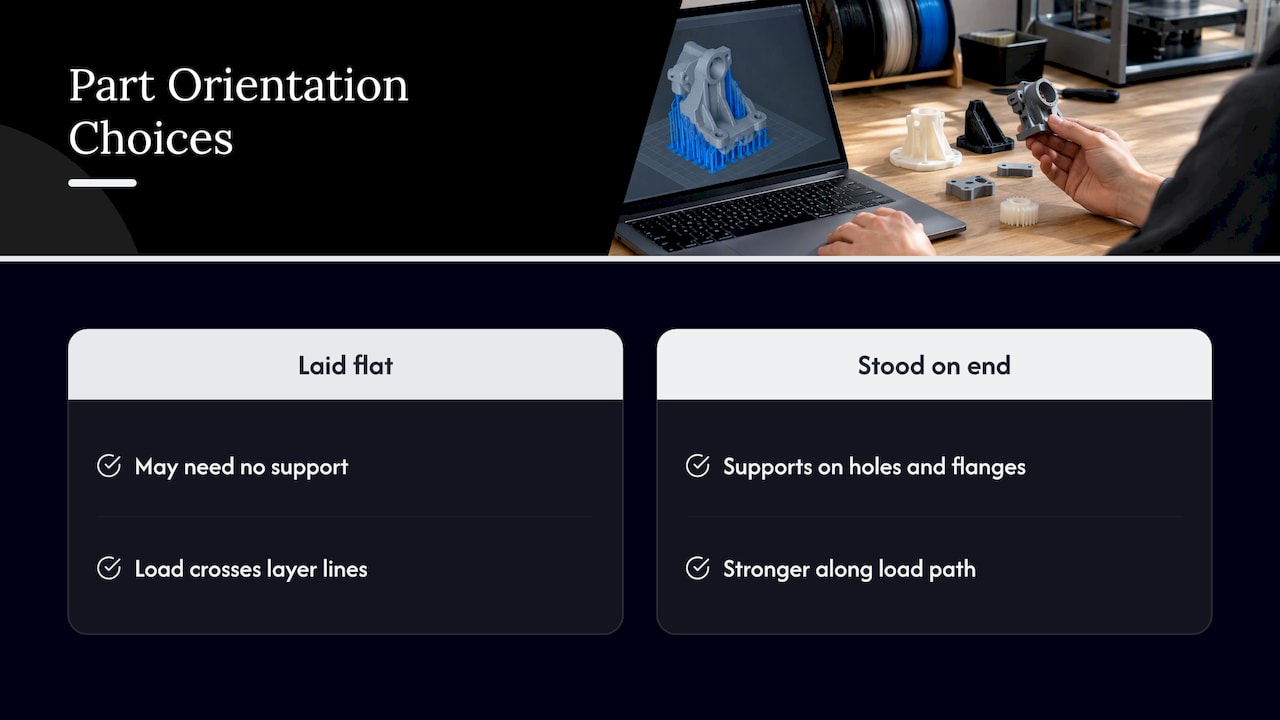
Design supports out before choosing a material — overview diagram

Model filament, breakaway or soluble: how to decide

UltiMaker’s beginner guide to support materials frames the choice around three factors: how complex the geometry is, whether the printer has multi-material extrusion, and whether the build and support materials are compatible. That is a practical checklist.

Model filament as support

This is the default for single-material jobs. There is no purge waste from material changes, no second spool to keep dry, and no compatibility question. The cost is surface quality and effort. Because the support is the same plastic as the part, it bonds to it, so the slicer has to leave a small gap. Bambu Lab recommends a Top Z distance of about 0.2 mm when the model filament is used for support, so the support can be removed mechanically. Expect some witness marks on the supported face, and plan for light sanding or machining of any surface that must be smooth.

Breakaway filament

A dedicated support filament lets the interface sit directly against the part, so it releases more easily and leaves a better face. It needs a printer that can switch materials, and it needs a pairing that actually bonds during printing and separates afterward. Bambu lists Support for PLA for PLA, Support for PLA/PETG for both PLA and PETG, and Support for PA/PET for PA-based filaments, per its Support Filament Usage Guide.

Soluble supports

Soluble material is the answer when you cannot reach the support with a tool: internal channels, captured pins, print-in-place hinges, and tight lattices. The trade-offs are dissolution time, a dedicated tank or bath, and strict pairing rules. Our multi-material FDM article explains how multi-material builds behave at the layer interface, which is the same issue that governs support bonding.

Pairing support material with your build filament

The pairing is where most failed support jobs begin. The table below summarizes documented combinations. Treat it as a starting point and confirm with a test print on your own printer and spools.

Build filament Support option What to watch
PLA Support for PLA, Support for PLA/PETG, or PVA PVA supports PLA, per Bambu
PETG Support for PLA/PETG, or HIPS PVA is not compatible with PETG; HIPS dissolves in limonene
ABS / ASA Model filament, or a compatible breakaway Long limonene exposure can disrupt layer adhesion in some ABS and ASA
Nylon (PA) Support for PA/PET Remove within about 2 hours; nylon absorbs moisture
PA6-CF Bambu ASA for core and interface (dual-nozzle) Interface-only ASA may fall off from weak adhesion
PC, PP Do not use PVA PVA lacks adhesion and the print fails

The sources behind these rows: the pairing of PVA with PLA but not PETG comes from the Bambu Support Filament Usage Guide. The failure of PVA with PC or PP is documented in UltiMaker’s PVA instructions. HIPS as a limonene-soluble support for PETG, and the caution about limonene and ABS or ASA, appear in the Prusa HIPS knowledge base article. The PA6-CF recommendation is in the Bambu Studio support page.

Why the high-temperature materials are harder

Polycarbonate and fiber-filled nylon print hot and shrink more, so supports in a lower-temperature material can soften, warp or detach. The interface must stay bonded through the whole print and then release afterward, which narrows the options. This is why we do not treat support as an afterthought on engineering parts. For general background on how these filaments differ, see our guides on PLA, PETG and ABS for durable parts and advanced filament materials for engineers.

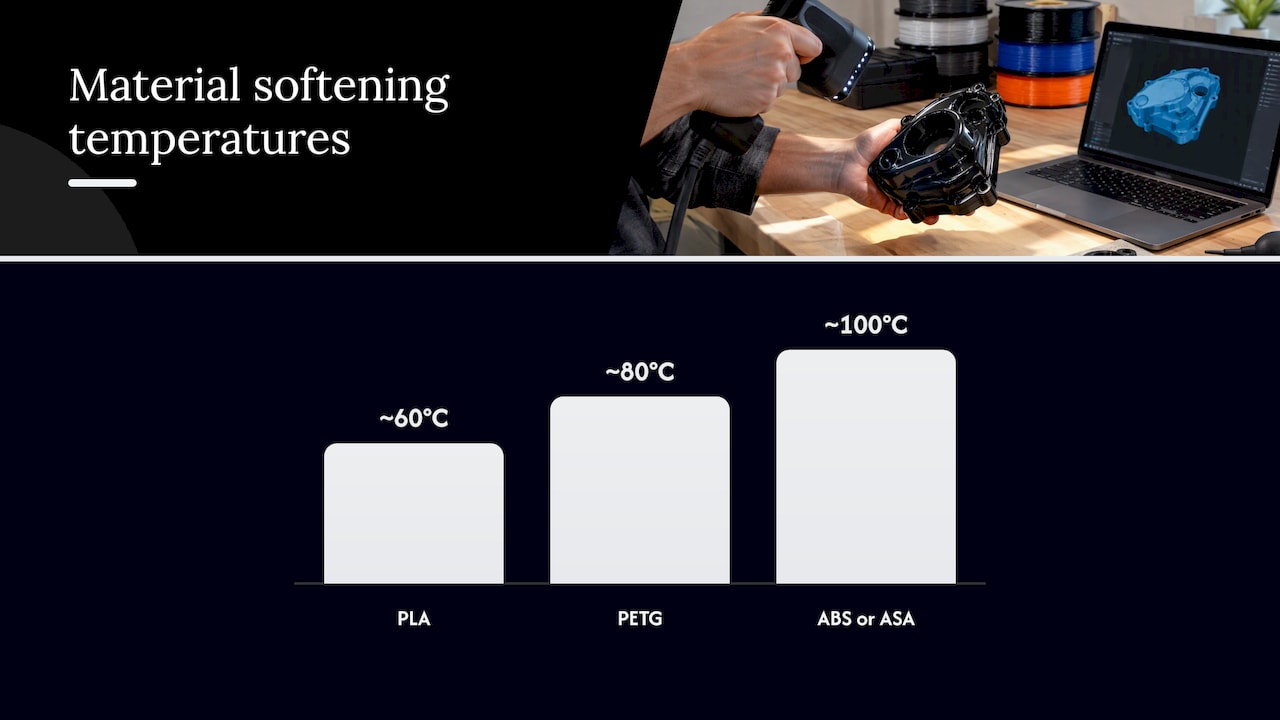
For reference, typical heat resistance is roughly 60°C for PLA, 80°C for PETG and 100°C for ABS and ASA. These are general industry averages, not guarantees for any specific spool. If a part sees heat, that limit also applies to a support pairing, since a softened support can sag before the part finishes.

Interface settings that decide surface quality

Once the material is chosen, the interface settings decide whether the underside is clean and whether the supports come off without damage. Readers often search for these settings by name, and the Bambu Studio documentation is specific.

Top Z distance

This is the gap between the top of the support and the bottom of the model. A smaller gap improves interface quality but makes supports harder to remove. A larger gap eases removal but lowers the quality of the supported surface. Bambu’s guidance is:

  • Dedicated support filament or soluble material: Top Z distance of 0, which allows a smooth finish.
  • Model filament: about 0.2 mm, so the support can still be removed mechanically.

Both recommendations come from the Bambu Lab Wiki support page. Setting 0 with the model filament would fuse support to part, which is the usual cause of the hard-to-remove supports people describe in forums.

Interface layers

More top interface layers improve the quality of the supported area, because the first layers over the gap get a solid platform instead of sparse lines. Bambu notes that setting the top interface to 3 creates a stable, flat platform. On a model with large flat undersides, this is the first setting to raise. On small features, extra interface layers add removal effort with little gain.

Support and interface patterns

Patterns change both stability and release:

  • Base patterns include Rectilinear and Rectilinear grid.
  • Interface patterns include Concentric and Rectilinear.
  • Grid interface is strong and stable but difficult to detach.
  • Rectilinear is the standard choice.
  • Concentric is recommended for non-planar surfaces, or for the best surface quality when paired with a specialized support material.

The Bambu documentation on these patterns is on the same support page. A reasonable engineering default: rectilinear interface with a 0.2 mm gap for model-filament supports, and concentric with zero gap when a dedicated support filament touches a curved face.

Pro Tip: Change one setting at a time on a small test coupon with a representative overhang. If you change the gap, pattern and layer count together, you cannot tell which one fixed or caused the problem.

Timing the removal

Bambu Lab advises removing supports within about 2 hours, especially for moisture-absorbing PA body filaments, PVA and Support for PA/PET, because absorbed moisture can make supports hard to remove or leave residue (Bambu guide). Plan post-processing right after the print finishes, not the next morning, and store spools of these materials dry.

Our perspective on support choices

We run a production farm of Bambu Lab FDM printers, and the support strategy is one of the first things we settle on a job, because it affects accuracy as much as the material does. FDM parts typically hold about ±0.2 to 0.5 mm, and supported faces are where that tolerance is most at risk, since the underside is only as good as the interface above the support.
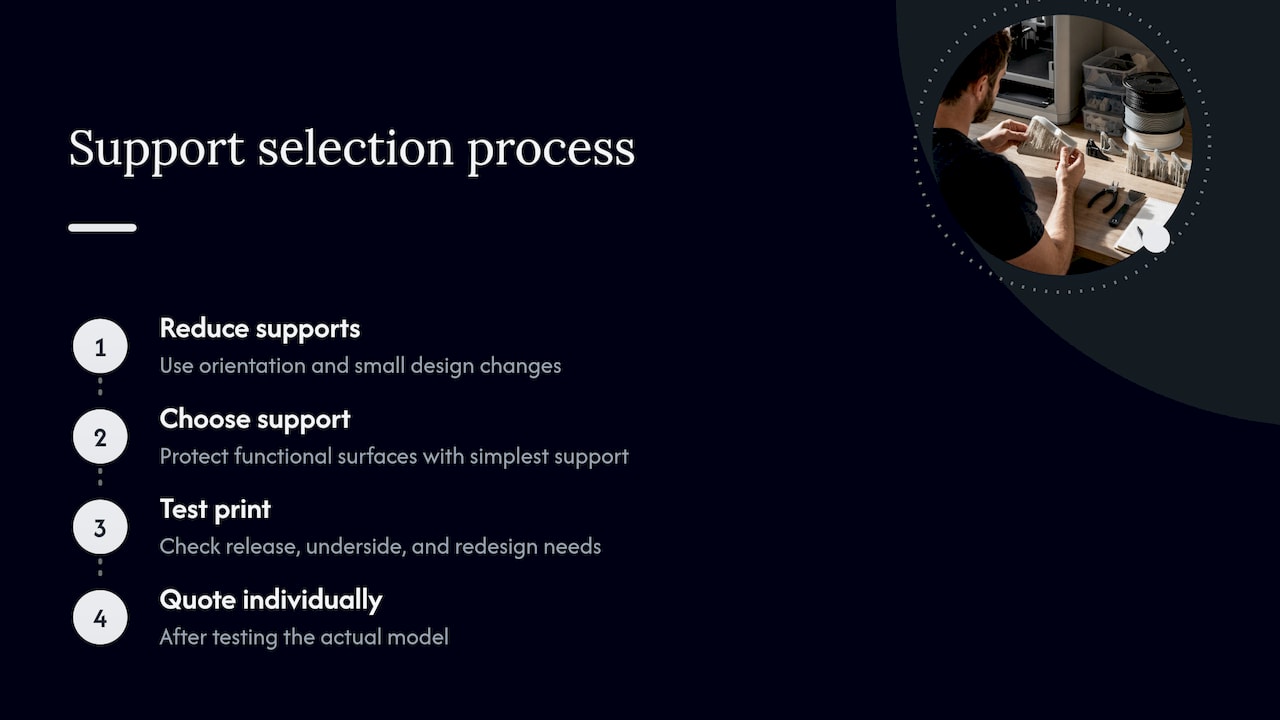
Our perspective on support choices — overview diagram

Our approach is to reduce supports first, through orientation and small design changes, and then choose the simplest support that protects the functional surfaces. We do not quote a production job from a spec sheet alone. Each job is quoted individually after a test print of the actual model, which shows how the supports release, what the underside looks like and whether a feature needs to be redesigned.

For customers in automotive restoration, the situation is common: a scanned legacy part with awkward overhangs and a requirement to fit an existing mount. In those cases we decide orientation around the mating faces, and we can adjust the CAD so supports are not needed there. If a part needs a more demanding material such as carbon-fiber nylon, we treat support pairing as part of the material decision instead of an add-on.

— Justin

When to hand the support decision to a specialist

Support planning pays off when the part is functional, the surface matters, or you need the same result across a batch. If you are building prototypes or low-volume parts and would rather not tune interface settings on your own printer, our 3D printing services cover custom printing, engineering-grade materials, multi-color and multi-material work, and CAD changes that remove supports from the design. We ship anywhere in the United States, and local customers in the Greater Philadelphia area can use residential pickup. Request a quote at cc3dlabs.com/3d-print-quote/ and send the model file with a note on which faces are critical.

FAQ

What is the best support material for PETG?

For PETG, Bambu lists Support for PLA/PETG as a purpose-made option, and HIPS works as a soluble support that dissolves in limonene. PVA is not compatible with PETG, so avoid it. Test the pairing on a small coupon first, since adhesion at the interface varies with spool and settings.

Can I use the same filament for supports and the part?

Yes, and it is the most common setup on single-material printers. Use a Top Z distance of about 0.2 mm so the support separates, and expect some surface marks that may need sanding. For smoother faces or internal cavities, a dedicated or soluble support is the better choice.

What is the best support interface pattern?

Rectilinear is the standard, and it balances stability and removal. Grid is strong and stable but difficult to detach. Concentric suits non-planar surfaces and gives the best surface quality when used with a specialized support filament.

Why do my supports stick to the part?

Usually the Top Z gap is too small for the material combination, or the interface pattern is too dense. Raising the gap toward 0.2 mm for model-filament supports is the first fix. On nylon and PVA, delayed removal can also cause residue, so remove supports within about 2 hours.

Which support material works with polycarbonate?

Avoid PVA with PC, because insufficient adhesion causes print failure, according to UltiMaker. Beyond that, polycarbonate needs a pairing validated for its print temperature, so a test print on the real part is the reliable way to confirm the choice.

Sources

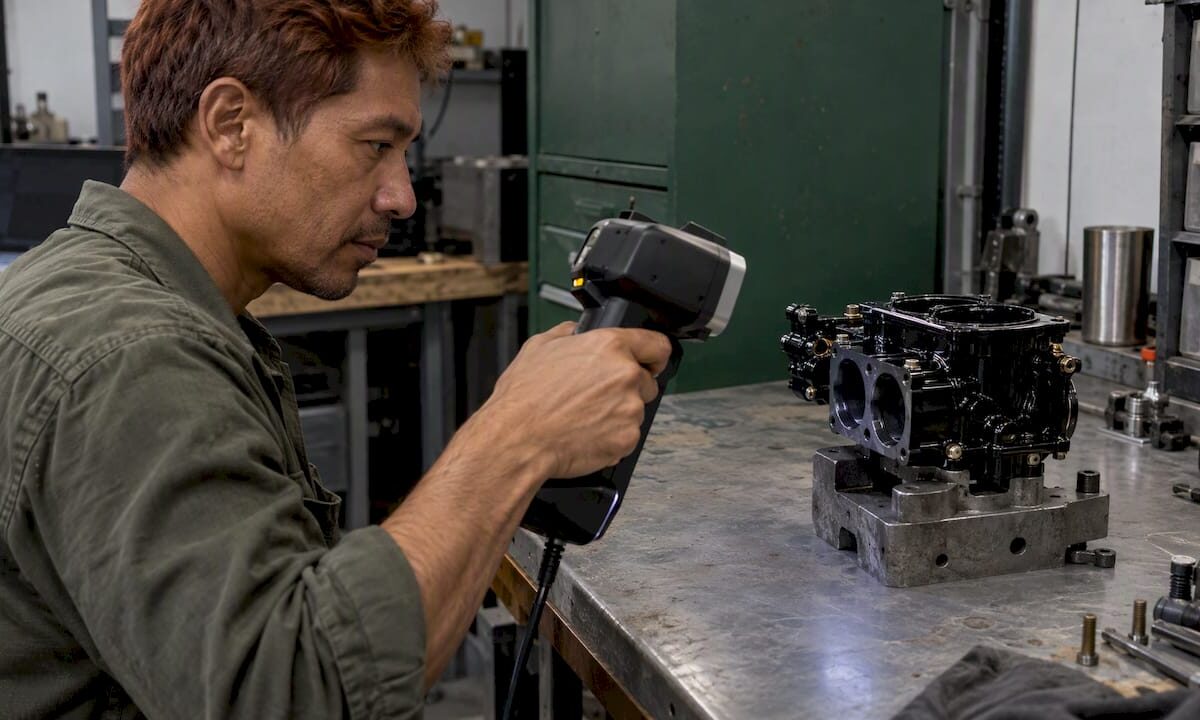
Technician scanning a polished black carburetor body

Scanning Black Shiny Parts: Prep That Works

Black, glossy parts are among the hardest things to capture with an optical 3D scanner, because dark surfaces absorb the projected light and shiny surfaces bounce it away from the camera. The fix is almost always surface preparation: a thin, temporary matte layer that breaks the reflection, plus good scanner technique and, on some parts, positioning markers. This guide explains what is going wrong, how to prepare the part, and how to protect dimensional accuracy while you do it.

CC 3D Labs
cc3dlabs.com
Capture Difficult Parts More Clearly
CC 3D Labs provides handheld 3D scanning for automotive part reproduction, reverse engineering, and scan-to-CAD modeling.

Explore 3D scanning services

TL;DR

  • Dark surfaces absorb scanner light and glossy surfaces reflect it away, so both produce holes and noise. Matting sprays work by adding a thin, uniform, matte layer.
  • Spray only when needed, and use the thinnest layer that breaks the reflection. A thick “snow white” coat can add measurable thickness to the part.
  • Smooth, repetitive or featureless parts such as gears and curved panels often need optical positioning markers on top of the spray.
  • For automotive trim, painted panels and finished parts, ask whether a coating is acceptable before anything touches the surface.
  • At CC 3D Labs we quote every scan individually, so send us the part or photos and we will tell you what prep it needs.

Table of Contents

Why black and shiny surfaces defeat scanners

An optical scanner projects light, whether structured light or laser lines, and measures how it returns to the camera. That only works when the surface sends back a clean, diffuse signal.

Two different failures hide under the same complaint:

  • Dark surfaces absorb light. Black plastic, rubber and dark powder coat return too little signal, so the scanner records sparse or noisy points.
  • Shiny surfaces reflect light directionally. Polished metal, chrome and glossy black paint act like small mirrors. The light leaves at the opposite angle, misses the camera, or saturates it at one angle and vanishes at the next.

A black glossy part, such as a piano-black interior trim piece, does both at once. Instructors in practical scanning courses note that the primary cause of scan problems is usually the subject’s reflectivity and color rather than the scanner or software. That is useful to know: a better scanner does not replace preparation, and a poor scan is not always an equipment fault.

A published case study on scanning a carburetor body lists highly polished, dark, shiny and transparent surfaces together as the critical issue for that class of scanner, which matches what automotive shops see daily.

Do you need spray at all?

Not always. Experienced operators treat spray as a tool of necessity. Guidance from 3D scanning specialists is to check the scan quality first and coat only if you cannot capture enough data without it, because every coating risks introducing measurement error.

Before spraying, try these in order:

  1. Change the angle. Hand-held scanners can often be tilted to find an angle where the glare drops. Scanners with single-laser settings often let you work this way.
  2. Adjust the environment. Remove direct sunlight and strong overhead lights that add glare to a glossy surface.
  3. Test a small patch. Scan a hidden area and look at the point density and noise before deciding.
  4. Spray only the failing regions. Many parts are fine on matte or textured areas and need a coating only on the glossy faces.

Pro Tip: If the part will be measured against a reference model, such as an inspection or a scan-to-CAD job, note which areas were sprayed. That tells the person modeling the part where a hair of added coating thickness could matter.

Choosing a coating

The goal of preparation is to break the reflection, not to change the object. Four broad families cover most work.

Coating type How it works Best for Watch out for
Dedicated matting (scanning) spray Thin, uniform matte layer that raises surface contrast Most dark and glossy parts Needs cleanup unless it is a vanishing type
Vanishing (sublimating) spray Matte layer that disappears on its own over time Finished parts that cannot be washed or wiped Coating thickness and vanishing time vary by product; a peer-reviewed comparison of eight sublimation sprays measured both
Improvised coatings (thin wax, removable coatings, powder-and-water mixes) Dulls the surface in a pinch One-off cases when no scanning spray is at hand Careful application is needed to avoid damaging delicate automotive finishes or creating hard cleanup
No coating, with angle and setting changes Relies on scanner mode and technique Moderately dark or semi-matte parts May leave holes on true gloss black

For parts that must go back into service untouched, a vanishing spray or a reversible coating is usually the safer choice, but confirm on a test area. Paint, clear coat and soft-touch finishes react differently to solvents, so this is the step where we ask the owner before anything is applied.

How to apply a scanning spray

Technique matters as much as the product. Manufacturer best-practice guidance and scanning-industry sources agree on the basics.

  1. Clean the part. Remove dust, oil and fingerprints. Contaminants prevent an even, stable coating.
  2. Hold the can at a distance. The recommended range is 15 to 25 cm from the surface, using short, controlled bursts from the wrist.
  3. Do not paint the surface. Avoid lingering in one spot or making slow passes.
  4. Check for uniformity. If the surface looks wet after a minute, the coat was likely too heavy or too close. Adjust distance or technique.
  5. Stop when the reflection breaks. You are not trying for bright white. Many operators over-coat, and professionals instead apply the thinnest layer needed to break the reflection.
  6. Rescan a test area and compare the data before covering the whole part.

Pro Tip: Mask critical datum surfaces, bearing bores and mating faces when you can, and scan those with the lightest possible preparation. Coating thickness matters most where tolerances are tightest.

Add markers when the geometry is plain

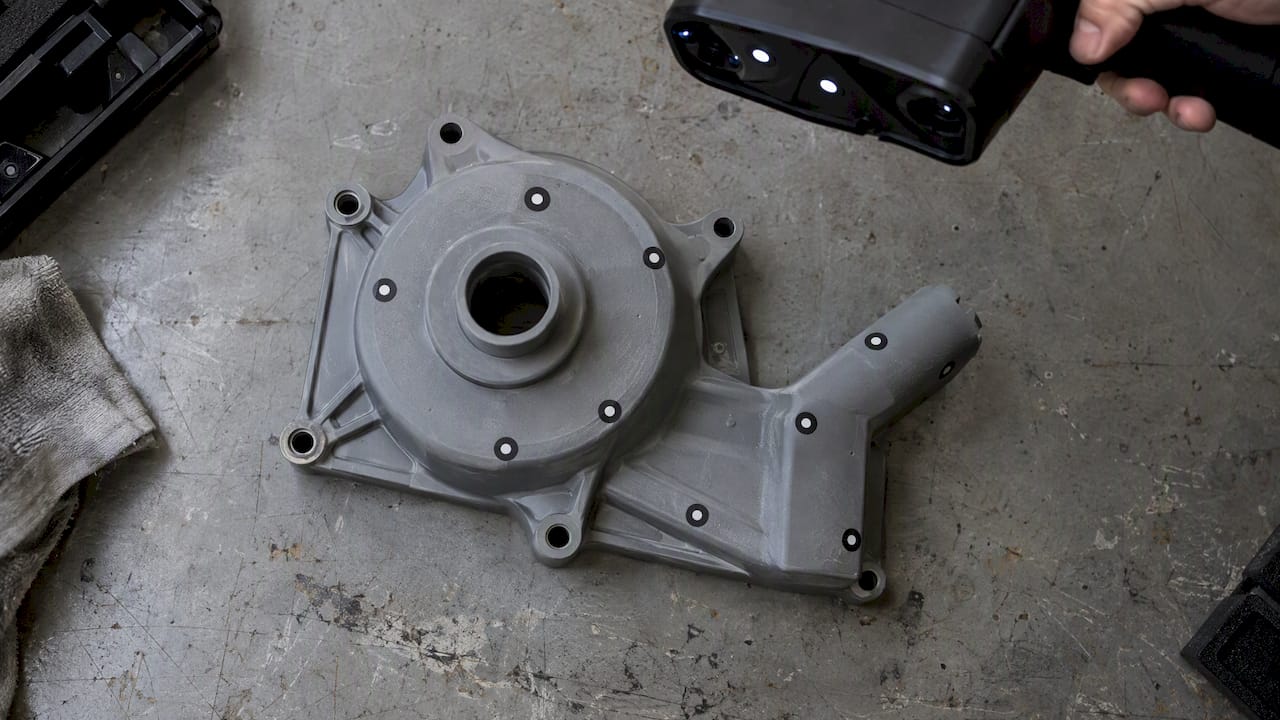
Tracking markers placed across a plain mechanical housing

A matte surface solves the capture problem but not the tracking problem. Handheld scanners align frames by recognizing geometry, and a smooth panel or a part with repeating features gives them little to hold on to. Parts with repetitive geometry, such as gears or simple curved panels, can still fail after good prep, and optical positioning markers are often the answer.

Follow the manufacturer’s marker guidance:

That guidance comes from one manufacturer’s laser-scanning documentation, so check your own scanner’s manual for its specific requirements. On large automotive parts such as hoods, fenders and body panels, markers are often what separates a clean single scan from several pieces that will not merge.

What this looks like on real automotive and product parts

The parts that reach us most often fall into a few groups:

  • Glossy black trim and interior pieces. These need a thin matte layer on the gloss and a decision about whether the finish can take it.
  • Chrome and polished metal brackets. Reflection is the main issue, and a vanishing coating on the shiny faces usually matters more than markers.
  • Black molded plastic housings. Absorption is the issue. They often scan with light prep, then need markers if the surface is smooth.
  • Rubber and dark composite parts. Soft or flexible items need support so they do not deform during the scan, as well as surface prep.

The prep decision is always specific to the part. A scanner working on a gloss black dashboard bezel faces a different problem than one working on a cast-iron bracket with a dull patina.

How scan prep affects the CAD and the print

Surface preparation is only the first step. A scan produces a mesh, and if the job is reverse engineering, someone then turns it into clean CAD. Holes, noise and added coating thickness all carry through into that model.

For reproduction work, the sequence looks like this:

  1. Prepare the surface and scan, with markers where needed.
  2. Clean the mesh and check for gaps.
  3. Rebuild the part in CAD from the scan, so that features like holes, bosses and mounting faces are clean geometry rather than a noisy mesh.
  4. Print a test part and verify fit against the original.

If you want the background, our guides on scan-to-CAD workflow, scanning for legacy part reproduction and how to optimize scan accuracy cover the later steps. A scanning checklist is useful before you ship a part to any lab, and our piece on which objects suit 3D scanning helps you judge a difficult item up front.

Keep expectations realistic on the print side as well. Our FDM prints typically hold about ±0.2 to 0.5 mm, so a scan that is accurate to about 0.1 mm gives the CAD model more precision than the printed part will carry. Material choice also depends on use: PLA softens around 60°C, PETG around 80°C and ABS or ASA around 100°C, which matters for replacement parts near engine bays or in a hot car interior.

Scanner accuracy, print tolerance, and material temperature comparison

Our perspective on black and shiny parts

We scan these parts regularly, and our view is simple: the prep decision should be made on the part, not on habit. Some shops spray everything, and some refuse to spray anything. Both approaches lose accuracy or time.

Our handheld Einstar workflow gives us professional handheld 3D scanning with accuracy to about 0.1 mm, and that figure is only meaningful if the surface is prepared with care. We start by looking at the part, its finish and what you plan to do with the data. If a glossy panel can be scanned with a change of angle, we do that. If it needs a coating, we use the thinnest one that works and we tell you where it was applied.

The other rule we follow is communication. A customer with a restored car part or a one-of-a-kind component should know before scanning begins whether the finish will be touched. We would rather ask a question about a clear coat than guess. We are owner-operated, so you talk to the person doing the work, and that is how we handle the awkward jobs other shops have declined.

— Justin

Have us scan it

If you would rather not experiment on a part you cannot replace, we can handle the preparation, the scan and, where you need it, the CAD and the print. CC 3D Labs is in the Greater Philadelphia area (Bucks County, PA). Local customers use residential pickup, since we have no walk-in storefront, and finished orders ship anywhere in the United States. We quote each job individually and publish no fixed pricing. See our 3D scanning lab and the full services page for what we do.

FAQ

Can you scan a black shiny part without spray?

Sometimes. Changing the scanner angle, reducing ambient glare and using single-laser or similar settings can capture moderately glossy parts. True gloss black or chrome usually still leaves holes, and a thin matte coating on those areas is the practical fix.

Will scanning spray damage my part?

It depends on the finish and the product. Vanishing sprays and reversible coatings are designed to leave the part intact, but improvised coatings like wax or powder mixes can harm delicate automotive finishes or leave hard cleanup. Test a hidden spot, and tell the scanning lab about any fragile paint or clear coat.

Does the spray change the measurements?

It can. Over-coating adds measurable thickness, which is why professionals use the thinnest layer that works. For tight-tolerance surfaces, tell us so that we can limit or mask the coating there.

Why does my scan fail even after spraying?

The likely cause is tracking, not surface capture. Smooth or repetitive geometry gives the software too little to align on, and positioning markers placed randomly, with at least four visible, usually fix it.

How do I get a quote for scanning a part?

Use our 3D scan quote form and describe the part, its finish and what you need from the data. For printing, use the 3D print quote page, and for reverse-engineered CAD use the CAD quote page.

Sources

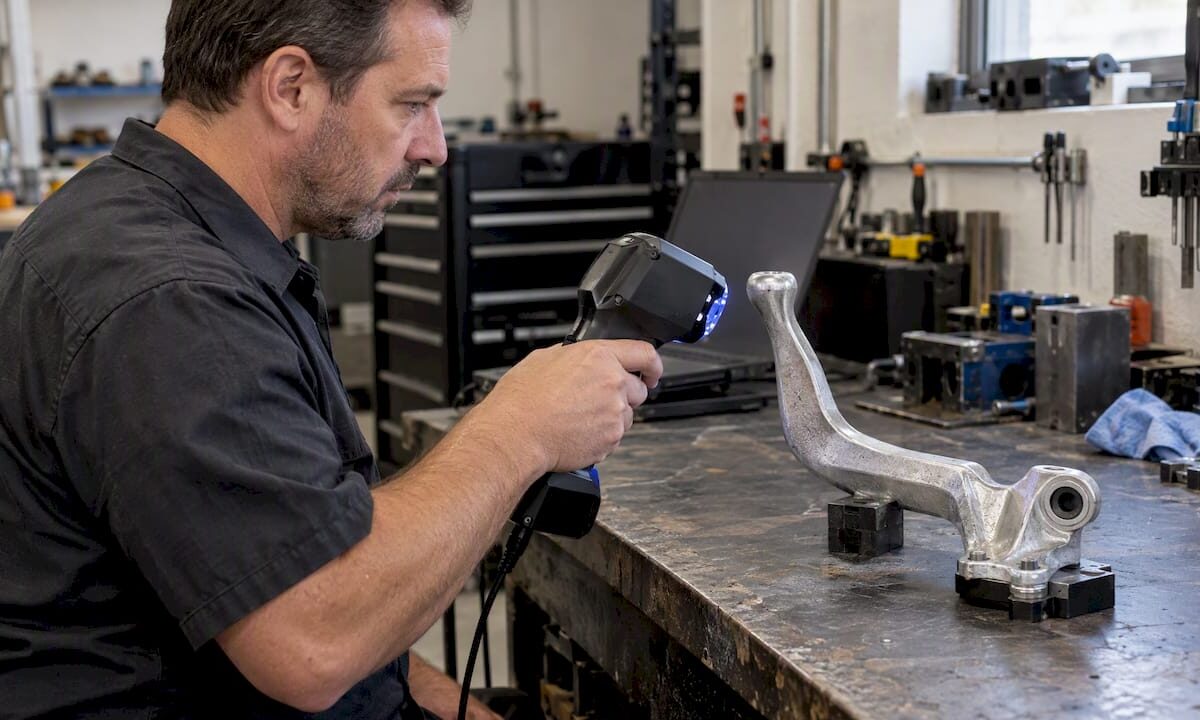
Technician scanning a cast-aluminum automotive shift lever

Mesh to CAD Conversion: How to Turn Scans and STL Files into Solids

Mesh to CAD conversion means turning a file made of triangles (STL, OBJ, PLY or 3MF) into a boundary-representation model, meaning a solid or surface body made of true planes, cylinders and splines that you can dimension, edit and send to manufacturing. There are two ways to do it. You can wrap the triangles in a solid automatically, which is fast but gives you geometry you can barely edit. Or you can rebuild the part in CAD using the mesh as a reference, which takes longer but gives you a model with real design intent. Which one you need depends on what you plan to do with the part next.

CC 3D Labs
Turn Scans Into Usable CAD
CC 3D Labs provides handheld 3D scanning and scan-to-CAD modeling for reverse engineering, part reproduction, and manufacturing needs.

Explore scan-to-CAD services

TL;DR

  • A mesh stores a surface as thousands of flat triangles. CAD stores it as mathematical features. Converting between them is a choice between speed and editability.
  • Automatic conversion (faceted solids, quad-mesh to NURBS) works when the mesh is clean and watertight and you only need to reference or print the shape.
  • For prismatic parts such as brackets, housings and adapters, rebuilding with sketches and features from the scan produces the most useful model.
  • Scan quality sets the ceiling. A noisy or incomplete scan cannot be rescued by software alone.
  • We quote scan-to-CAD jobs individually, so send us the part or the file and we will tell you which route fits.

Table of Contents

What a mesh is and why CAD software resists it

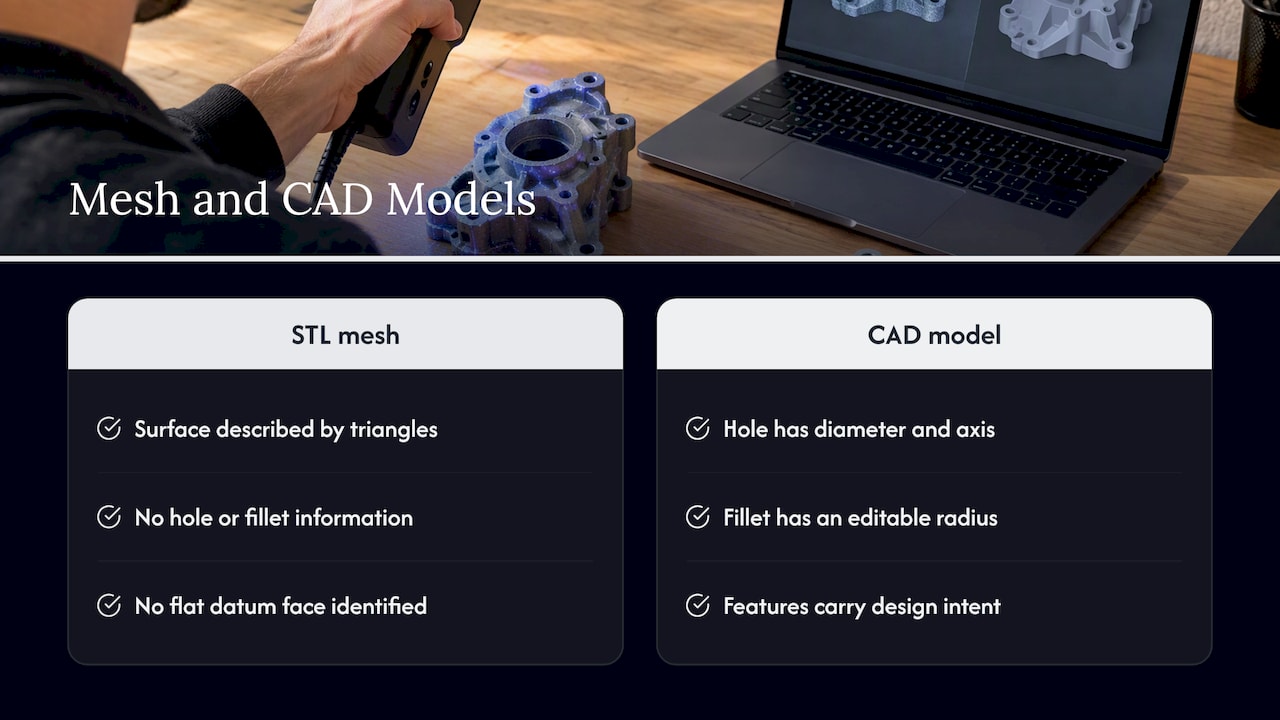
An STL file describes a surface only as triangles. It carries no information about which triangles form a hole, a fillet or a flat datum face. A CAD model carries exactly that information: a hole is a cylinder with a diameter and an axis, and a fillet is a radius you can change.

What a mesh is and why CAD software resists it — overview diagram

That gap is why “convert STL to CAD” has no single button. Software can wrap triangles into a solid body, but it has to guess the intent behind them, and guesses degrade when the data is noisy. Autodesk’s documentation for Fusion makes the same point: face groups are used to infer prismatic features when converting a mesh, so the software recovers planes and cylinders instead of keeping every triangle as its own face.

Mesh, NURBS and solid: the terms readers mix up

  • Mesh: triangles only. Good for printing, visualization and inspection.
  • NURBS surface: smooth, mathematically defined patches. Good for organic and freeform shapes such as sculpted housings or body panels.
  • Solid (B-rep): a closed volume built from faces that may be planes, cylinders, cones or NURBS. Exports to STEP and is what most engineering workflows expect.
  • Parametric model: a solid with a feature history (sketches, extrudes, holes) that you can edit by changing a dimension.

When readers search for “mesh to NURBS,” they usually want the second item. When they search for “STL to CAD,” they usually want the last one, even if they do not know it yet.

Four ways to convert a mesh to CAD

Method Best for What you get Main limit
Faceted solid conversion Quick volume for booleans, fit checks, printing A solid with one face per triangle Heavy, not editable by dimension
Automatic surfacing (quad mesh, surface wizards) Organic, freeform shapes NURBS or smooth surface patches Surfaces rarely align to true datums
Feature recognition (prismatic conversion) Mechanical parts with planes and holes Merged planar and cylindrical faces Needs clean data and clear edges
Manual rebuild over the mesh (scan-to-CAD) Parts you will modify, tolerance, or manufacture Fully parametric solid with design intent Takes the most engineering time

1. Faceted solid conversion

If the mesh is closed, most CAD packages can turn it into a solid whose faces mirror the triangles. In AutoCAD, the CONVTOSOLID command does this for watertight meshes, and the SMOOTHMESHCONVERT setting controls whether the result is faceted or smoothed, optimized or not. Autodesk’s desktop help also describes the faceted option as angular, with the same number of faces as the original mesh.

This is the right choice when you need a volume to subtract from another body, check an interference, or build a mating part around an existing object. It is the wrong choice when you need to change a hole diameter.

2. Automatic surfacing

For freeform shapes, software can fit smooth patches across the mesh. SOLIDWORKS describes direct mesh referencing as useful for very complex surfaces, such as consumer products, and offers a Surface Wizard with automatic and guided modes for building surfaces from the scan. After trimming and knitting the surfaces, you can create a solid.

Another route used in practice is retopologizing the mesh to a quad mesh and then converting it to a solid in the CAD package. The surfaces that result follow the shape well, but they are patches fitted to the data, so they do not know where a datum plane or a bolt axis should be.

3. Prismatic feature recognition

In Fusion, the Convert Mesh tool can merge groups of faces into single faces, and the Parametric operation keeps the conversion editable in the Timeline. On a clean scan of a mechanical part, this recovers planar faces and cylindrical bores directly. On a worn or noisy part, it often produces near-planes that are not quite planes, which then fail to mate with anything.

4. Manual rebuild over the mesh

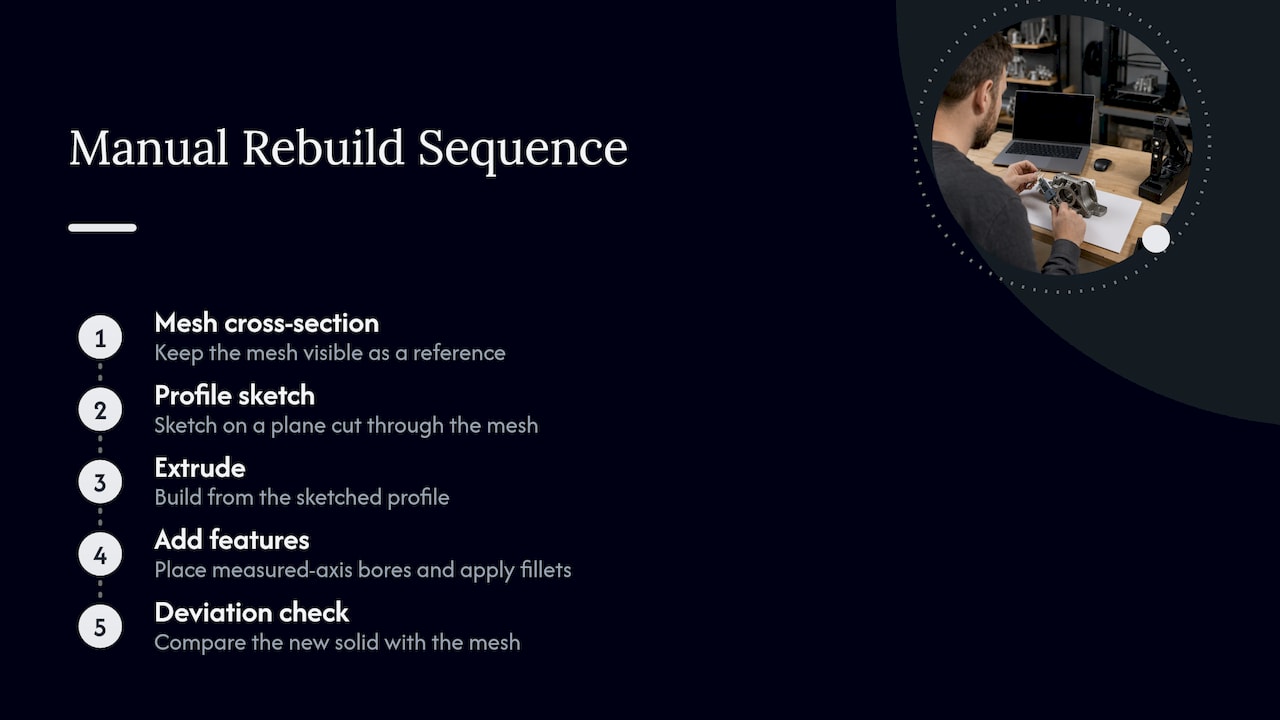
This is the standard approach in professional reverse engineering. The mesh stays visible as a reference, and you build the part from sections: sketch a profile on a plane cut through the mesh, extrude it, add the bores at the measured axes, and apply fillets. You then run a deviation check between the new solid and the mesh to confirm the model matches. Our guide to what scan to CAD involves walks through that sequence.

Mesh-to-CAD rebuild steps and deviation check

Preparing the mesh before you convert

Conversion tools fail on bad input far more often than they fail on bad technique. Before any conversion:

  1. Check that the mesh is watertight. Holes in the mesh stop solid conversion in most tools. FreeCAD users report that whether an STL converts to a solid starts with the validity of the STL.
  2. Decimate or repair as needed. Dense scan meshes can run to millions of triangles. Reduce them enough for your software to handle, without rounding off small features.
  3. Fill holes and remove noise. SOLIDWORKS includes a Mesh Prep Wizard that cleans mesh or point cloud files before you create surfaces or a solid.
  4. Align the mesh to a sensible coordinate system. Orient it on the part’s main datum faces, so every sketch plane you add later is meaningful.
  5. Confirm scale and units. STL files carry no units. A part that arrives 25.4 times too large or small is a unit mismatch, not a modeling problem.

Pro Tip: Fix the data upstream when you can. A part that was prepared properly before scanning, with matte surfaces and reference targets where needed, produces a cleaner mesh than any repair tool. See our guide to preparing parts for scanning and our note on why scan data integrity matters in manufacturing.

Software workflows, step by step

The three common desktop routes below all rely on the vendors’ documented commands. None replaces judgment about when a result is good enough.

AutoCAD

Use CONVTOSOLID on a watertight mesh, and set SMOOTHMESHCONVERT first. Choose smoothed and optimized if you want merged coplanar faces, or faceted if you need the exact triangle geometry. If the command refuses, the mesh almost certainly has gaps or non-manifold edges.

FreeCAD

The documented path is to import the STL in the Mesh workbench, then use Create shape from mesh in the Part workbench, typically with a tolerance such as 0.05. Run Refine shape, then Convert to solid. Expect a faceted result: the output is a solid made of many small faces, and it will be heavy on large scans.

SOLIDWORKS

The ScanTo3D approach has two documented routes. You can use the Mesh Prep Wizard and then either reference the mesh directly while you model, or build surfaces with the Surface Wizard, trim and knit them, and create a solid. SOLIDWORKS also lists three typical workflows for working with mesh BREP bodies, starting with importing STL, OBJ, PLY or 3MF files from a scanner.

Fusion

From the Design workspace, use the Convert Mesh tool and select faceted or prismatic as the method. Use Parametric if you want to keep the option of editing the conversion later.

Which route fits which part

  • A bracket, adapter or housing with flats and bores: rebuild it parametrically. You will want to change dimensions, and every feature has a design reason.
  • A discontinued automotive trim piece with compound curves: surface it, or use the mesh as a reference while you build splines over it. A full parametric rebuild would add cost without adding value.
  • A fixture or jig built around an existing part: a faceted solid is often enough. You are subtracting the shape, not editing it.
  • A part you will print again as-is: you may not need CAD at all. A cleaned mesh prints directly.
  • A part going to a vendor that needs STEP: you need a real solid, not a mesh wrapped in a STEP container.

Our article on CAD file formats for 3D printing workflows explains when each format makes sense.

Checking the converted model against the scan

A converted model that looks right can still be wrong by a fraction of a millimeter in the places that matter. Practitioners use deviation analysis to compare the new CAD with the original scan. Comparison tools in this space turn visual judgment into measurable differences, showing where a part departs from nominal geometry.

The same logic applies downstream. Visualization and inspection teams use scan-to-CAD comparison to guide adjustments, and this overview of what to expect from 3D visualization for manufacturers shows how that kind of model feeds into product presentation. For early design checks, AI tools for design for manufacturability can also flag features that will cause trouble in production once you have an editable model.

To go deeper on validating a model before it goes to production, read our piece on validating 3D designs for reliable manufacturing.

Where conversion goes wrong

  • Worn parts. A scan captures what the part is today, including wear. If a shaft is worn undersized, a faithful conversion reproduces the wear. Decide whether you are copying the part or restoring its intended dimensions.
  • Shiny or dark surfaces. Reflective surfaces create noise and gaps in the mesh. Preparation, covered above, matters most here.
  • Hidden features. Internal channels and undercuts that a handheld scanner cannot see have to be measured another way or inferred.
  • Over-fitting. A spline that follows every bump of scan noise is not a smooth surface. Fit to the intended shape, not to the data points.
  • Printing tolerance. If the converted part will be FDM printed, the process itself has a typical accuracy of about ±0.2 to 0.5 mm, so nominal dimensions need to account for that, especially for mating features.

Our perspective

Most mesh conversion requests we see start with the file, but the better question is what the part has to do. If a customer needs a fixture around an existing component, we do not rebuild the component; a clean mesh body gets the job done. If an automotive restorer needs a replacement part that no longer exists, we scan it with our professional handheld 3D scanner (accuracy to ~0.1 mm), then model the part in CAD so that the dimensions can be edited and the part can be reproduced.

We think the middle path is where people lose money: paying for a full parametric rebuild of a freeform shape, or relying on a faceted solid for a part that will need a revision. The cheapest conversion is the one that matches how the model will be used.

We also prefer to look at the actual part. Every production job we take is quoted after a test print of the real model, and we publish no fixed pricing, because mesh quality and part complexity change the work too much for a rate card to be honest.

— Justin

How CC 3D Labs handles scan-to-CAD work

We are an owner-operated 3D scanning and printing service in the Greater Philadelphia area, based in Bucks County, PA. We scan parts, build the CAD model, and print prototypes or small batches on our Bambu Lab FDM farm in materials such as PLA, PETG, ABS, ASA, PC and carbon-fiber nylon. We can also print mold masters from the finished model. Local customers collect by residential pickup (we have no walk-in storefront), and completed orders ship anywhere in the United States.

If you already have an STL or scan file, request a quote through our 3D modeling and CAD quote form. If you have the physical part, start with the 3D scanning lab. You can see everything we offer on our services page, and examples of past modeling work in the CAD project gallery.

FAQ

Can I convert an STL file to a CAD file automatically?

Yes, for a closed mesh. Tools such as AutoCAD’s CONVTOSOLID, FreeCAD’s shape-from-mesh command and Fusion’s Convert Mesh will produce a solid. The result is usually faceted, with one face per triangle, so it works for fit checks and booleans but not for editing dimensions.

What is the difference between mesh to NURBS and mesh to solid?

A NURBS conversion builds smooth surface patches over the mesh and suits freeform shapes. A solid conversion produces a closed volume, which can be faceted or built from NURBS and analytic faces. Many workflows do both: surface the shape, then knit the surfaces into a solid.

Why does my mesh fail to convert to a solid?

The most common cause is a mesh that is not watertight, meaning it has holes, flipped normals or non-manifold edges. Repair it first, with a mesh-prep tool or a mesh-repair application, and then retry. Our article on scan data integrity covers what causes these defects at the scanning stage.

Can a 3D scan become a fully editable parametric CAD model?

Yes, but it is a rebuild, not a conversion. An engineer uses the scan as a reference and models sketches and features that match it, then verifies the result with a deviation check. We do this as part of our scan-to-CAD service, quoted per project.

How accurate is a CAD model made from a scan?

It depends on the scanner, the surface, the part and the modeling method. Our handheld scanning reaches accuracy to about 0.1 mm, and the final model is checked against the scan data. A part printed on an FDM machine will then carry a typical process tolerance of about ±0.2 to 0.5 mm.

Sources

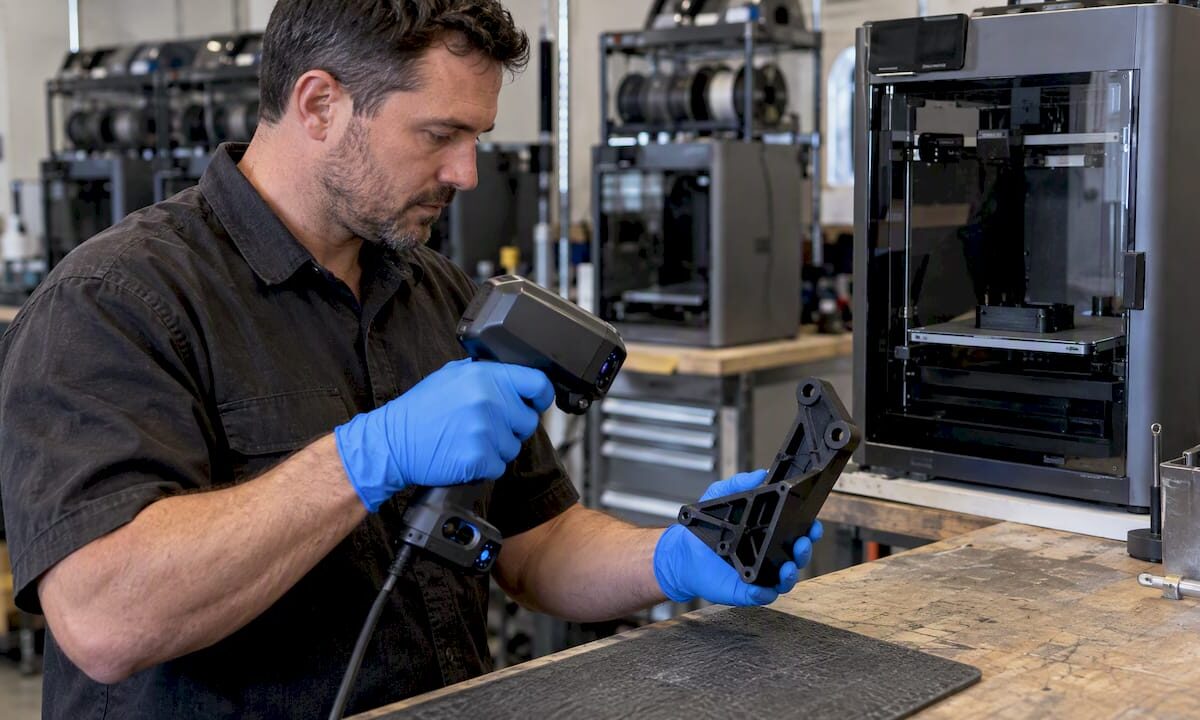
Technician scans an FDM printed bracket

Scan-Based Quality Control: How 3D Scanning Verifies Parts

Scan-based quality control means capturing the full surface of a finished part as a 3D point cloud or mesh, aligning it to the nominal CAD model, and reading the differences as numbers and color. Instead of a handful of caliper readings at chosen points, you get thousands of comparisons across the entire geometry. That makes it well suited to freeform surfaces, warped or shrunk prints, cast and molded parts, and reproduced legacy components. It is only as trustworthy as the measurement process behind it, which is where most of this article focuses.

CC 3D Labs
cc3dlabs.com
Verify Parts Across Their Surface
CC 3D Labs provides professional handheld 3D scanning with accuracy to about 0.1 mm for parts and reverse-engineering work.

Explore 3D scanning services

TL;DR

  • Scan-based inspection compares a scanned part to its CAD nominal and reports deviation across the whole surface, not just at probed points.
  • It is a detective control: it finds nonconformance after a part exists. Its value grows when you trend the data and feed it back into the process.
  • A scanner with good specifications is not a validated inspection system. Fixturing, alignment, lighting, and operator technique all add variation, so run a measurement system study before trusting pass/fail results.
  • Match the method to the tolerance. Professional handheld scanning with accuracy to ~0.1 mm suits many prototype, reverse-engineering, and FDM-part checks, but not every tight-tolerance feature.
  • At CC 3D Labs we scan, clean up the data, and model to CAD in Bucks County, PA, and quote each job individually.

Table of Contents

What scan-based quality control actually is

The core workflow is the same whatever scanner you use:

  1. Prepare the part. Clean it, deal with shiny or dark surfaces, and add reference targets where the geometry is too featureless to track.
  2. Scan. Capture all surfaces that matter, with overlap, in a stable environment.
  3. Process. Merge passes, remove noise and stray points, and produce a watertight mesh or a cleaned point cloud.
  4. Align. Register the scan to the nominal CAD, either by best fit or, better for inspection, by the datum scheme on the drawing.
  5. Compare and report. Generate a color deviation map, section cuts, and values at the features that carry tolerances.

The result is a visual that a machinist, a buyer, or an engineer can read in seconds: where the part is high, where it is low, where it twists. A caliper tells you a hole is 0.15 mm oversize. A scan also shows that the whole flange has bowed 0.3 mm, which is usually the more useful finding.

Detective control, not the whole quality system

The American Society for Quality draws a clear line: quality control is product-focused and detective, verifying that parts conform to specification after they exist. Scanning is a very good detective tool. It does not prevent a bad part by itself.

The preventive step happens when you keep the scan results from each batch and look at them over time. If the same boss drifts 0.1 mm further each run, or one corner of every print lifts, that pattern points to a process cause: a worn tool, a changed material lot, a slicer setting, a mold that is moving. A shop that only files pass/fail stamps never sees it. A sheet metal fabricator describing how it controls precision parts through the production chain shows the same principle from another process: inspection results are most useful when they change what happens upstream.

Where scanning beats traditional measurement, and where it does not

Method Strength Limitation
Calipers, micrometers, gauges Fast, cheap, familiar for simple prismatic features Few points, operator-dependent, poor on curves and freeform surfaces
Coordinate measuring machine (CMM) Very high accuracy on defined features, established reporting Slow for complex surfaces, needs programming and fixturing, often a bottleneck
Handheld 3D scanning Whole-surface capture, color deviation maps, works on awkward or large parts, fast to set up Accuracy limited by scanner class, surface finish, and technique; weaker on small tight-tolerance features
Visual or vision-based checks Good for cosmetic defects and presence/absence Not a dimensional measurement on its own

The honest summary: for tight GD&T on machined features, a CMM remains the reference. For organic shapes, reproduced parts, large assemblies, warped prints, and quick first-article looks, scanning gives information the other methods cannot. Industry practice reflects this: Quality Magazine describes how first article inspection with 3D scanning can work as a “virtual CMM”, with software measuring the scanned part and generating a report much as a probed inspection would.

Matching scanner accuracy to your tolerance

Before you scan anything for inspection, compare the scanner’s accuracy with the tolerance you are verifying. A common rule of thumb in measurement practice is that the instrument should be several times better than the tolerance band. That ratio is a general guideline, not a regulation, so check what your customer or drawing requires.

Our professional handheld 3D scanning has accuracy to ~0.1 mm. Here is how that lines up with typical work:

  • FDM printed parts. FDM printing typically holds roughly ±0.2 to 0.5 mm depending on geometry, material, and printer tuning. A scanner at ~0.1 mm can resolve warpage, shrinkage, and fit problems at that scale.
  • Reverse engineering. For capturing a legacy or automotive part so it can be modeled and reproduced, ~0.1 mm is comfortably useful for most mating surfaces.
  • Fit checks of cast, molded, or fabricated parts. Good for flatness, profile, and overall shape deviations.
  • Tight-tolerance machined features. If your drawing calls for a few hundredths of a millimeter on a bore, use a CMM or a dedicated gauge. We would rather tell you that up front than scan a part we cannot honestly verify.

Validate the measurement system before you trust it

This is the step most buyers skip, and it is the one that matters most for any critical-to-quality dimension.

ASQ’s guidance on measurement system analysis frames it plainly: measurement system analysis studies the variation contributed by the act of measuring itself. Every reading is the real part-to-part variation plus the measurement variation. If the second piece is large, your accept-or-reject calls are unreliable.

Two points from ASQ’s Quality 4.0 guidance are worth building into your process:

  • Automation does not remove variation, it moves it. Automated scanning removes the human appraiser but introduces lighting, fixturing, model-fitting algorithms, and data processing noise. Treat the scanning setup as a measurement system and validate it before you rely on its pass/fail output.
  • Calibration is not Gage R&R. Calibration documents an instrument’s bias in isolation. A Gage R&R characterizes the whole process, including operators, fixtures, and environment. A well-calibrated scanner can still fail a Gage R&R if the way the part is seated introduces consistent error.

If you are ordering inspection scans to support a go/no-go decision, ask for a repeatability check on your own part: scan it several times, re-seat it between scans, and compare the results on the dimensions you care about. Then decide whether the spread is small enough for your tolerance.

Also keep in mind that scanner performance claims are not always comparable. NIST notes that many manufacturers specify sensor performance in non-standard ways, which is one reason it supports standards work for 3D imaging systems. Related test methods exist, such as ASTM E2919-22, a test method for evaluating 3D scanners for static pose. Ask any vendor, including us, exactly how an accuracy figure was established and what it applies to.

Scan cleanup and alignment: where inspection results are won or lost

Many people searching this topic want to know about scan cleanup for CAD, and for good reason. Raw scan data is not an inspection result. What you do next changes the numbers.

Cleanup

Cleanup removes stray points from background objects, fills small holes from occluded or reflective areas, and reduces noise. Aggressive smoothing can hide real defects such as a shallow sink or a small burr, and aggressive hole filling can invent geometry that was never there. For inspection, we keep cleanup conservative and note anything that was filled or smoothed.

Alignment

Best-fit alignment spreads error across the whole part, which can make a distorted part look better than it is. If the drawing defines datums, align to them so the report reflects how the part will actually locate in the assembly. Different alignment choices on the same scan can produce visibly different deviation maps, so record which one was used.

From mesh to CAD

When the goal is to reproduce a part rather than inspect it, the mesh becomes the reference for reverse-engineering CAD. A designer rebuilds clean surfaces and features, applying design intent: making holes round, planes flat, and fillets consistent instead of copying every scanned imperfection. Our 3D scanning checklist and our piece on how to optimize 3D scan accuracy cover the preparation that makes this step cleaner.

Plan the inspection before you scan

ASME publishes a standard on dimensional measurement planning, aimed at ensuring that dimensional measurements are correct and acceptable. You do not need a formal standard for every job, but the habit is good: write the plan first. A workable plan for a scan inspection includes:

  • Which features are critical, and their tolerances
  • The datum scheme and how the part will be located
  • The acceptable measurement uncertainty relative to tolerance
  • Surface prep and any reference targets
  • The deliverable format: color map, section views, feature table, or all three
  • How many parts will be scanned, and how results will be compared across them

That plan keeps the scan focused. Scanning everything and deciding later what to measure is how teams end up with large files and no answer.

Practical uses for small shops and product teams

Checking printed prototypes against CAD

A scanned print shows where it warped, shrank, or deviated from the model. That feedback lets you adjust the CAD or the print settings before you commit to a batch. Our guide on part validation in 3D printing explains how this ties into manufacturing decisions.

Verifying a reproduced automotive or restoration part

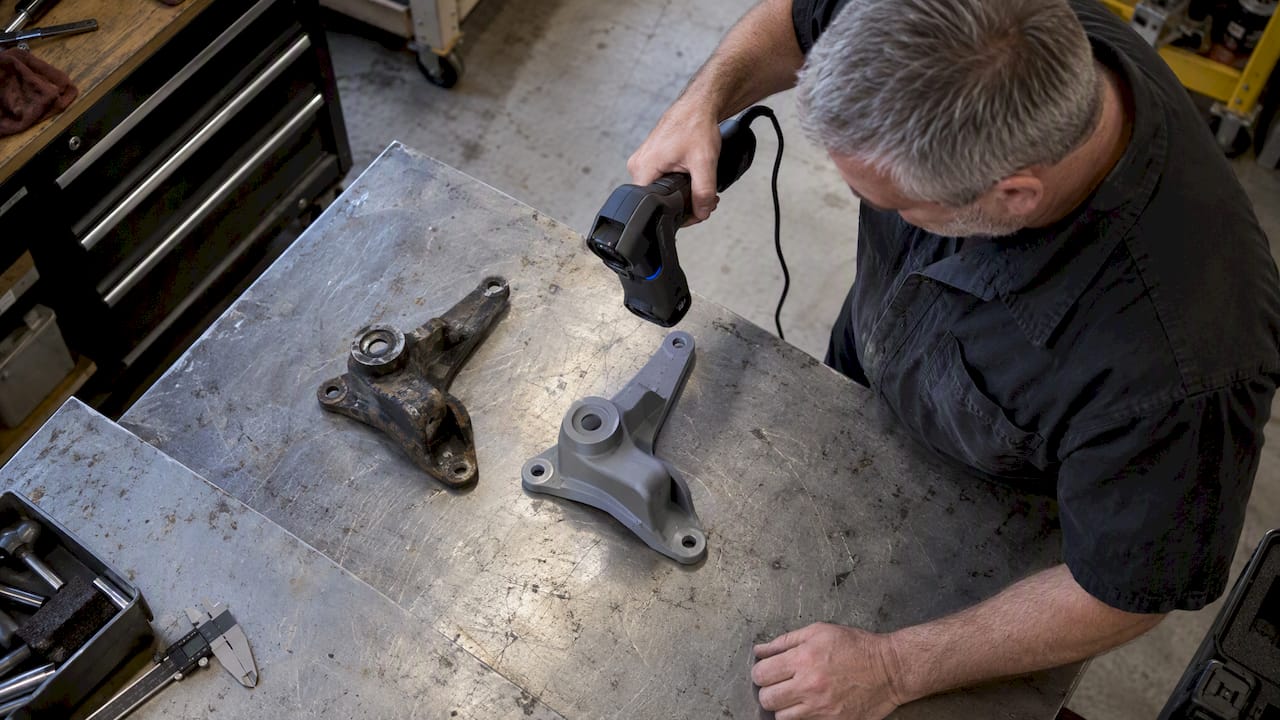
For automotive shops and restorers, scanning the original and then scanning the reproduction closes the loop. You see whether the new part matches the old one at the mounting points and mating surfaces. A compatibility mindset helps here too: a parts supplier’s compatibility checklist for heavy truck components is a reminder that confirming fit before installation saves rework, and a deviation map is a direct way to confirm it.

Handheld scan compares original and reproduced brackets

Batch consistency in small-run production

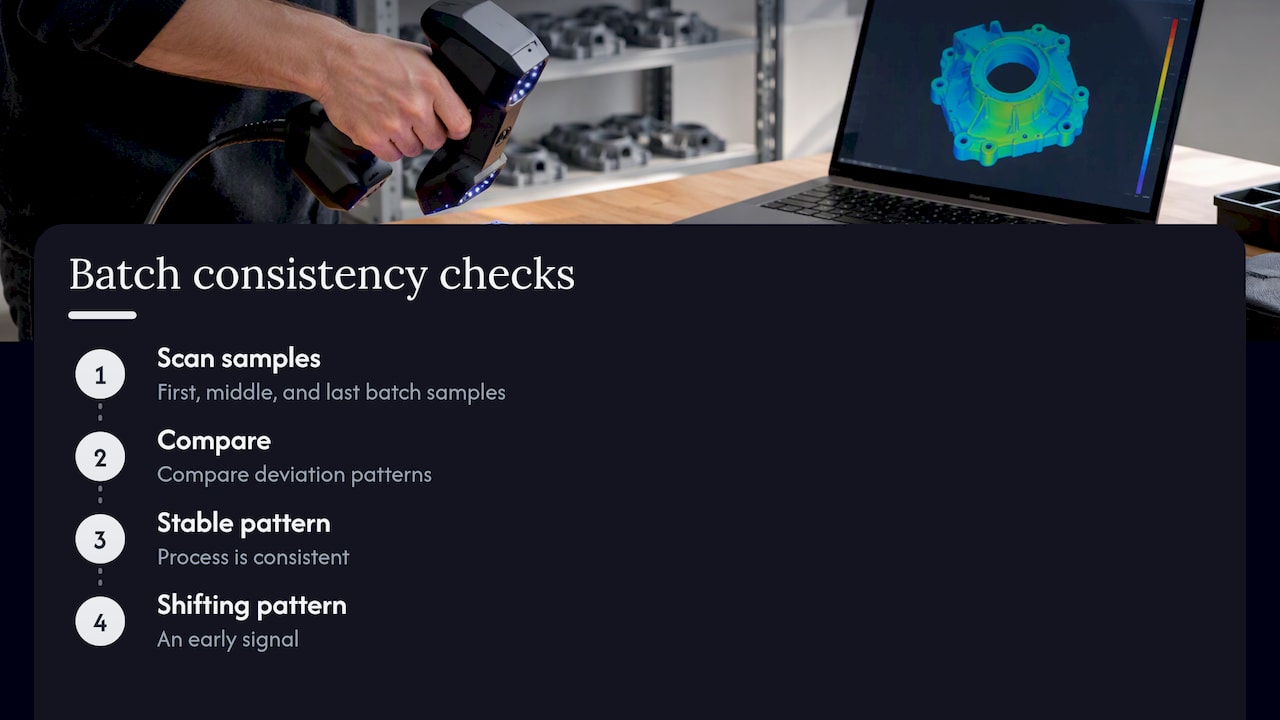
For low-volume runs, scan a sample from the first, middle, and last of the batch, then compare. If the deviation pattern is stable, the process is consistent. If it moves, you have an early signal. Our notes on low-volume manufacturing with 3D printing go deeper on batch planning.

First middle last sample scans reveal deviation drift

Keeping the data trustworthy

Inspection data is a record. File naming, version control, and the link between a scan and a specific part revision all matter. We wrote about this in why 3D scan data integrity is crucial for manufacturing.

Our perspective: what we would tell a buyer before a scan

We run a production farm of Bambu Lab FDM printers and scan with professional handheld equipment, so we see both sides of inspection: making parts and measuring them. Our view is plain. Scanning is most valuable when the question is about shape, fit, and drift across a whole part, and least valuable when someone wants a single certified number on a tight bore.

That is why we describe our scanning as professional handheld 3D scanning with accuracy to ~0.1 mm and stop there. We do not claim certifications, and we do not present a scan as a substitute for a calibrated CMM report. What we can do is give you a clean, well-aligned deviation map, a cleaned mesh, or a CAD model built from the scan, along with a clear note of what was done to the data.

We also quote each job individually. Every production job starts with a test print of your actual model, and we do not publish fixed pricing or blanket turnaround promises, because part size, material, and finish requirements change the work. If a part is beyond what our equipment can honestly verify, we will say so before you spend money.

— Justin

Working with CC 3D Labs

If you need a part verified, reproduced, or modeled, our 3D Scanning Lab handles handheld scanning for reverse engineering, legacy and automotive part reproduction, and scan-to-CAD modeling. Our CAD modeling services turn the scan into an editable model, and our Custom 3D Printing covers prototypes, functional parts, and small batches in materials such as PLA, PETG, ABS, ASA, PC, and carbon-fiber nylon. We are based in Bucks County, PA, offer residential pickup for local customers (there is no walk-in storefront), and ship completed orders anywhere in the United States.

Frequently asked questions

Is 3D scanning accurate enough for dimensional inspection?

It depends on your tolerance. Professional handheld scanning with accuracy to ~0.1 mm suits many prototype, reproduction, and FDM part checks, where typical print tolerances are around ±0.2 to 0.5 mm. For tight-tolerance machined features, a CMM or dedicated gauge is the better choice.

Can a scan replace a CMM report?

Not in every case. A scan gives whole-surface deviation that a CMM cannot produce quickly, while a CMM gives higher accuracy on defined features. Many teams use both, with scanning for shape and fit and a CMM for the few critical dimensions.

What is scan cleanup, and does it change the inspection result?

Cleanup removes noise and stray points and closes small holes in the raw data. Done carefully it has little effect on measured deviation. Heavy smoothing or hole filling can hide or invent features, so the steps should be documented with the report.

How do I know the scan results are reliable?

Run a repeatability check on your own part: scan it several times, re-seat it each time, and compare the dimensions you care about. For critical features, a formal Gage R&R from the measurement system analysis approach described by ASQ is the standard way to judge the whole process.

Get a quote

To have a part scanned, request a quote at cc3dlabs.com/3d-scan-quote/. For printing, use cc3dlabs.com/3d-print-quote/, and for reverse-engineering CAD, cc3dlabs.com/3d-modeling-cad-quote/.

Sources