
TL;DR:
- Precise scanning requires proper equipment, environment, and preparation to avoid errors.
- Post-processing and environment control are critical for achieving accurate, printable 3D models.
- Expert support enhances consistency and quality in complex scan-to-print workflows.
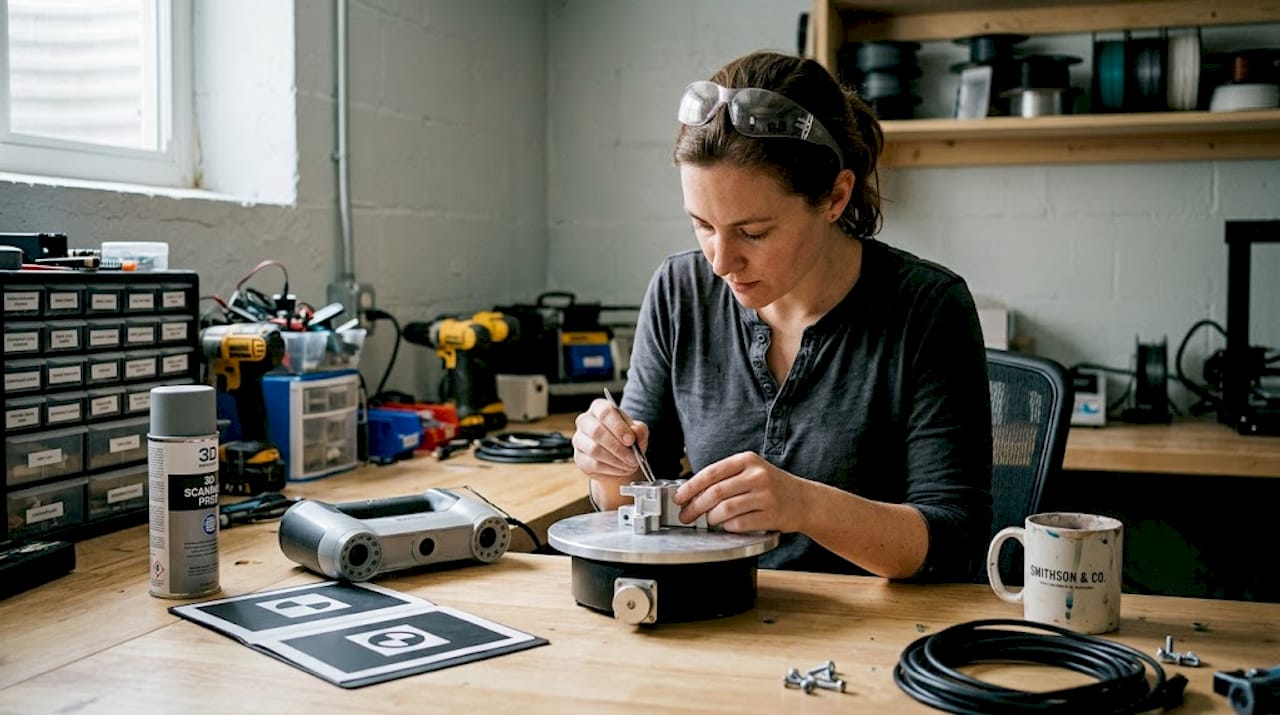
Imagine delivering a prototype to a client only to discover it fits 0.3 mm off because the original scan drifted during capture. That single error can mean scrapped parts, missed deadlines, and a project budget that spirals fast. For product developers and engineers working with physical references, the gap between a rough scan and a precise, print-ready model is where most time gets lost. This guide walks you through every stage of the scan-to-print workflow, from choosing the right scanner to fixing mesh errors before your file ever touches a printer, so you can stop guessing and start shipping accurate parts.
Table of Contents
- Essential equipment and prerequisites for 3D scanning
- Preparing objects and environment for accurate scans
- Step-by-step scanning process for optimal results
- Advanced techniques and troubleshooting challenging parts
- Post-processing: Converting scans to printable models
- Why real-world 3D scanning is more nuanced than the manuals say
- Achieve pro-level 3D scans with CC3DLabs expertise
- Frequently asked questions
Key Takeaways
| Point | Details |
|---|---|
| Choose the right scanner | Structured light and laser scanners deliver sub-0.1 mm precision for prototypes, while photogrammetry is suitable for large or textured parts. |
| Prep surfaces meticulously | Using matte spray on challenging materials boosts scan accuracy and reliability significantly. |
| Follow a structured workflow | Careful calibration, multi-angle coverage, and steady capture prevent tracking loss and ensure clean scan data. |
| Fix and convert mesh for printing | Cleaning, aligning, and exporting the mesh as watertight STL or converting to CAD solids is essential before 3D printing. |
Essential equipment and prerequisites for 3D scanning
Before you place a single object on a turntable, understanding your scanner options saves you from buying tools that don’t match your tolerance requirements.
Three primary methodologies cover the majority of professional use cases: structured light scanning, laser triangulation, and photogrammetry. Each one has a different cost profile, accuracy ceiling, and ideal application.
| Method | Typical accuracy | Best use case | Approx. cost range |
|---|---|---|---|
| Structured light | ±0.01 to ±0.05 mm | Small, high-detail parts | $5,000 to $50,000+ |
| Laser triangulation | ±0.04 to ±0.15 mm | Mid-size industrial parts | $3,000 to $30,000 |
| Photogrammetry | ±0.1 to ±1.0 mm | Large objects, low budget | $200 to $5,000 |
Industrial benchmark data confirms that portable handheld units and desktop scanners occupy very different accuracy tiers, and choosing between them depends entirely on your part size and tolerance spec.
Beyond the scanner itself, you need a short list of supporting tools:
- Matte scan spray or powder for reflective or dark surfaces
- Calibration targets or panels supplied by your scanner manufacturer
- Motorized turntable for consistent multi-angle desktop captures
- Compatible scan software such as VXelements, Artec Studio, or Meshlab
- Stable platform free from vibration (rubber-padded table or anti-vibration mat)
Workspace setup matters as much as hardware. Fluorescent overhead lighting creates inconsistent shadows, so diffuse LED panels or softboxes give you repeatable illumination. A high-quality scan process also demands that scanner software and your workstation GPU are matched, since processing dense point clouds in real time is computationally demanding.
Pro Tip: Always verify software compatibility before purchasing a scanner. Some units lock you into proprietary platforms that limit your export options later.
Preparing objects and environment for accurate scans
Once you have the right gear, precise preparation is critical. Skipping prep is the single most common reason engineers get misaligned or incomplete scan data.
Follow this preparation sequence before every scan session:
- Clean the part thoroughly. Dust, oils, and residue create false surface details that corrupt mesh geometry.
- Assess the surface finish. Shiny, dark, or featureless surfaces need treatment before scanning begins.
- Apply matte spray where needed. Matte spray is crucial for reflective, dark, or featureless objects because it diffuses light and adds trackable texture the scanner’s algorithms can lock onto.
- Place tracking markers. Adhesive dot markers help handheld scanners maintain registration across large or low-feature surfaces.
- Position the object at waist height. Awkward angles during scanning introduce operator-induced motion blur.
Environmental habits deserve equal attention. Avoid scanning near windows where sunlight shifts during a session. Direct sun introduces infrared interference that confuses structured light and laser sensors. Keep ambient temperature stable because thermal expansion on metal parts can introduce measurable dimensional drift over a long session.
Proper calibration and controlled lighting are non-negotiable for mitigating environmental variables that degrade scan quality. Run your calibration routine at the start of every session, not just at setup.
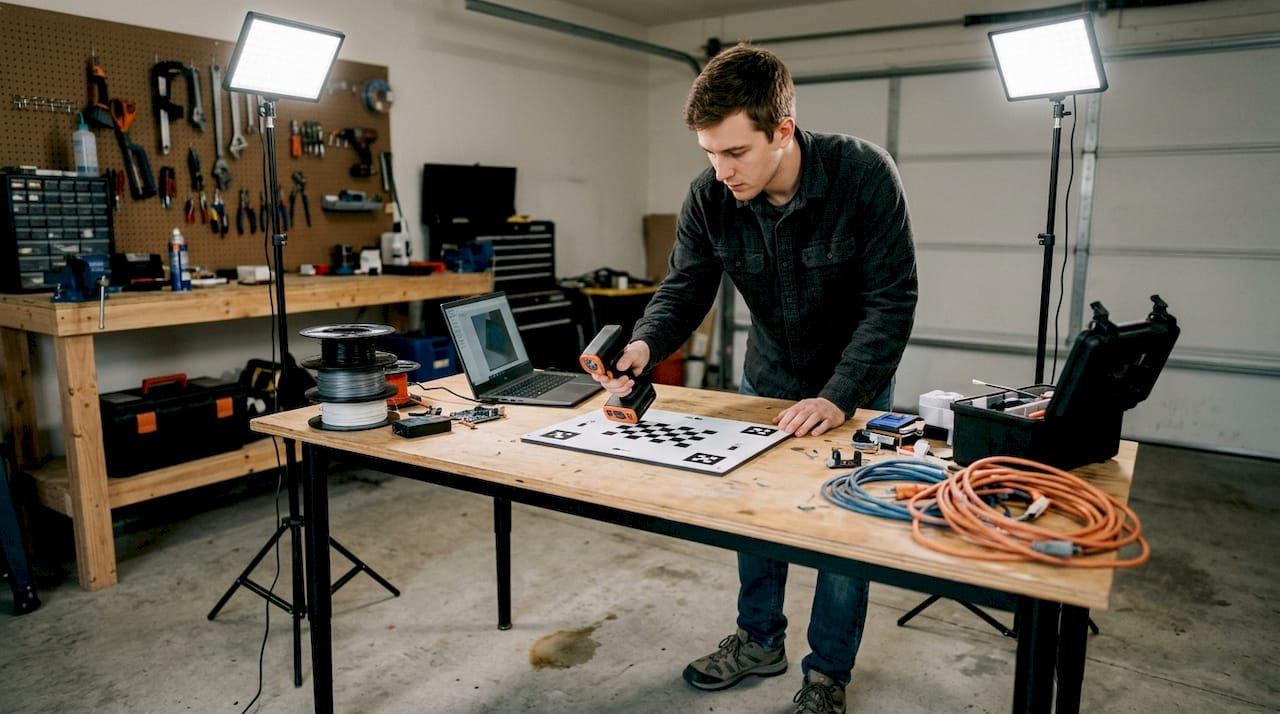
For especially challenging parts, follow a step-by-step scanning guide to walk through each environmental check systematically. You can also reference the 3D scanning checklist and the design accuracy and prototyping guide to build a repeatable pre-scan protocol for your team.
Pro Tip: Prepping challenging surfaces correctly can boost first-pass scan success rates by 80 to 90%, according to professional scanning technicians. That time investment pays back immediately by eliminating re-scans.
Step-by-step scanning process for optimal results
With the setup complete, let’s break down the end-to-end scanning workflow. Skipping steps here is how tracking errors and misaligned meshes happen.
- Run calibration. Use the manufacturer-supplied calibration target. Never skip this, even if the scanner was calibrated yesterday.
- Set scan resolution and mode. Choose your target resolution based on part size and feature complexity, not maximum settings.
- Begin with a reference pass. Capture the dominant geometry first before moving to tight features and recesses.
- Maintain 30 to 60% frame overlap. Scanning with frame overlap between passes is the foundation of accurate alignment and clean mesh fusion.
- Pan steadily at consistent speed. Rapid movements cause motion blur; slower passes give the scanner time to lock geometry.
- Perform multiple passes at different angles. Top, side, and underside passes together fill in occlusions that a single sweep misses.
- Review the point cloud in real time. Most modern scanners show live feedback; stop and re-scan if a zone looks sparse.
- Export the aligned scan. For direct 3D printing, STL is suitable for replica output; for parametric engineering edits, you need a CAD solid.
| Issue | Likely cause | Fix |
|---|---|---|
| Tracking loss | Too-fast movement or featureless surface | Slow down, add markers |
| Mesh holes | Occlusion from single-angle pass | Add underside and angled passes |
| Misalignment | Insufficient overlap | Increase to 50% frame overlap |
| Noise/artifacts | Reflective surface or ambient light | Apply matte spray, reduce ambient light |
For teams running production volume scans, the scanning lab overview shows how professional setups handle repeatable multi-pass workflows at scale.
Pro Tip: If tracking is lost mid-scan, return the scanner to the last well-registered zone and slowly re-establish lock before continuing. Trying to power through tracking loss creates permanent misalignment in that section.
Advanced techniques and troubleshooting challenging parts
Even with a good process, tricky surfaces can derail a scan. Certain materials and geometries require specific tactics, and knowing them in advance saves a full rescan.
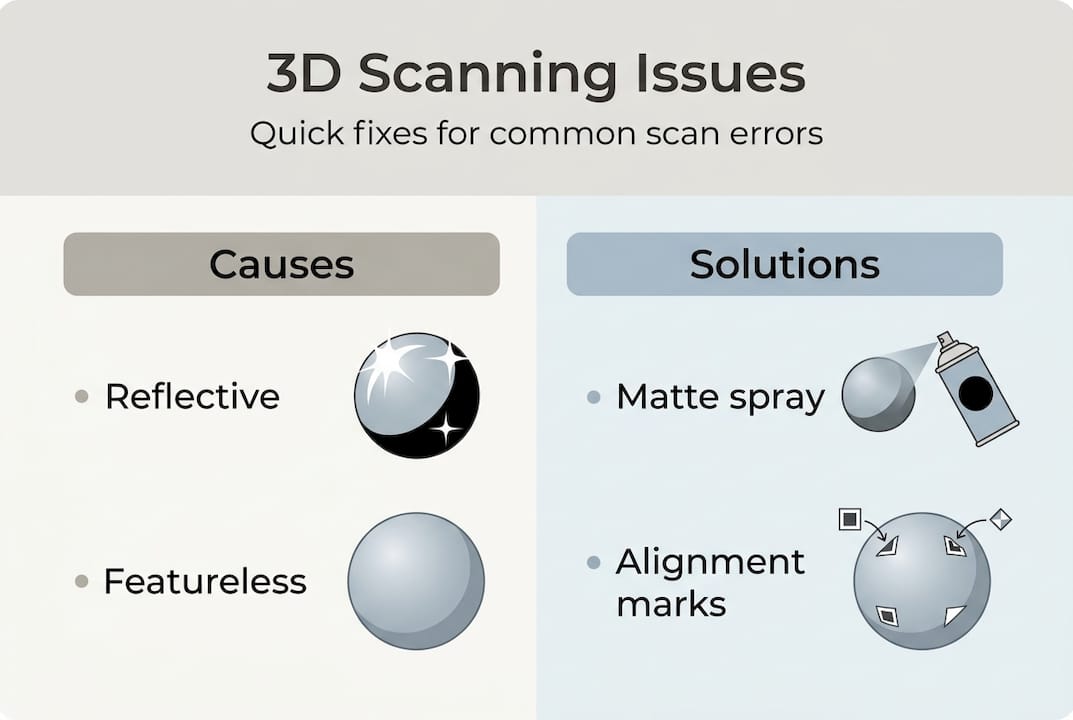
Reflective metals and chrome parts: Apply a thin, even coat of matte scan spray. The coating is removable and adds the texture contrast that laser and structured light sensors need to resolve geometry accurately.
Transparent or semi-transparent objects: Scan the part before final finish, or lightly scuff the surface with fine-grit media to create diffuse reflectance. Transparent surfaces return no usable data without treatment.
Dark or black parts: Different materials and surface finishes require matte spray, markers, or modified lighting to give the sensor something to track. Black absorbs near-infrared light, which is exactly what most scanners emit.
Complex internal geometry and deep recesses: You cannot capture blind holes or undercuts from a single orientation. Plan your scan order to capture recesses at oblique angles before surrounding geometry blocks access.
Tracking loss is the leading cause of scan failure. Pausing when lock degrades and overlapping back onto known geometry maintains registration far better than continuing through drift.
Failures from tracking loss are preventable with proper overlap habits. Always pause, re-establish your lock zone, then continue.
For a deeper look at how surface prep and environment interact, the achieve quality scan resource covers the full process. When your scan feeds directly into a product iteration, also review designing reliable prototypes to align your scan strategy with downstream print requirements.
Pro Tip: Always use matte spray in a well-ventilated area. Many scan sprays contain aerosol propellants and solvents that require ventilation and appropriate PPE.
Post-processing: Converting scans to printable models
Once you have scan data, refining it is crucial to get professional results. Raw point clouds are not print-ready files; they need cleaning, alignment, and export in the right format.
Here is the standard post-processing sequence:
- Import and align multiple scan passes. Use software like Meshlab or your scanner’s native platform to register scans to a common coordinate frame.
- Fuse passes into a unified mesh. Merging overlapping point clouds removes duplicate geometry and fills minor gaps.
- Run mesh repair. Identify and fix non-manifold edges, holes, and inverted normals that would cause print failures.
- Decimate intelligently. Reduce polygon count without losing critical feature detail, especially on flat surfaces where dense meshes waste file size without benefit.
- Export in the correct format. Choose STL or OBJ for direct printing; choose STEP or IGES when the file needs to go into a CAD environment for parametric editing.
The format choice is not cosmetic. Scan meshes must be converted to CAD solids for genuine engineering edits; direct STL prints work fine for replicas but offer no parametric flexibility.
A print-ready mesh should meet these criteria:
- Watertight: No open boundaries or holes in the surface
- No non-manifold edges: Every edge shared by exactly two faces
- Correct face normals: All faces pointing outward
- Appropriate polygon density: Balanced for file size and feature resolution
For teams that need CAD modeling services to take a scan mesh into a fully editable solid model, that process is distinct from basic STL cleanup. Review the CAD file format workflow to understand which format fits your specific pipeline before you commit to an export.
Why real-world 3D scanning is more nuanced than the manuals say
Every scanner manufacturer publishes impressive accuracy specs. What those specs rarely tell you is that they were measured under laboratory conditions that most production environments cannot replicate. Temperature fluctuations, vibration from nearby equipment, and even a vent blowing air across a part can push a scan from spec-grade to unusable.
The engineers who consistently get great results are not the ones with the most expensive scanners. They are the ones who treat environmental control as their first priority and accept that scanning is an iterative process, not a one-shot event. Hybrid approaches, where a scan establishes the base geometry and CAD modeling corrects critical tolerances, routinely outperform pure scan workflows on engineering parts.
The real-world scan accuracy insights we have gathered from actual production projects show that repeatability across sessions matters far more than peak accuracy on a single scan. A process that reliably delivers ±0.08 mm every time beats a workflow that occasionally hits ±0.03 mm but drifts unpredictably. Build a repeatable process first, then optimize for precision.
Achieve pro-level 3D scans with CC3DLabs expertise
For teams ready to streamline their scan-to-print process, expert support makes all the difference. Getting a clean, production-ready scan file consistently requires more than good equipment; it takes a calibrated workflow, trained operators, and post-processing discipline.
At CC3DLabs, our 3D scanning lab handles the full pipeline from physical object to print-ready or CAD-ready file, including metrology-grade scanning for precise reverse engineering. Whether you need a single prototype scan or batch part documentation, we deliver high-quality scan results with fast turnaround. Our CAD modeling and reverse engineering team can take your scan mesh and rebuild it as a fully editable solid model ready for engineering changes. Request a free estimate and let us handle the precision work.
Frequently asked questions
What is the best scanner for detailed small parts?
Structured light desktop scanners are typically the best choice for small, high-detail parts, delivering accuracy as fine as ±0.01 to ±0.05 mm. Their controlled projection patterns resolve tight features that handheld units can miss.
How do I scan shiny or transparent objects accurately?
Apply matte scan spray to diffuse the surface and use angled or dome lighting to reduce reflections. For transparent parts, scan before final finish or lightly scuff the surface to create diffuse reflectance.
Can I 3D print directly from scanned meshes?
Yes, if the mesh is watertight and error-free you can print directly. However, convert to a CAD solid when you need engineering edits or parametric design flexibility that STL cannot support.
What is the typical accuracy of handheld laser scanners for industrial parts?
Handheld laser scanners typically reach accuracy levels of ±0.04 to ±0.15 mm, which covers the majority of prototyping and spare part replacement needs without requiring a fixed desktop setup.