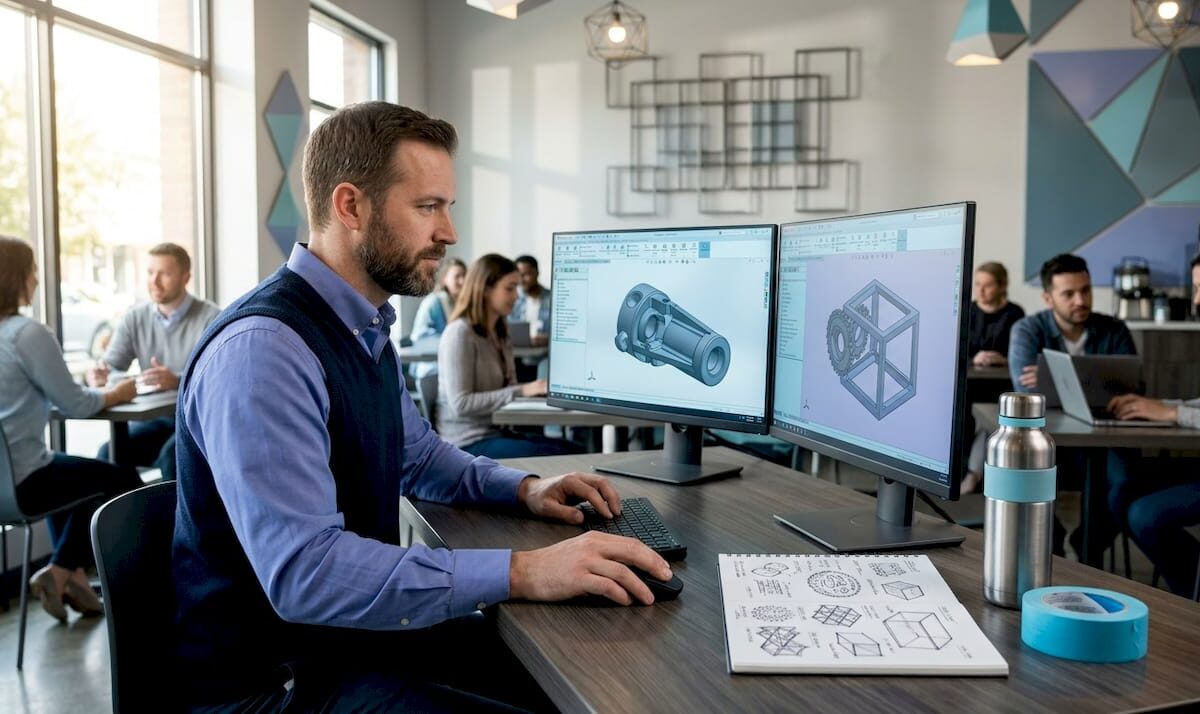
3D designer working on office CAD workstation

3D modeling process for businesses: a step-by-step guide


TL;DR:

  • Flawed 3D models incur high costs and delays when errors are discovered late in manufacturing. Implementing a structured workflow, including validation gates and proper file formats, ensures geometry integrity and reduces rework. An integrated PLM system connects design stages, enabling simultaneous processes and maintaining a single source of truth for efficient product development.

Flawed 3D models are expensive. A geometry error caught after parts are machined can set a product launch back weeks and cost thousands in rework. Yet most manufacturing businesses still treat the 3d modeling process for businesses as an informal, tool-by-tool activity with no standardized handoffs, no validation gates, and no version control. The result is predictable: duplicate revisions, miscommunication between design and manufacturing teams, and prototypes that fail on the first print run. This guide gives you a structured, stage-by-stage workflow to fix that.

Table of Contents

Understanding the 3D modeling workflow for manufacturing businesses

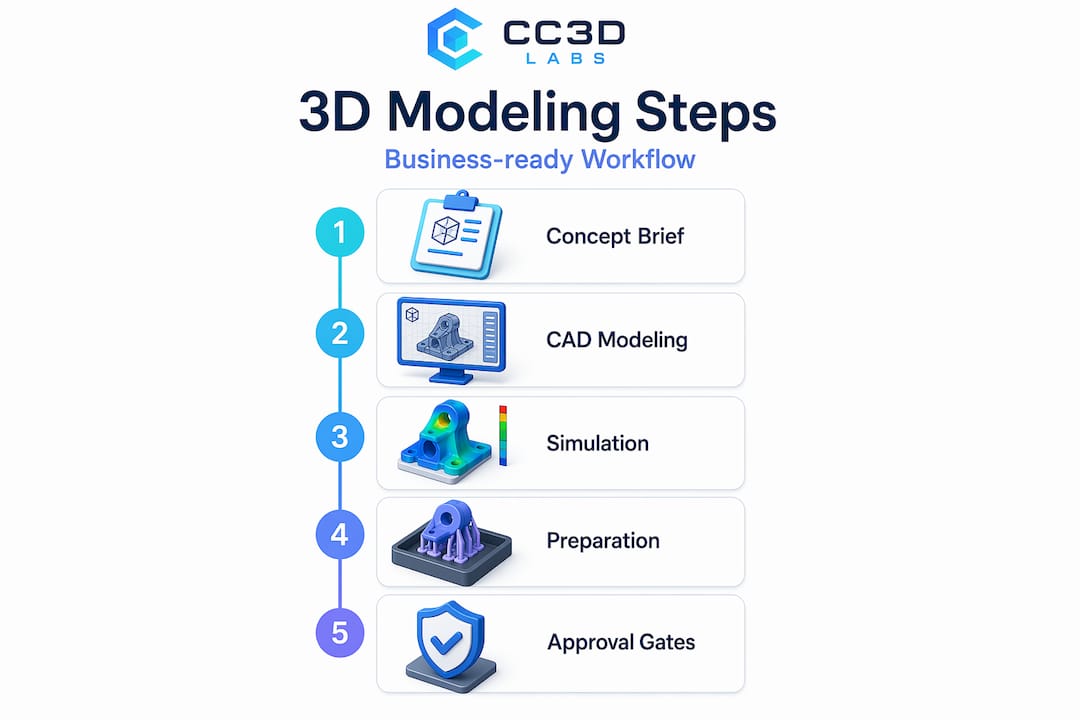
Every reliable product development cycle runs on a defined sequence of stages. The business-ready 3D modeling workflow follows this structure: Concept and brief, CAD geometry design, CAE (computer-aided engineering) simulation and validation, CAM (computer-aided manufacturing) planning, then manufacturing with ERP cost tracking. Product lifecycle management (PLM) sits above all of it as the system of record, connecting every tool and every team.

Without PLM as the connective layer, these stages operate in silos. A CAD designer updates a wall thickness. The CAE analyst runs stress simulations on the old version. The CAM programmer generates toolpaths from a model that no longer exists. That chain of disconnected handoffs is where most manufacturing delays originate.

The five core stages at a glance:

Stage Tool Primary output
Concept and brief Requirements docs, sketches Design intent and constraints
CAD geometry design SOLIDWORKS, Fusion 360, Creo Solid 3D model files
CAE validation ANSYS, Nastran, SimScale Simulation reports
CAM planning Mastercam, HSMWorks Toolpaths and G-code
Manufacturing and cost tracking ERP, PLM Production records and BOM

Infographic with 3D modeling workflow steps

Approval gates between each stage are not bureaucratic overhead. They are cost-control mechanisms. A model that fails CAE validation should never reach CAM programming. Enforcing that boundary through PLM approval workflows eliminates the most expensive class of rework: discovering structural problems after tooling has already been produced.

For businesses scaling toward production, reading a manufacturing-grade 3D printing guide alongside this workflow will clarify how design decisions upstream affect print quality and production yield downstream.

Preparing 3D models for manufacturing: ensuring geometry validity and quality

A valid workflow means nothing if the geometry inside your models is broken. Before any model reaches slicing software or a CNC controller, it must pass two geometric tests: it must be watertight and it must be manifold.

Engineer examining 3D printed part for issues

Watertight means the model has no holes or gaps in its surface. Think of it as a sealed container. If you filled it with water, nothing would leak. Manifold means every edge in the mesh is shared by exactly two faces and no more. These are not cosmetic requirements. A model that fails either condition causes slicer failures including missing layers or infinite calculation loops, because the slicing software cannot determine where the inside of the object begins and ends.

Non-manifold edges and open shells create ambiguous topology, which forces slicers into undefined states. The practical consequences range from incomplete prints to parts with internal voids that only reveal themselves under load testing.

Common geometry problems that cause manufacturing failures:

  • Open shells and gaps at seams between joined bodies
  • Non-manifold edges where three or more faces share one edge
  • Inverted surface normals pointing inward instead of outward
  • Self-intersecting faces that overlap within the mesh
  • Zero-thickness walls generated from Boolean subtractions
  • Duplicate faces at assembly join points

The best time to catch these issues is immediately after modeling, before texturing, rigging, or any downstream processing. Run automated mesh analysis using tools built into your CAD platform or dedicated repair software. Then manually inspect high-risk areas like Boolean unions, imported geometry from external sources, and complex joint intersections.

Pro Tip: Boolean operations (cutting one solid from another) are the single most common source of non-manifold geometry in mechanical CAD. After every Boolean, run a quick geometry check before moving forward. It takes 30 seconds and saves hours.

For a structured approach to validating 3D designs for manufacturing or guidance on designing reliable 3D prints from the ground up, those resources will take you deeper into the practical side of geometry quality.

Choosing the right CAD file formats for your 3D modeling process

Geometry validity matters. File format selection matters just as much, and most businesses get this wrong until a manufacturer sends their file back with a rejection notice.

The two formats you will encounter most often are STEP and STL. They are not interchangeable. STEP files carry full solid geometry and are the preferred format for CNC machining because CAM software needs parametric surface data to generate accurate toolpaths. STL files describe geometry as a mesh of triangles, which is exactly what 3D printing slicers need but is fundamentally incompatible with CNC workflows.

STEP vs. STL: when to use each

Property STEP STL
Geometry type Solid (B-rep) Triangle mesh
Best use case CNC machining, injection molding FDM, SLA, SLS 3D printing
Carries tolerances Yes No
CAM software support Universal Limited
File size Larger Compact

Export best practices to follow every time:

  1. Confirm your model is in the correct unit system (millimeters for most manufacturing) before exporting.
  2. Export individual parts rather than full assemblies unless the manufacturer has explicitly requested an assembly file.
  3. Set STEP export options to AP214 or AP242 for maximum compatibility with downstream CAM systems.
  4. For STL exports, increase the triangle resolution (chord height and angular deviation settings) to reduce faceting on curved surfaces.
  5. Open the exported file in a separate viewer to confirm it looks correct before sending it to a manufacturer.

Pro Tip: Always export a fresh STEP file directly from your finalized CAD model. Never send a STEP that was converted from an STL. That conversion path destroys solid geometry data and produces triangle-mesh pseudo-solids that most CAM software handles poorly.

Understanding the full landscape of CAD file formats for 3D printing is worth the time investment if your team is managing multiple manufacturing processes simultaneously.

Managing 3D model iterations and approvals with PDM workflows

Version control for 3D models is where most small and mid-size manufacturing teams fall behind. Emailing CAD files back and forth, saving versions as “final_v3_REAL_USE_THIS.sldprt,” and losing track of which drawing revision matches which physical prototype are all symptoms of a missing product data management (PDM) system.

SOLIDWORKS PDM tracks design file states, transitions between states, complete version histories, and access permissions. A typical PDM workflow assigns models to states like “In Work,” “Pending Approval,” and “Released.” Transitions between states (like “Submit for Approval” or “Request Change”) require explicit action and generate an audit trail. No one can accidentally overwrite a released drawing.

What a healthy PDM workflow gives your team:

  • A single source of truth for every file revision
  • Clear accountability for who approved which version and when
  • Automatic notifications when a file moves to a new state
  • Controlled access so machinists see only released drawings
  • Rollback capability if a new revision introduces problems

The efficiency gain from PDM is not just organizational. When a design change is made, PDM flags every file that references the modified part, preventing the scenario where a downstream assembly still references the old geometry. That kind of associativity awareness alone eliminates a significant category of rework.

Keep PDM workflows lean. Four to six states are usually enough for a manufacturing business. Overly complex workflows with a dozen transition rules create friction and encourage teams to work around the system entirely.

For a broader look at how file management fits into the 3D modeling workflow, that guide connects the dots between individual modeling decisions and team-wide processes.

Validating and troubleshooting your 3D models before manufacturing

Running geometry checks during modeling is good practice. Running a formal validation pass before releasing a file to manufacturing is non-negotiable.

Topology validation should function as a release gate, blocking files that fail manifold or watertight checks from reaching slicing or machining workflows. That is not an opinion. It is the only approach that prevents bad geometry from causing tool crashes, failed prints, or scrapped parts.

Recommended validation sequence:

  1. Import the model into a validation tool or use your CAD platform’s built-in diagnostics immediately after finalizing geometry.
  2. Run an automated mesh analysis to flag non-manifold edges, open shells, and self-intersections.
  3. Check surface normals. Inverted normals cause inside surfaces to read as outside surfaces in slicers.
  4. Inspect wall thickness across the entire model and compare against the minimum wall requirements for your chosen manufacturing process.
  5. If errors are detected, repair them in the source CAD file and re-export. Never patch errors only in the exported mesh.
  6. Run the validation sequence again after repair. One fix can expose adjacent problems.

Most common errors found at validation:

  • Non-manifold edges at Boolean operation seams
  • Open shells from imported geometry fragments
  • Inverted normals on mirrored bodies
  • Self-intersecting faces from lofts or sweeps with tight radii
  • Zero-thickness walls from coincident face pairs

Validation pipelines that automatically detect and attempt repairs prevent invalid geometry from ever reaching manufacturing. Investing in that automation, even in a simple form, pays for itself on the first avoided print failure.

“Skipping pre-manufacturing validation is the single most predictable cause of prototype delays. The geometry problems were always there. You just chose the most expensive moment to find them.”

For teams aiming for tight tolerances and repeatable results, the 3D print accuracy guide covers the downstream side of what validation protects.

Why integrated PLM workflows are the game-changer for 3D modeling efficiency

Here is what most articles on this topic avoid saying: the individual best practices covered above, geometry checks, file format selection, PDM workflows, only work reliably when they are connected by a system that enforces sequence and propagates change automatically.

The biggest efficiency struggle in 3D modeling is not bad geometry or wrong file formats. It is disconnected handoffs. A CAD team working in isolation from their CAE colleagues will generate structurally valid-looking models that fail simulation. A CAM team working from a stale STEP file will produce toolpaths for a geometry that no longer reflects the approved design. PLM eliminates both failure modes by ensuring every team works from the same design truth, and that every change to the master model propagates automatically to all downstream consumers.

The advantage most businesses miss is that PLM enables parallel workflows rather than sequential ones. CAE stress analysis and CAM toolpath generation can run simultaneously on the same approved model, cutting development time significantly. Sequential handoffs, where CAM waits for CAE to finish, double the schedule risk.

Associativity is the key word here. Every downstream artifact, simulation setup, toolpath, drawing, BOM line, must be associatively linked to the master CAD geometry. When the geometry changes, everything updates. When it does not update, you get what most teams call “mystery failures”: manufactured parts that do not match drawings that do not match the model everyone approved.

The businesses that see the most from 3D modeling investment are not the ones with the most powerful CAD software. They are the ones with disciplined, integrated workflows that treat geometry as a single source of truth rather than a file that gets emailed around. Adopting that mindset, even at the small business level, is what separates teams that prototype once from teams that prototype six times before getting it right.

For practical guidance on making this work at lower production volumes, the low-volume manufacturing tips resource covers how to scale these principles without enterprise-level tooling budgets.

Explore professional 3D modeling and printing services to accelerate your product development

When internal resources become a bottleneck, working with a professional 3D modeling and printing partner can close the gap between design intent and physical prototype faster than most teams expect.
https://cc3dlabs.com

CC 3D Labs, based near Philadelphia, provides 3D printing services and high-accuracy 3D scanning for design accuracy that integrate directly into manufacturing workflows. Whether your team needs a validated CAD model turned into a functional prototype, a batch of production parts, or scan data from an existing component to reverse engineer, CC 3D Labs delivers with fast turnaround and the geometry precision that manufacturing demands. Explore the full range of 3D printing prototypes and parts to see what is possible for your next product development cycle.

Frequently asked questions

What is the role of PLM in the 3D modeling process for businesses?

PLM integrates CAD, CAE, CAM, and ERP tools by managing design versions and approval gates, ensuring all teams work from the same updated models to prevent errors and costly rework. As the system of record above all tools, PLM enforces consistent design truth and controls when models move between workflow stages.

Why must 3D models be watertight and manifold before printing?

Watertight and manifold geometry ensures 3D printers can unambiguously define the object’s volume to generate correct toolpaths. Non-manifold edges cause slicers to fail by producing incorrect toolpaths or entering infinite processing loops.

Which CAD file format is best for CNC machining?

STEP files are the best choice for CNC machining because they contain full solid geometry and are widely supported by CAM systems. STL is mesh-based and suited for 3D printing only, making it incompatible with accurate CNC toolpath generation.

How do PDM workflows improve 3D model management in teams?

PDM systems manage design file states, track versions, and control access with clear workflows like “Submit for Approval” and “Request Change,” reducing confusion and ensuring design integrity. SOLIDWORKS PDM tracks file states and transitions, giving teams a reliable audit trail for every revision.

What are common issues caught during 3D model validation before manufacturing?

Validation detects non-manifold edges, open shells, inverted normals, and self-intersections, all of which cause failures in slicing, machining, or assembly simulations if not fixed early. Validation pipelines catch topology issues automatically, preventing invalid geometry from reaching manufacturing and triggering costly downstream failures.
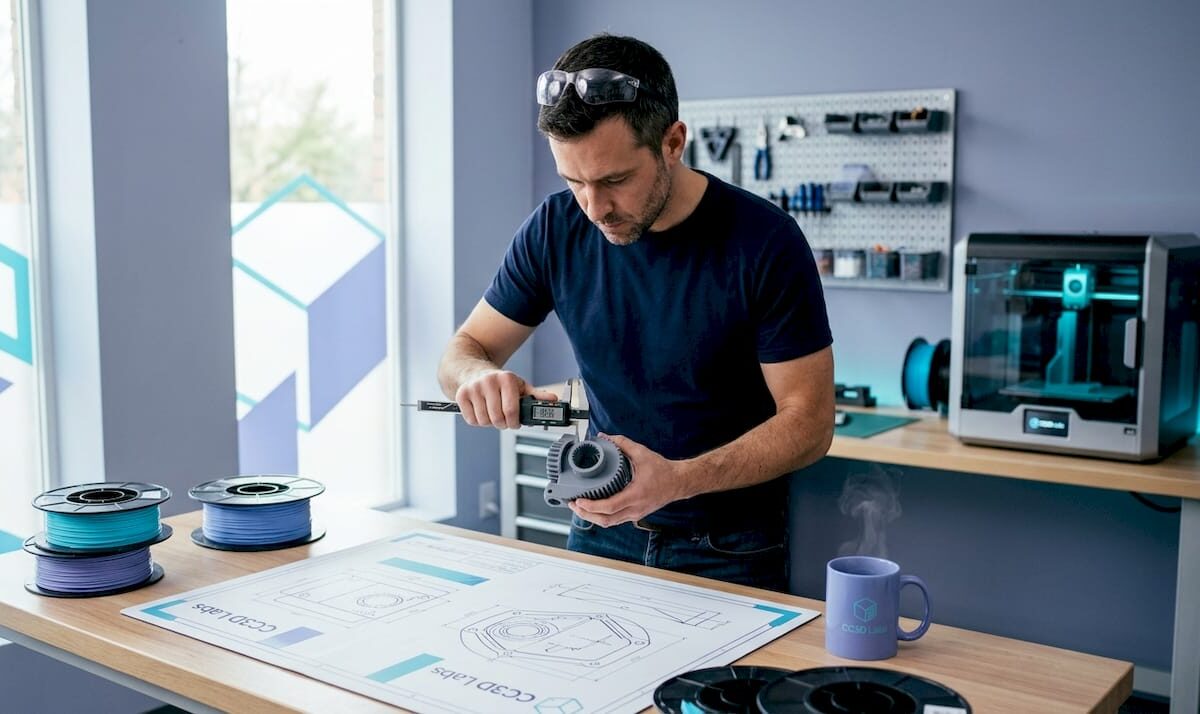

Engineer measuring freshly 3D printed part

What are tolerances in 3D printing: an engineer’s guide


TL;DR:

  • Understanding and applying proper tolerances in 3D printing are essential for functional, accurately fitting parts, as printer technology, part size, and orientation significantly influence achievable precision.
  • Designers must consider tolerance as a key early input, choosing appropriate clearance or interference fits, orienting critical features in the XY plane, and accounting for material behavior and shrinkage to ensure successful assembly.

If you have ever printed a part from a perfect CAD model only to find it won’t snap together, rotates when it should be fixed, or gaps where it should seal, you already understand why tolerances in 3D printing are not optional knowledge. Tolerance is the designed allowance for dimensional deviation in a part, and every functional component you print lives or dies by how well you understand and apply it. This guide gives you the practical framework to design parts that actually work when they come off the build plate.


Table of Contents

Key Takeaways

Point Details
Tolerance vs accuracy Tolerance is the allowed range of dimensional deviation; accuracy is how close a print is to the CAD model.
Technology choice matters Different 3D printing methods offer varying tolerance capabilities impacting final part precision.
Design influences outcome Part size, geometry, orientation, and material affect achievable tolerances and must be considered early.
Design for assembly Use intentional clearances tailored to fit types and printing technology for functional parts.
Verify and measure Assess vendor specs for bias and precision, and validate prints to ensure tolerances are met.

Understanding tolerances in 3D printing: accuracy, precision, and what actually matters

These three terms get used interchangeably in shop conversations, and that confusion causes real problems at the design stage. Tolerance is the range of acceptable deviation designed into the part; accuracy measures how close the printed dimension is to your CAD model; and precision measures whether the printer reproduces that same dimension reliably across multiple prints.

Here is why the distinction matters in practice:

  • Tolerance is a design decision. You set it in your CAD file based on what the part needs to do.
  • Accuracy is a machine and process characteristic. A printer might consistently produce parts 0.2 mm undersize, which is a bias, not a random error.
  • Precision is about repeatability. A precise printer gives you the same result every run, even if that result drifts slightly from nominal.

A printer can be precise but not accurate (it produces the same wrong dimension every time), or accurate on average but imprecise (results scatter around the target). For functional parts, you need both, and your tolerance band must be wide enough to accommodate whichever combination of bias and scatter your process exhibits.

For a broader orientation to how these concepts fit into the vocabulary of additive manufacturing, the 3D printing terminology explained resource at CC 3D Labs is worth bookmarking before you go further into process selection.


How different 3D printing technologies impact tolerance capabilities

Technology choice is your single biggest lever for dimensional control. The typical tolerance ranges vary significantly by process, as shown in the table below.

Technology Typical tolerance Minimum tolerance
Carbon DLS ±0.1% ±0.1 mm
Polyjet ±0.1 mm (first 10-20 mm) +±0.05 mm per additional mm
DMLS ±0.2% ±0.1 to 0.2 mm
MJF ±0.3% ±0.2 mm
SLS ±0.3% ±0.3 mm
SLA ±0.5% ±0.2 mm
FDM ±0.5% ±0.5 mm

A few things that table does not make obvious on its own:

  • Percentage-based tolerances scale with part size. An MJF part at 200 mm carries ±0.6 mm of tolerance just from the percentage component, regardless of minimum value. For large structural components, that adds up fast.
  • SLA trades resolution for material limitations. SLA can hold ±0.2 mm on small features beautifully, but photopolymers are sensitive to UV exposure after printing, which can cause post-cure dimensional drift if you are not controlling the process.
  • FDM’s ±0.5 mm floor is non-negotiable for most off-the-shelf machines. You can improve on it with process control and calibration, but designing FDM parts that require ±0.1 mm without post-processing is setting yourself up for failure.
  • DMLS and Carbon DLS are the precision leaders, but they require capital investment or premium service pricing that only makes sense when the application demands it.

Pro Tip: Make the technology decision before you finalize your CAD geometry, not after. Designing for SLA and then switching to FDM to cut cost almost always means a complete tolerance review of every mating feature.

If you are evaluating whether your project qualifies for tighter process control, the manufacturing-grade 3D printing guide at CC 3D Labs covers where the bar sits for production-intent parts.


Key factors influencing tolerances: size, orientation, and material behavior

Machine specs tell you the best-case scenario. Real parts live in a messier world where tolerances depend on part size, material, and geometry, and larger parts shrink more, warp differently, and require active compensation in your process.

Here is what to account for in your design and build planning:

  • Part size and shrinkage. Polymers contract as they cool. A 10 mm feature might land within ±0.1 mm. That same shrinkage rate applied to a 150 mm span produces an error that can easily exceed your tolerance band without scaling compensation in the slicer or at the printer.
  • Build orientation. This is one of the most underused variables in tolerance management. Orienting a mating surface parallel to the XY build plane can deliver up to 2x better dimensional accuracy than running that same surface vertically. The XY tolerances typically outperform Z tolerances across every major printing technology, and features under 25 mm achieve the tightest specs when kept within the XY plane.
  • Z-axis limitation. Layer height directly sets a floor on Z precision. A 0.2 mm layer height means you cannot meaningfully hold a Z dimension to tighter than that layer value, regardless of what the machine spec sheet says.
  • Material selection. Glass-filled PA12 (polyamide with glass fiber reinforcement) dramatically reduces the tolerance spread compared to standard nylon because it resists shrinkage anisotropy. Flexible TPU, by contrast, is nearly impossible to hold to tight tolerances because the material deforms under measurement pressure.
  • Environment and process parameters. Bed temperature, chamber temperature, cooling rate, and print speed all affect dimensional consistency. In a production context, these variables should be locked and documented, not adjusted run to run.

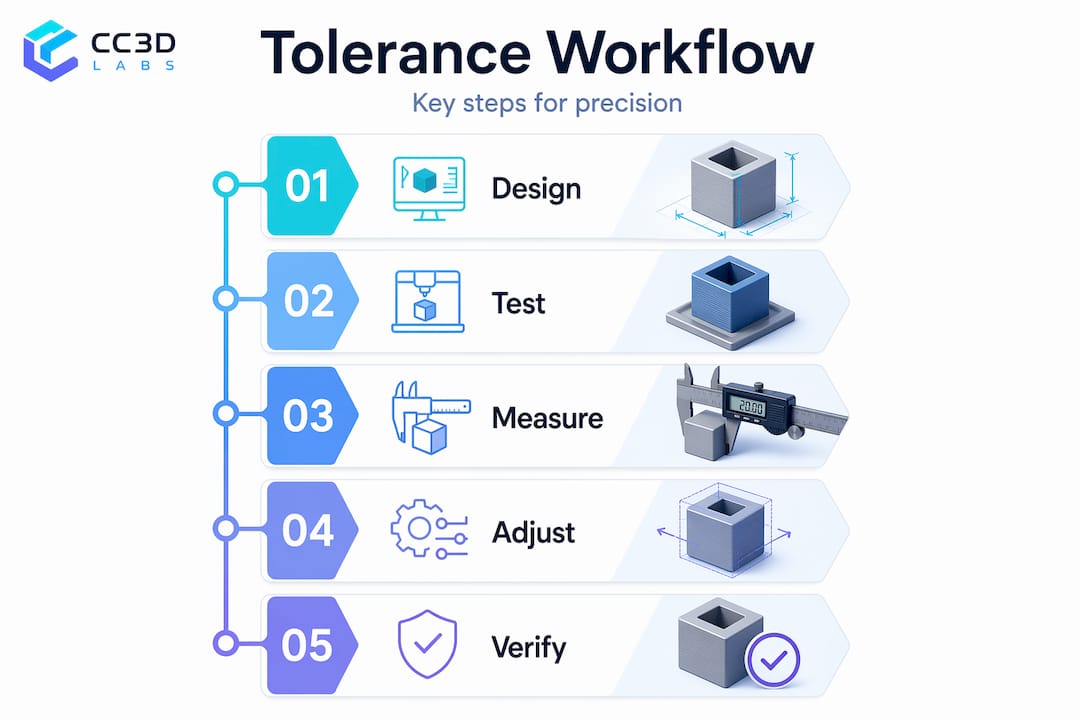
Pro Tip: Before committing to a full production run, print a set of test coupons that include your most critical mating features. Measure them with calipers or a CMM (coordinate measuring machine, a device that precisely maps part geometry), then apply dimensional offsets in your CAD or slicer before scaling up.

For a practical breakdown of how these variables play out in real prototype design, designing reliable 3D prints is a strong next read.

Designer arranging colorful 3D printed test coupons


Designing for tolerances: best practices for precise 3D printed assemblies

Good tolerance design is not about chasing the tightest possible number. It is about matching your clearance strategy to the job the assembly needs to do. For FDM assemblies, design mating features with conservative ±0.3 mm tolerance; SLA features under 25 mm can achieve ±0.1 mm. Choose clearances based on fit type.

Here is a step-by-step approach to build tolerance intent into your design from day one:

  1. Classify each interface by fit type. Clearance fits (parts slide or rotate freely), transition fits (either slight clearance or slight interference), and interference fits (parts press together permanently) each require different gap values in your CAD model.
  2. Apply fit-specific clearances in CAD. For a sliding clearance fit in FDM, start with 0.3 mm per side. For a transition fit, try 0.1 mm. For a press fit in FDM, design for 0.05 to 0.1 mm interference and expect to test, because thermal and material properties vary.
  3. Orient critical surfaces in XY. The face that needs to mate, seal, or bear load should be parallel to the build plate wherever possible. This is the single cheapest accuracy improvement available.
  4. Design clearances in CAD to allow for shrinkage and warp, especially for large enclosed geometries. Slicer-level scaling can compensate for consistent shrinkage, but warping requires design changes like adding gussets or reducing flat, unsupported spans.
  5. Plan for post-processing on tight features. Any hole or bore that needs to hold better than ±0.1 mm is a candidate for drilling or reaming after printing, not relying on the printer alone. Bores printed to a nominal of 6.0 mm often measure 5.6 to 5.8 mm in FDM, which is a known, correctable bias if you plan for it.
  6. Document your tolerance intent in the drawing. Even for prototypes, marking which dimensions are critical prevents downstream confusion when a supplier or colleague reruns the file.

Pro Tip: If you are iterating quickly, use your slicer’s tolerance variable or scaling factor as a fast-tweak tool between test prints. You can dial in a consistent offset for your specific machine, material, and geometry combination without touching the master CAD file.

Additional guidance on making these decisions early in the design cycle is at print accuracy for prototyping and a broader collection of process pitfalls is covered in 3D printing challenges and pro tips.


Assessing and verifying 3D printing tolerances: from machine specs to quality assurance

Reading a vendor’s tolerance specification correctly is a skill most engineers never develop until a bad batch forces the lesson. Tolerance is a design property; machines have bias (a consistent directional error) and precision (the spread of results around that error). The two are independent, and both must fit inside your tolerance band before the process is capable.

Key points for evaluating process capability:

  • Bias alone does not disqualify a process. If a machine consistently prints 0.15 mm undersize, you can compensate by offsetting your CAD geometry. What you cannot easily compensate is high scatter.
  • Vendor specs often represent best-case geometry. A quoted ±0.2 mm spec may come from a small, simple, centrally located test artifact, not from your large, complex, corner-of-the-build-plate production part.
  • Zone or quadrant data matters. Ask suppliers for dimensional accuracy data from different areas of the build volume. Edges and corners of a build plate frequently show worse performance than the center.
  • Your tolerance band must be wider than the combined bias plus spread. If your design tolerance is ±0.3 mm and the process has a 0.1 mm bias and a ±0.25 mm scatter, you are operating with essentially zero margin.
Metric What it means Practical implication
Bias Consistent directional offset Compensate in CAD scaling
Precision (spread) Variability run to run Sets minimum feasible tolerance
Acceptance criteria Tolerance band from drawing Must exceed bias + spread
Cpk (process capability) Ratio of tolerance to process variation Target Cpk above 1.33 for production

Sampling and measurement are non-negotiable for anything moving toward production. Measuring every tenth part with calipers at minimum, and using a CMM or ensuring 3D print accuracy protocols for tighter-spec work, gives you the feedback loop needed to catch drift before it becomes a scrapped batch.

Infographic outlining 3D printing tolerance workflow steps


The tolerance conversation nobody has early enough

Here is something that does not appear in machine spec sheets: most dimensional problems in 3D printed assemblies are not printing problems. They are design problems that printing makes visible.

When a part does not fit, the instinct is to blame the printer. But in most cases we see, the designer never actually defined what the tolerance needed to be. They assumed the printer would handle it, the same way you might assume a contractor knows to leave room for drywall before framing a doorway. Printing does not assume. It builds exactly what you give it, within the spread the process allows.

The engineers who get the best results from additive manufacturing are the ones who treat tolerance as a design input, not a post-print concern. They decide early whether a feature needs a clearance fit or a press fit. They orient parts before slicing, not after getting poor results. They run test coupons the way a machinist cuts a test bar before touching the production stock.

Our experience working with product developers across industries around Philadelphia has shown that a single tolerance review session before the first print can eliminate two or three revision cycles. That is not a minor efficiency. On a compressed development schedule, two revision cycles can be the difference between hitting a launch window and missing it.

Treat tolerances the way you treat material selection: decide early, document clearly, and verify before you scale.


Precise 3D printing services at CC 3D Labs

Understanding tolerances is only half the equation. The other half is working with a printing partner who can actually hold them.

https://cc3dlabs.com

At CC 3D Labs near Philadelphia, we work directly with product developers and engineers on prototype and production parts where dimensional accuracy is not negotiable. We bring process expertise, not just machines, to every order. Whether you need tight-tolerance functional components, multi-material assemblies, or design support before your first print, we can help you get from CAD to a part that fits. Request a free online estimate or reach out to discuss your tolerance requirements directly with our team at cc3dlabs.com.


Frequently asked questions

What tolerance can I expect from standard FDM 3D printing?

FDM tolerances are approximately ±0.5% or ±0.5 mm minimum, with XY dimensions holding tighter than Z due to layer height limitations. In practice, well-calibrated FDM machines with consistent process control can achieve ±0.3 mm on small features.

How should I design fits for 3D printed parts to assemble properly?

Design intentional clearances based on fit type: clearance fits use roughly 0.3 mm gap per side, transition fits around 0.1 mm, and interference fits require a small intentional overlap with careful material and shrinkage consideration, especially in FDM where bore dimensions often print smaller than nominal.

Why are XY tolerances generally better than Z in 3D printing?

The XY axes benefit from continuous motion and higher mechanical resolution, while Z precision is bounded by the discrete layer height, meaning a 0.2 mm layer cannot meaningfully resolve finer Z increments regardless of the printer’s other specs.

Can tight tolerances be achieved with post-processing?

Yes. Features requiring tolerances tighter than ±0.05 mm often need CNC machining or reaming after printing. A common approach is to print with 0.3 to 0.5 mm of extra stock on critical surfaces, then machine to final dimension.

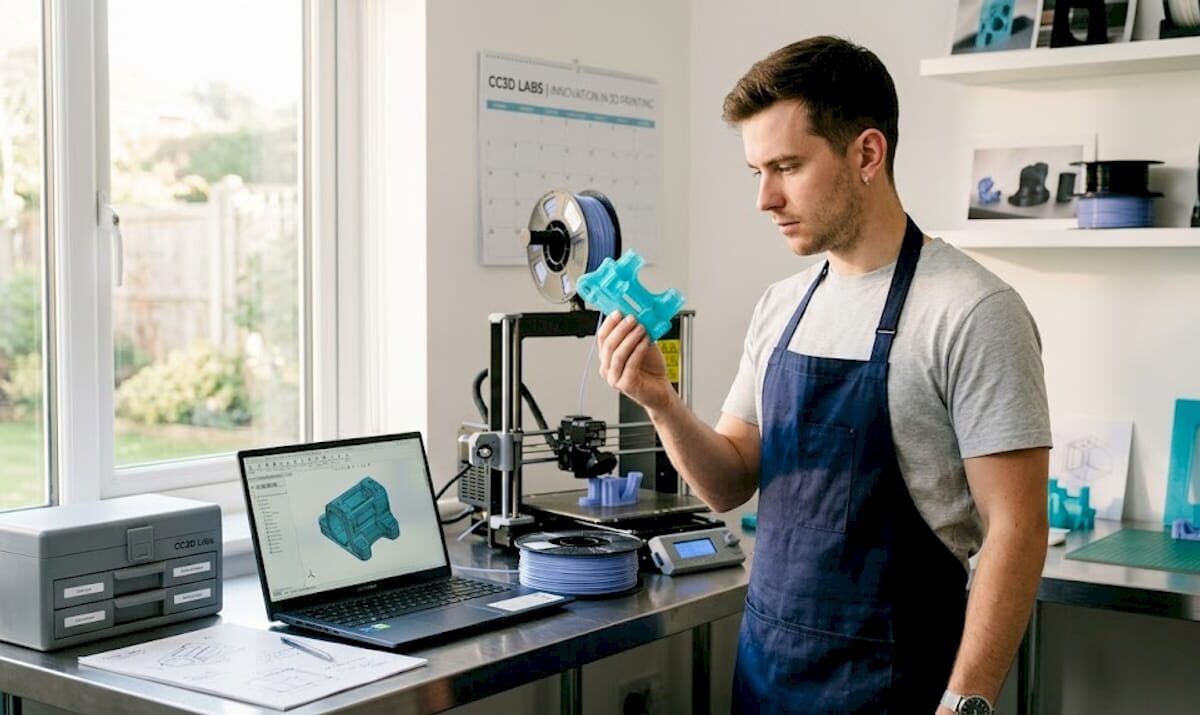
Engineer inspecting 3D printed part in home workspace

3D print infill explained: Strength, patterns, and efficiency


TL;DR:

  • Most engineers wrongly believe that filling 3D prints at 80% or 100% infill yields the strongest parts, but higher densities often lead to material waste without proportional strength gains. Structural integrity depends more on shell design and perimeter walls than infill density, with optimal performance usually achieved at 20-40% infill for most applications. Selecting appropriate patterns like gyroid and fine-tuning layer overlap and bonding are crucial for producing durable, cost-effective parts efficiently.

Most engineers assume that cranking infill density to 80% or 100% automatically produces the strongest possible 3D printed part. That’s one of the most persistent and costly misconceptions in additive manufacturing. The reality is more nuanced, and understanding it can save you material, time, and money while producing parts that actually perform better. This article covers what infill is, how density and pattern selection affect mechanical performance, and how to apply a practical workflow when printing functional prototypes or production components.

Table of Contents

Key Takeaways

Point Details
Infill basics Infill is the internal lattice structure that impacts strength, weight, material use, and print time.
Optimal density range Moderate densities (20–40%) typically deliver good strength-to-weight for prototypes and parts.
Wall thickness first Boosting perimeter walls often delivers more structural strength than increasing infill density alone.
Pattern selection matters Infill pattern choice affects mechanical properties and is based on part load requirements, not just aesthetics.
Iterative workflow Test and adjust infill settings, starting with pattern and shells, to optimize strength and efficiency for each project.

What is 3D print infill?

Before getting into optimization, you need a precise understanding of what infill actually does inside a part.

3D print infill is the internal lattice or pattern printed inside a part between the outer walls (perimeters) and any solid top and bottom layers. Think of it as the structural skeleton hidden beneath the surface of your printed part. Without infill, most parts would be hollow shells prone to crushing under any meaningful load. With too much infill, parts become unnecessarily heavy, expensive, and slow to print.

Infill density is expressed as a percentage. A 0% infill means the inside is completely hollow. A 100% infill means the interior is completely solid plastic. Every value in between represents a partial fill of that internal volume using a repeating geometric pattern. Understanding reliable 3D print design starts with recognizing how these interior decisions interact with surface and shell settings.

Here’s what infill density directly affects:

  • Strength: Higher density adds resistance to compression and internal deformation
  • Weight: More fill material increases part mass
  • Material consumption: Higher density uses more filament per part
  • Print time: Denser infill requires more passes, which extends print duration

The critical insight here, backed by data, is that the relationship between infill density and part strength is not linear. A part at 60% infill is not twice as strong as one at 30%. You hit diminishing returns quickly as you push past moderate densities, which is exactly why the myth of “more is better” leads engineers to over-engineer their prints unnecessarily.

Infill density Typical use case Trade-offs
5-15% Display models, lightweight housings Minimal strength, fast print
20-40% Functional prototypes, general use Good strength-to-weight balance
50-70% Mechanical parts, stress-bearing components Higher material cost, longer print
80-100% High-load or solid structural parts Maximum material, often unnecessary

Key takeaway: For most engineering applications, infill in the 20% to 40% range gives you the best trade-off between structural performance, weight, and cost. Going higher rarely produces proportional gains.

Infill density vs. strength: Finding the optimal balance

Now that you understand infill basics, let’s tackle how density affects strength, and when raising density is and isn’t the right move.

Here’s something that surprises many product developers: the outer walls of a 3D printed part do more work for structural strength than the infill itself. The infill’s mechanical role is primarily to support bridging and top surface layers, and to add internal resistance to crushing or compression. But overall tensile and flexural strength is dominated by the outer shell, which means that adding more perimeter walls often gives you far more structural benefit per minute of print time than bumping up infill density.

This changes how experienced engineers approach print settings. Instead of defaulting to high infill, they first ask: how many perimeter walls am I running?

A practical workflow for maximizing strength without unnecessary material use:

  1. Start with wall count. Increase perimeter count from 2 to 3 or 4 before touching infill. Each additional wall loop adds measurable tensile resistance.
  2. Set infill in the 20-40% range. Densities in this zone consistently deliver solid functional performance for most prototypes and parts.
  3. Check top and bottom layer count. Solid horizontal layers protect against surface deformation and contribute to overall stiffness.
  4. Review wall-to-infill overlap settings. Poor bonding between the infill lattice and the surrounding walls creates gaps and delamination risk. Infill bonding settings and perimeter overlap percentages can be more impactful than raw density numbers.
  5. Only increase infill density if testing reveals internal crush or core failure. If the failure mode shows wall cracking or layer separation, infill won’t fix it anyway.

This is also where low-volume manufacturing tips become especially relevant. When you’re producing small batches of functional components, every percentage point of unnecessary infill multiplies across your entire run, adding cost and time with no functional return.

Setting Impact on strength Impact on cost
Add 1 perimeter wall High Low
Increase infill 10% Moderate (diminishing) Moderate
Add 2 top/bottom layers Moderate Low
Increase infill 20% Low at higher densities High

Pro Tip: If a part fails during load testing, look at failure location first. Failure at the walls points to perimeter settings. Failure at layer seams points to bonding and print temperature. Only failures in the core of the part suggest infill density is the culprit, and even then, pattern selection may help more than raw density increases. This approach also helps you cut printing costs by eliminating unnecessary material.

Selecting the right infill pattern

Once you’ve targeted density, let’s explore how the underlying pattern changes both mechanical and tribological (friction and wear) properties.

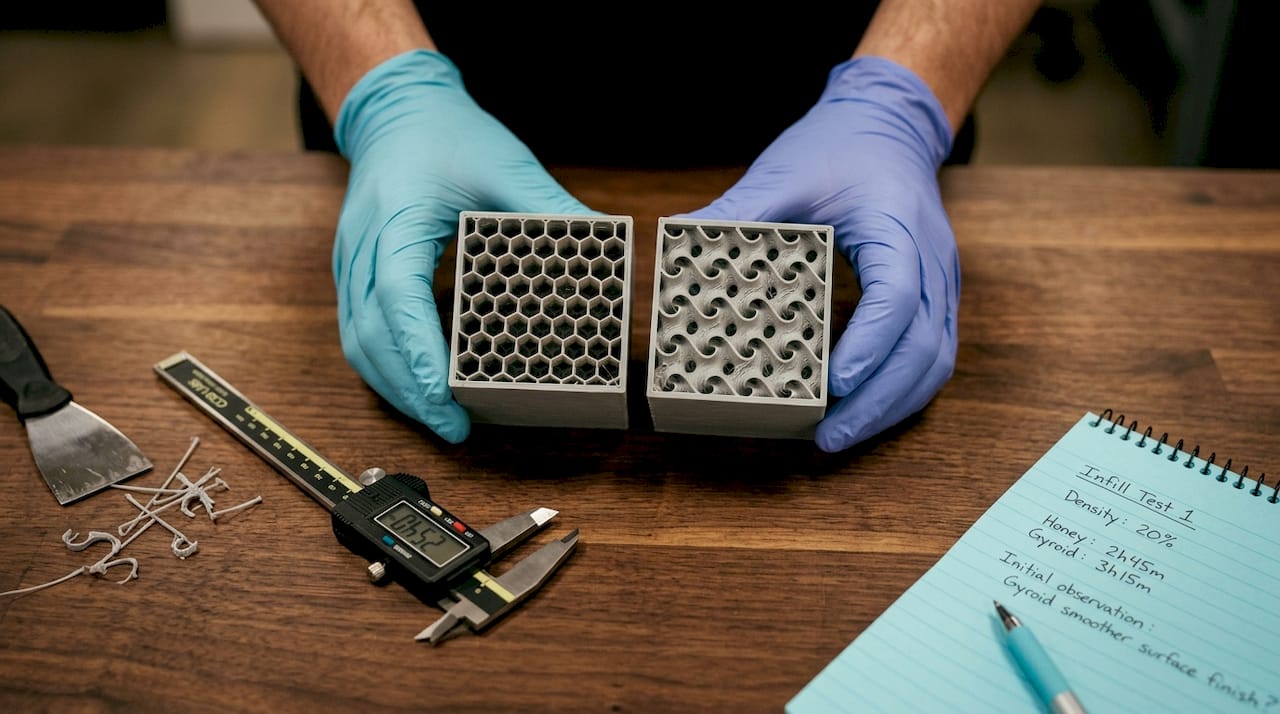
Hands displaying 3D print infill pattern samples

Infill pattern isn’t just a cosmetic setting. Common patterns like gyroid, grid, triangles, honeycomb, and cubic each have distinct mechanical characteristics based on how loads travel through their geometry. Choosing the wrong pattern for your application can leave performance on the table even at an appropriate density.

Here’s a breakdown of the most relevant patterns for engineering applications:

  • Gyroid: A continuous, three-dimensional curved surface that distributes load in multiple directions simultaneously. Near-isotropic, meaning it resists stress from any axis without a single weak direction. Best for parts under complex, unpredictable, or multi-directional loads.
  • Grid (rectilinear): Alternating lines in X and Y directions. Strong along both horizontal axes but weaker in diagonal shear. Fast to print and simple to tune.
  • Triangles: Triangulated geometry within each layer, distributing planar loads across three directions. More uniform in the XY plane than grid but still directional through the Z axis.
  • Honeycomb: Hexagonal cells inspired by natural structures. Excellent compressive strength perpendicular to the cell walls, making it ideal for parts that need to absorb crushing loads.
  • Cubic: Interlocking cubes that provide resistance in all three spatial axes. A practical choice when parts need to handle stress from multiple directions but gyroid would take too long to print.

The differences between these patterns aren’t just theoretical. Empirical testing published in peer-reviewed research shows that infill pattern and density together produce measurably different tensile strength, mass loss, and tribological performance outcomes. Pattern selection is a real engineering decision, not a stylistic one.

For an example of how complex geometries can be leveraged in manufacturing, consider how intricate structures like a complex infill pattern example demonstrate the range of internal geometry that’s possible with thoughtful design choices.

Pro Tip: Gyroid is the go-to pattern when you genuinely don’t know the exact loading direction of a part in service. It costs slightly more in print time than grid, but the near-isotropic performance eliminates a lot of guessing during printing challenge troubleshooting. For parts with clearly defined single-axis loads, triangles or grid often deliver equivalent performance at lower print time. Understanding your load direction is one of the highest-value inputs you can bring to creative applications for developers.

Practical infill selection: Workflow for prototypes and functional parts

With patterns and density understood, here’s how experienced engineers make practical infill decisions in the real manufacturing world.

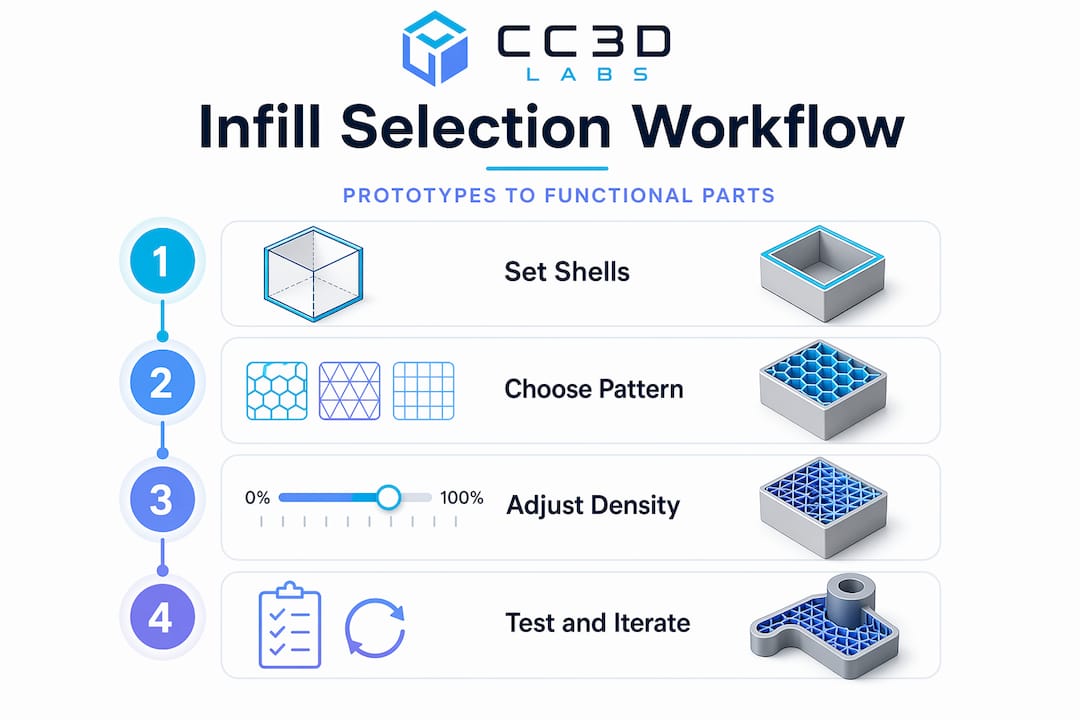
Infographic showing 3D print infill selection workflow

The biggest mistake product developers make is over-engineering print settings before they’ve tested a single prototype. Maxing out infill density on a first iteration wastes material, adds print time, and still doesn’t guarantee the part will survive its intended use. A structured, iterative approach produces better results faster.

Here is a repeatable workflow for selecting infill settings on functional parts and prototypes:

  1. Define the loading condition. Will the part experience compression, tension, torsion, or some combination? This determines which infill pattern makes sense before you touch any software settings.
  2. Choose the pattern first. Multi-directional or unknown loads: gyroid. Single-axis compression: honeycomb or cubic. Speed-critical batch parts with simple planar loads: grid or triangles.
  3. Set a moderate starting density. For functional parts, start with 20-30% infill and increase only if testing reveals core insufficiency. This range supports top layers effectively and handles most real-world loads without waste.
  4. Set wall count to at least 3 perimeters before printing the first test. Walls are your primary strength contributors and cost less per unit of strength than dense infill.
  5. Print and test mechanically. Apply load in the expected direction, either through a physical test rig or by reviewing deflection and failure mode by hand. Look at where the part fails.
  6. Diagnose before adjusting density. Wall failure: add perimeters. Layer separation: increase print temperature or slow down print speed. Surface deflection: add solid top and bottom layers. Core crush or internal buckling: increase infill density, then retest.
  7. Document your settings for each part type. Once a configuration passes functional testing, lock it in as a baseline for that application. This builds an internal library of proven settings over time.

You can find real-world applications of this approach in filament-based prototype examples that show how different structural decisions play out in practice.

Pro Tip: Use infill primarily for two jobs: supporting the top surface layers so they bridge cleanly without sagging, and providing enough core bulk to resist compression or crushing from assembly hardware like threaded inserts. If you’re using infill as the primary source of tensile or flexural strength, your wall count is probably too low.

Why optimal infill starts with smart shell design

After working through hundreds of functional part prints, the clearest pattern we’ve seen at CC 3D Labs is this: engineers who struggle with part failures almost always focus on infill density first. Engineers who produce consistently durable parts start with shell design.

The outer shell, the perimeter walls, the top and bottom solid layers, and the bonding between those shells and the infill lattice, that assembly is doing the majority of structural work in any filament-based print. Infill is the internal scaffold that holds the shell in shape and prevents collapse. Treating it as the primary strength mechanism leads to wasted material, longer print times, and parts that still fail because the underlying wall or bonding issue was never addressed.

We also see a specific failure mode that comes from insufficient wall-to-infill overlap. When the infill doesn’t bond fully to the perimeter walls, you get microscopic gaps at the junction. Under stress, those gaps become fracture initiation points. Adding more infill density doesn’t help because the structural discontinuity is at the interface, not in the core. Tuning overlap percentage and ensuring good layer adhesion through appropriate print temperature is a far more effective fix.

The other common pitfall is printing at 80% or 100% infill on every part “to be safe.” Beyond roughly 40-50% infill on most geometry types, you’re adding significant weight and print time for negligible mechanical return. This is particularly expensive when you’re running small batch production and those inefficiencies multiply across 20 or 50 parts. A well-designed production-grade guide approach means engineering the part once with the right settings, not compensating for design uncertainty with excess material.

The practical wisdom is simple: invest time in understanding your load conditions, set your shell correctly, pick the right pattern, start at moderate density, and test. That iterative approach will consistently outperform brute-force density in both performance and cost.

Enhance your prototypes with expert infill and 3D printing services

Knowing the theory is one step. Applying it to a real part under production constraints is another.

https://cc3dlabs.com

At CC 3D Labs, we work directly with engineers and product developers to translate these infill and shell design principles into reliable, tested parts. Whether you’re iterating on a prototype or moving toward batch runs, our team applies the same structured approach covered in this guide, starting with load conditions and working through pattern and density selection to deliver parts that perform. Explore our 3D printing services to see what’s possible, browse printable prototypes and parts for application ideas, or get deeper technical context in our filament prototyping guide. Free online estimates are available so you can see cost and feasibility before committing.

Frequently asked questions

Does infill density always increase part strength?

No. The strength-vs-density relationship is not linear and shows clear diminishing returns at higher densities. Wall thickness and wall-to-infill bonding typically have a greater impact on functional strength than raw density increases.

What’s the most common infill pattern used for prototypes?

Gyroid is widely used for prototypes because it provides near-isotropic strength, meaning it resists stress uniformly in multiple directions rather than favoring a single load axis, making it a reliable default when loading conditions aren’t fully defined.

How do I choose infill settings for a functional part?

Select a pattern matched to your expected load direction, then start with moderate densities in the 20-40% range. Test mechanically, identify the actual failure mode, and adjust only the setting that addresses it rather than defaulting to higher infill.

What happens if infill doesn’t bond well to the walls?

Weak wall-to-infill bonding produces gaps and delamination risk at the wall junction, which creates fracture initiation points under load. Proper overlap percentage and print temperature settings are essential for maintaining structural continuity between infill and perimeter walls.

Engineer reviewing 3D CAD model in office

Top ways to validate 3D designs for reliable manufacturing


TL;DR:

  • Sending a flawed design file to production can lead to costly rework, missed deadlines, and scrapped parts.
  • Thorough 3D design validation, including geometry checks and reliable simulations, is essential before manufacturing begins.

Sending a flawed design file to production is one of the most expensive mistakes a product developer can make. A single overlooked wall thickness issue, a misapplied boundary condition in your simulation, or an ignored build orientation effect can mean scrapped parts, missed deadlines, and rework costs that eat straight into your project budget. Thorough 3D design validation is not a luxury step you add when time allows. It is the structured process that stands between a confident manufacturing run and a costly surprise. This article breaks down the most reliable methods to validate your designs before a single layer is printed.

Table of Contents

Key Takeaways

Point Details
Check early in CAD Surface deviation and wall thickness checks in CAD catch errors before prototyping.
Validate simulations rigorously Use mesh convergence, realistic materials, and compare with tests to ensure credible results.
Consider AM process effects Allow for part orientation and build location, as they directly impact final part accuracy.
Compare validation methods Use a mix of geometry, simulation, and manufacturing-focused checks for best outcomes.
Physical measurement trumps theory Always confirm with real-world testing before committing to mass production.

Check essential geometry and manufacturability constraints

With validation’s value established, let’s start at the CAD level, the foundation for reliable prototypes and parts.

Most design failures originate in the CAD file, not on the production floor. When you export a model that has non-manifold geometry, tiny gaps in surface meshes, or features too small for your target process to resolve, you are essentially shipping a problem downstream and paying someone else to find it. The good news is that modern CAD platforms give you tools to catch these issues before they travel anywhere.

Geometry validation early means checking surface deviation from reference geometry, confirming minimum wall thickness, and identifying features that the manufacturing process physically cannot produce. This applies to both subtractive machining and additive processes, but the specific thresholds vary. For FDM printing, a wall thinner than one nozzle diameter simply will not print. For SLS, fine lattice features below roughly 0.8 mm may fuse or collapse depending on the material and machine.

Key manufacturability constraints to check before you finalize any design:

  • Minimum wall thickness: Confirm walls meet your process’s minimum. For most FDM machines using a 0.4 mm nozzle, the minimum is roughly 1.2 mm for structural walls.
  • Unsupported overhangs: Overhangs beyond 45 degrees in FDM need support material. Designing to reduce support dependency saves post-processing time and surface quality issues.
  • Sharp interior corners: Stress concentrates at sharp internal corners. Radius them to at least half the wall thickness for functional load-bearing parts.
  • Detail resolution: Features smaller than the process resolution will not reproduce accurately. Embossed text, snap features, and thread starts are common failure points.
  • Mesh integrity: Export your STL or 3MF file and run it through a mesh repair check. Holes, inverted normals, and non-manifold edges cause slice errors that silently degrade part quality.

If you are working on parts where dimensional precision matters, review our guide to designing reliable 3D prints before finalizing your CAD. And if measurement validation is part of your workflow, the 3D scanning checklist walks you through exactly what to capture from physical parts for comparison.

Pro Tip: Set up automated geometry health checks in your CAD environment or through a dedicated add-on. Running these checks every time you export a file takes less than a minute and catches issues that manual review misses during long sessions.

For teams pursuing manufacturing-grade 3D printing, geometry validation is not optional. It is the baseline that every downstream step depends on.

Apply rigorous simulation validation steps

Geometric checks are necessary, but design validation reaches a new level with reliable simulation. Here’s how to ensure your virtual results reflect real-world performance.

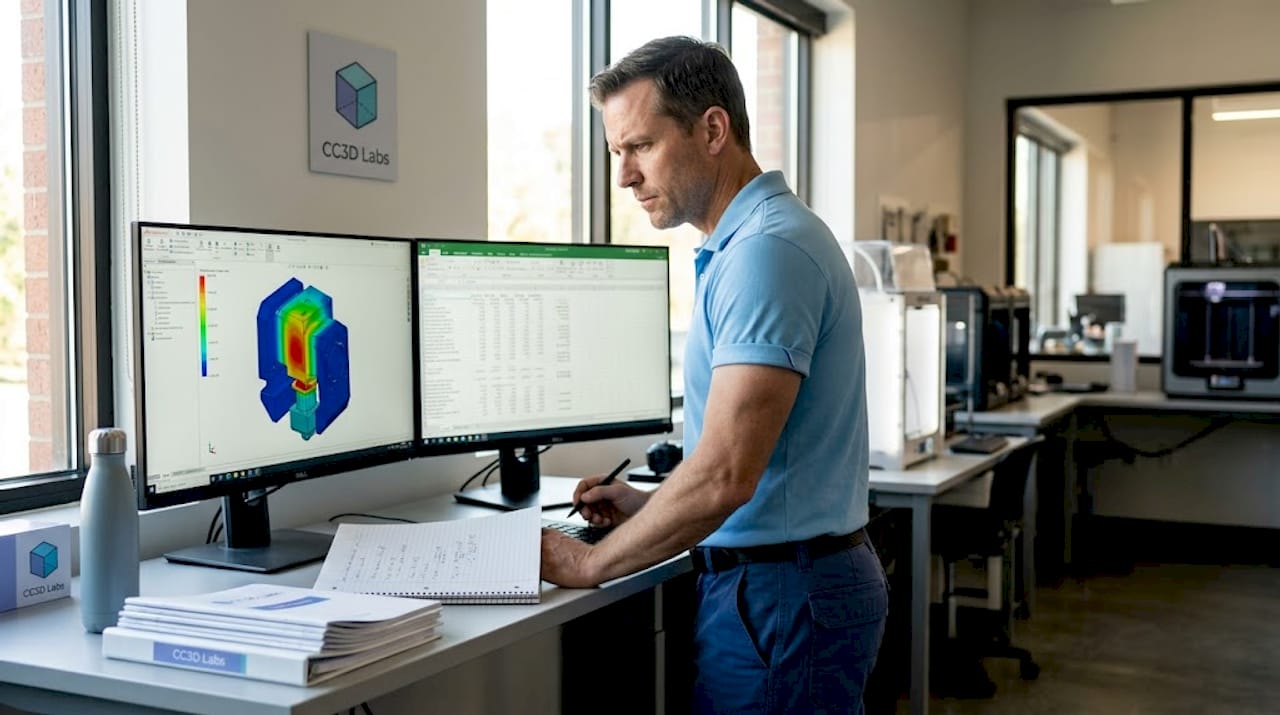
Technician reviewing simulation results for 3D part

Running a finite element analysis (FEA) or computational fluid dynamics (CFD) simulation is only useful if the results are trustworthy. Many development teams make the mistake of treating simulation output as ground truth without verifying that the model itself is credible. A simulation built on incorrect boundary conditions or an under-resolved mesh will give you precise numbers that are completely wrong.

FEA credibility steps include mesh convergence studies, sensitivity analysis, realistic boundary conditions, accurate material properties, and comparison with experimental or analytical data. Follow this numbered sequence for every critical simulation run:

  1. Define realistic boundary conditions. Model how the part is actually constrained and loaded in service. A fixed-wall assumption when the real mount allows slight rotation will overestimate stiffness by a significant margin.
  2. Assign accurate material properties. Use measured data for the specific material grade and print orientation you are targeting. Published datasheet values are starting points, not substitutes for validated material cards.
  3. Run a mesh convergence study. Refine the mesh in stages and track your key output (peak stress, deflection, etc.). When refining the mesh further changes results by less than 5%, you have reached convergence.
  4. Perform sensitivity analysis. Vary your key inputs by a realistic uncertainty range. If small changes in your material inputs swing the predicted stress dramatically, you need better material data before trusting the result.
  5. Compare to a benchmark. Where possible, validate at least one simulation case against a physical test, a hand calculation, or a well-documented analytical solution.

For CFD work, the validation logic is similar but the pre-flight checks differ. CFD boundary layer resolution requires verifying the correct flow regime through Reynolds and Mach number checks, applying consistent and physically realistic boundary conditions, and resolving the near-wall region with appropriate boundary layer meshing. Getting the y+ value wrong in a turbulent flow case can produce drag and heat transfer predictions that are far off from measured values.

“Simulation-to-reality confidence is earned, not assumed. Every result needs a credibility trail, and that trail starts with the inputs.”

Pro Tip: Before signing off on any design validation package, physically benchmark at least one simulation case. Print a test part, measure it, load it to failure or measure pressure drop, and compare to your model. One confirmed data point is worth far more than ten unverified simulation runs.

For a process-level view of how simulation fits into production prep, check our step-by-step 3D printing guide and our overview of simulation validation best practices tied to physical part measurement.

Account for additive manufacturing-specific accuracy factors

After simulation, consider how manufacturing realities introduce new sources of variation, especially in additive processes.

Here is something many engineers underestimate: a perfectly designed CAD file and a validated simulation do not guarantee dimensional accuracy in the final printed part. Additive manufacturing introduces process-specific variation that exists entirely outside of your digital model. Build orientation, thermal gradients during the print cycle, and where the part sits inside the build chamber all affect the dimensions you will measure on the finished part.

Research on PA12 SLS parts shows that build orientation and chamber position measurably affect dimensional outcomes in ways that nominal CAD dimensions cannot predict. Parts built vertically may exhibit different shrinkage behavior compared to parts built horizontally, and parts at the chamber periphery often differ from those at the center due to thermal variation during the sintering cycle.

Practical methods for measuring and compensating for these effects:

  • Print calibration test artifacts. Before committing to a full production run, print a calibration coupon that includes representative features from your design: bosses, holes, flat spans, and slots. Measure these with calipers or, for critical parts, a coordinate measuring machine (CMM) or 3D scanner.
  • Document orientation-dependent deviation. Keep a log of how your machine and material combination behaves at different orientations. This becomes a design correction database over time.
  • Apply dimensional compensation offsets. If your CAD hole is consistently undersized by 0.15 mm after printing, adjust the nominal dimension to compensate. This is standard practice in professional AM workflows.
  • Account for anisotropy in functional parts. Mechanical properties vary by build axis in FDM and SLS. A part loaded along the Z axis (layer stacking direction) will be weaker than one loaded in XY. Design and validate accordingly.
Feature type Build orientation effect Chamber position effect Typical deviation range
Circular holes Moderate (XY vs. Z) Low to moderate 0.05 to 0.25 mm
Flat spans Low Moderate (center vs. edge) 0.03 to 0.15 mm
Vertical walls High Low 0.10 to 0.30 mm
Thin features High Moderate 0.10 to 0.40 mm

For teams focused on ensuring 3D print accuracy, tracking these variables is not optional. It is the difference between parts that fit and parts that need rework. Our low-volume 3D printing tips cover how to integrate these checks into short-run production workflows without slowing your schedule.

Summary table: Comparing key 3D design validation methods

With the main validation methods explained, a side-by-side comparison clarifies which approaches to prioritize.

Validation method Speed Reliability Required tools Best project stage
Geometry and manufacturability checks Very fast High for CAD-level issues CAD software, mesh repair tools Early design, pre-export
FEA simulation Moderate High if properly credentialed FEA solver, material data Detailed design, pre-prototype
CFD simulation Slow to moderate High with correct setup CFD solver, meshing tools Detailed design, thermal/flow parts
AM-specific dimensional validation Moderate Very high for process accuracy Calipers, CMM, 3D scanner Pre-production, first article
Physical benchmark testing Slow Definitive Test equipment, prototype parts Final design sign-off

The key insight from this comparison is that no single method covers all failure modes. Geometry checks are fast but tell you nothing about structural performance. FEA tells you about stress but not about how your machine will place those features in real space. Physical benchmarking is the most reliable but the slowest and most expensive. The winning strategy is to use these methods in sequence, using each one to reduce the risk that reaches the next stage.

Perspective: Why real-world validation always beats theoretical checks

Here is the uncomfortable reality that experienced product engineers know but rarely put in writing: digital validation is a filter, not a guarantee. CAD geometry checks and even well-credentialed simulations operate on idealized models. They assume uniform material properties, perfectly constrained geometry, and conditions that match whatever you entered into the model. The physical world does not honor those assumptions.

We have seen parts pass every simulation check, print cleanly, and then fail in assembly because a surface finish tolerance was tighter than the process could consistently hold. We have seen FEA results predict deflection within 2% of measured values, and then watched the same design crack at a feature that the mesh resolution had quietly smoothed over. These are not rare edge cases. They are predictable consequences of relying too heavily on theoretical validation.

The teams that consistently avoid manufacturing surprises do something deliberate: they treat digital checks as risk reduction tools and physical testing as risk confirmation tools. They run geometry checks and simulation early because it is cheap to catch errors at that stage. But they never skip the physical benchmark, even when the simulation looks clean. That benchmark might be a single printed part measured with a 3D scanner, or a simple load test on a coupon. The point is to introduce real-world data before the design is locked.

“Every model is a simplification. The question is whether your simplification preserved the physics that matter.”

The hidden gap between theory and practice is widest in additive manufacturing because the process itself introduces so many uncontrolled variables: ambient temperature, humidity, batch variation in powder or filament, and cumulative machine wear. A design validated purely in CAD and simulation may perform perfectly in batch one and show drift in batch three. Integrating physical measurement into your validation loop, even periodically, catches this drift before it becomes a field problem.

Our perspective, built from working with product developers across industries, is this: invest in digital tools, use simulation rigorously, but never mistake sophistication for certainty. The guide to manufacturing-grade 3D printing we put together reflects this philosophy. Physical results close the loop that theory opens.

Get expert support for validating your 3D designs

Validation is most valuable when it combines structured digital checks with hands-on manufacturing experience. At CC 3D Labs, near Philadelphia, we work with product developers and engineers at every stage of the design-to-production cycle, from reviewing CAD files for printability to producing first-article parts for dimensional inspection.

https://cc3dlabs.com

Our 3D printing services include design review, rapid prototyping, and professional handheld 3D scanning (accuracy to ~0.1 mm) that supports real-world dimensional validation. If you need to move from a validated simulation to a physical part fast, our on-demand prototypes are produced with tight tolerances and full traceability. For teams working through material selection and process setup, the custom filament printing guide covers exactly what you need to know before your first production run. Reach out for a free estimate and let’s put your design through its paces before it reaches the production floor.

Frequently asked questions

What is the first step in validating a 3D design?

Start with geometry and manufacturability checks in your CAD software to identify surface deviations, thin walls, and feature resolution issues before prototyping. This is the fastest and cheapest place to catch errors.

Why is simulation validation important before physical prototyping?

Credible simulation, built with mesh convergence and realistic inputs, gives you confidence that your design will perform as intended and avoids rework costs from unexpected structural or thermal failures.

How can I improve the accuracy of 3D printed parts?

Build orientation and chamber position both influence final part dimensions in additive manufacturing, so accounting for these variables and applying measured compensation offsets produces more accurate outcomes.

What makes a simulation “credible” for design validation?

A credible simulation includes mesh convergence, sensitivity analysis, accurate material properties, and at least one comparison to experimental data or a verified analytical solution before it can be used for design sign-off.