
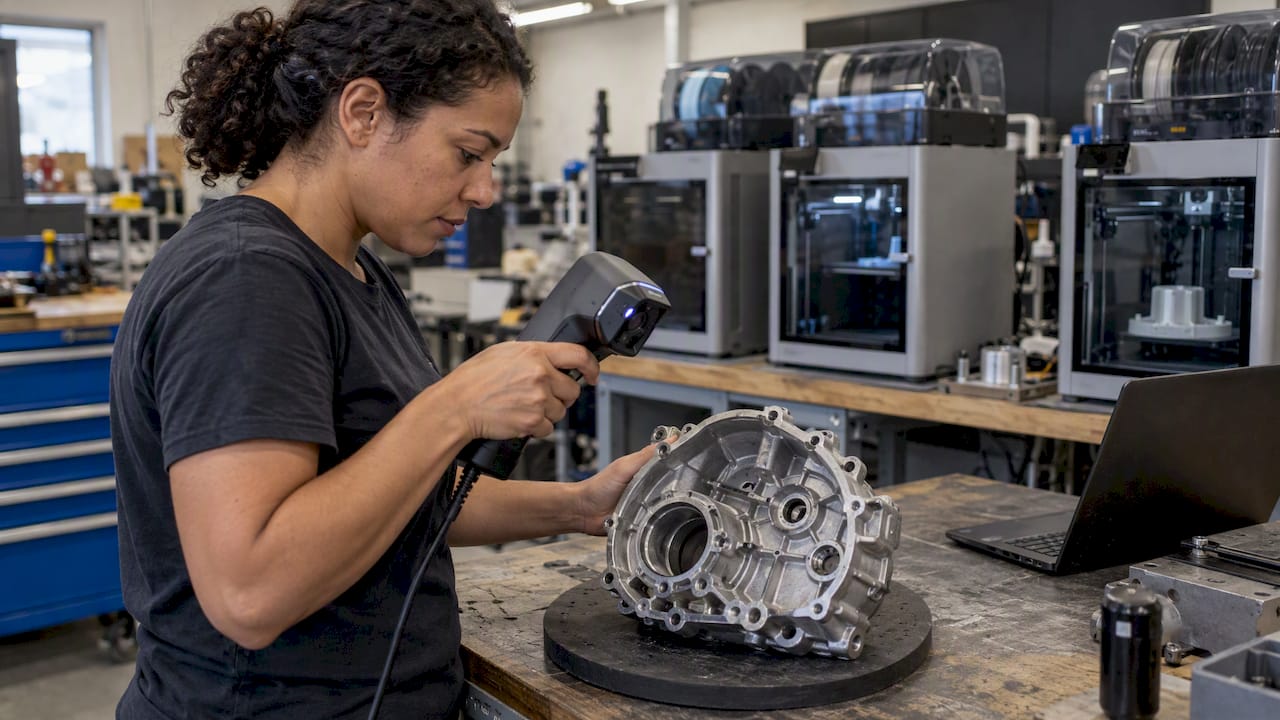
A scan-to-CAD workflow turns a physical part into an editable, dimensioned CAD model in six stages: define the objective, prepare the part, capture the geometry, clean and align the data, rebuild the model as parametric features, and verify it against the original scan. The scan records shape. The CAD model records design intent. Most of the effort, and most of the skill, sits in the conversion between the two.
This guide walks through each stage the way we run it at CC 3D Labs, with the decisions that determine whether you end up with a model you can machine, print, or modify, or a mesh that only looks right on screen.
TL;DR
- A scan produces a mesh (a shell of triangles). CAD needs surfaces and features you can edit, so the mesh has to be rebuilt, not just exported.
- The workflow is: objective, part preparation, capture, cleanup and alignment, CAD reconstruction, and deviation-based verification.
- Manual rebuilding with the scan as a reference gives the cleanest, most editable models for mechanical parts. Automated feature recognition helps with simple primitives.
- Most failures start at capture: shiny surfaces, occluded holes, and noisy data cannot be fixed by modeling skill later.
- We quote every scan and CAD job individually, so send us the part or photos and the end use first.
Table of Contents
- What scan-to-CAD actually means
- Stage 1: Define the objective before touching the scanner
- Stage 2: Prepare the part and plan the capture
- Stage 3: Capture the geometry
- Stage 4: Clean and align the mesh
- Stage 5: Rebuild editable CAD geometry
- Stage 6: Verify the model against the scan
- Common problems and how to avoid them
- Our perspective
- Getting a scan-to-CAD project started with us
- FAQ
- Request a quote
- Sources
What scan-to-CAD actually means
Scan-to-CAD is the process of scanning a physical object and bringing the data into CAD software, where the scan’s individual points have to be converted into surfaces so the object can be manipulated as a CAD object, as Autodesk describes it. Put differently, the goal is usable, editable CAD geometry reconstructed from scan data.
The difference matters in practice:
| 3D scan (mesh / STL) | CAD model (STEP, native parametric) | |
|---|---|---|
| What it stores | Thousands to millions of triangles approximating the surface | Planes, cylinders, splines, and the features built from them |
| Design intent | None; it records what the part looks like today, including wear | Symmetry, axes, hole patterns, fillet radii, feature boundaries |
| Editing | Difficult; changing a hole diameter means sculpting triangles | Change a dimension and the model updates |
| Typical use | Visualization, inspection, reference | Manufacturing, assembly, redesign, drawings |
One point of view is worth stating up front: scans capture shape while CAD models capture design intent, such as symmetry, axes, and feature boundaries. A worn bracket scanned as-is contains the wear. Your CAD model should contain what the designer intended, and that is a judgment the person doing the reconstruction has to make.
If you only need a visual record or a single printed copy, a mesh may be enough. Basic scanning and visualization may need only a mesh, while advanced manipulation and assembly integration usually require a solid body, per the same Autodesk overview. For a deeper definition, see our scan-to-CAD guide.
Stage 1: Define the objective before touching the scanner
The first decision is what the CAD model has to do. The answer sets scan resolution, which features need the tightest tolerance, and how much of the part you rebuild.
Ask these questions first:
- Will the part be manufactured from the model, or only fit-checked against other parts?
- Which features are functional (mating faces, bores, threads, locating pins) and which are cosmetic?
- Does the original have damage or wear that the new model should correct?
- What output format does your downstream process need: STEP for most CAD systems, or a drawing, or an STL for printing?
- What process will make the part? FDM printing typically holds roughly ±0.2 to 0.5 mm, so chasing sub-tenth-of-a-millimeter modeling on a printed part rarely pays off, while a machined replacement may demand much more.
Pro Tip: Write down the three or four critical dimensions before scanning. They become the checkpoints in the verification stage.
Stage 2: Prepare the part and plan the capture
Preparation is where data quality is won. The checklist from the research is consistent: clean the part, manage reflections, and place markers where they help the scanner track, so critical features are captured.
- Clean it. Oil, grease, and dirt change the surface the scanner sees and hide edges you need.
- Manage reflective and dark surfaces. Glossy, chrome, and black finishes scatter or absorb the scanner’s light. A thin, removable matte coating is the usual fix, and our notes on scanning black shiny parts cover what works.
- Place markers deliberately. Targets on a flat, featureless part help the scanner keep its position. Put them on the fixture or surrounding surface where possible rather than on mating faces.
- Fixture the part so you can reach every side without moving it between scans, or plan the re-positioning so the two scans overlap on shared features.
Planning scanner paths to avoid occlusions, such as deep holes or undercuts, gives you data that needs less cleanup later. Non-contact scanning is line-of-sight measurement, and it often cannot get good data inside holes or obscured features. For those, we measure with calipers or pin gauges and add the values during modeling.
The same inspect-before-you-commit habit applies in other trades. Checking how adjoining body panels sit, gap, and flush before deciding what to repair is the logic behind a car panel alignment checklist, and it carries over to scanning: look at the part’s condition and access first, then decide how to capture it.
For step-by-step prep, we keep a 3D scanning checklist and a guide on preparing models for scanning.
Stage 3: Capture the geometry
We use professional handheld 3D scanning with accuracy to ~0.1 mm. The scanner projects structured light while you move it around the part, building a point cloud that software meshes in real time.
Good capture habits:
- Scan in overlapping passes and keep a consistent distance so point density stays even.
- Revisit every pocket, rib, and bore from multiple angles to reduce shadowed areas.
- Capture a bit more context than you need, such as mounting faces and adjacent features, because you cannot go back for data after the part leaves.
- Check the live preview for holes before you release the part.
The process, as most references describe it, runs: define the objective and prepare the part, capture geometry, register and clean the data, reconstruct CAD, and verify it against the scan. Registration means aligning multiple scans of the same part into one coordinate system, which is why overlapping passes and shared features matter.
For more on getting a clean capture, read our guide to achieving a high quality 3D scan.
Stage 4: Clean and align the mesh
Raw scan data contains stray points, small floating fragments, and gaps. Preparation may involve removing errant points, filling holes, resampling, and other point-based operations. A thorough cleanup also covers stray fragments, noise, holes, non-manifold geometry, and overlapping faces.
A practical cleanup sequence:
- Delete obvious noise and fragments that are not part of the object.
- Check for non-manifold edges and self-intersections, which break many CAD import tools.
- Fill only the holes that are truly gaps in capture, such as an unscanned underside, not holes that are real features.
- Decimate carefully. Fewer triangles make CAD faster, but over-reduction rounds off sharp edges.
- Align the mesh to a sensible coordinate system, using a primary datum face, a main axis, and a symmetry plane where the part has one.
Pro Tip: Avoid reflexive hole-filling as a first response to poor data. Automatic filling can wipe out the geometric features you need for accurate reconstruction. Rescanning a problem area is often faster than repairing it.
That last step, alignment, is worth the time. A mesh that sits square to the CAD origin makes every later sketch, mirror, and pattern easier, and it makes the final deviation check meaningful.
Stage 5: Rebuild editable CAD geometry
This is the hardest stage. Software can help with referencing and slicing the mesh, but converting it into a solid body remains the most challenging, human-intensive part of the workflow.
Manual reconstruction
In manual modeling, you use the scan as a reference and rebuild the geometry with ordinary CAD tools, as reverse-engineering documentation describes. The typical order:
- Slice the mesh with section planes to see true profiles.
- Sketch those profiles and extrude, revolve, or sweep the base body.
- Add functional features: bores, bosses, slots, ribs, with dimensions rounded to the values the designer most likely intended (a 9.98 mm hole becomes 10 mm if the mating pin is 10 mm).
- Add fillets and chamfers last.
- Use freeform surfaces only for organic areas that cannot be described with standard features.
The result is a feature tree you can edit, which is the whole point.
Automated and semi-automated tools
Some reverse-engineering software offers automated feature recognition that identifies primitives such as planes and cylinders. Research groups go further: Fraunhofer IPK’s Scangineering approach segments and classifies point clouds into features for a parameterized CAD model, and it positions automated model reconstruction as a replacement for manual reconstruction in its applications.
Which approach fits which part?
| Part type | Better approach | Why |
|---|---|---|
| Prismatic brackets, housings, adapters | Manual with scan reference | Few features, high editability, clean dimensions |
| Parts with many cylinders and planes | Automated recognition, then manual cleanup | Fast first pass, intent still needs review |
| Organic or sculpted shapes (trim, ergonomic grips) | Surface modeling or a converted mesh body | Standard features cannot describe them |
| Display or fit-check only | Mesh alone | No editing required |
Users of mainstream CAD packages also run into the mesh-to-solid choice directly. Fusion users, for example, describe Faceted and Prismatic conversion options, and note that complex scans may be better used as a reference for sketches, extrusions, or surfaces. A converted faceted body is a solid in name, but it is still thousands of tiny faces and rarely editable. Our article on mesh to CAD conversion explains where each method breaks down.
Stage 6: Verify the model against the scan
A model that looks right can still be 0.3 mm off at a mating face. Verification closes that gap. Compare the final CAD model with the original scan mesh, then use what you find to refine the reverse model.
A solid check includes:
- Alignment of the CAD body to the cleaned scan using the same datums.
- A deviation map (a color-coded surface comparison) to spot systematic offsets.
- Cross-sections through critical features to compare profiles.
- Local checks at functional features such as holes, mating faces, and mounting points, as the process outline recommends.
Interpret deviation honestly. Scanner accuracy of about 0.1 mm means differences of that size are within measurement noise, and a worn part will deviate from a corrected model on purpose. Where your model deliberately differs from the scan, such as a repaired chip or a restored sharp edge, note it in the file.
Pro Tip: For parts that will be printed, print a test piece before committing to a run. We do this for every production job, which is why we quote after a test print rather than before.
Common problems and how to avoid them
Most scan-to-CAD trouble traces back to a handful of causes:
- Reflective or dark surfaces. Missing or noisy data. Use a removable matte coating and recheck the scan.
- Occluded features. Deep holes, undercuts, and internal channels cannot be seen by a line-of-sight scanner. Measure them directly and model from the measurements.
- Noise and overspray. Cleaning erroneous noise takes time, and dense datasets can slow your CAD machine. Decimate sensibly.
- Worn or deformed originals. The scan faithfully records the damage. Decide whether you are reproducing the part as it is or as it was designed.
- Thin or flexible parts. They can move during scanning. Support them on a fixture.
- Misaligned multi-scan data. Poor overlap causes registration drift. Plan shared features between passes.
- Over-fitting the mesh. Tracing every ripple produces a model with unnecessary complexity and no intent. Idealize where the design obviously did.
For older vehicle or equipment components, see our guide to scanning for legacy part reproduction, which covers worn originals in more depth.
Our perspective
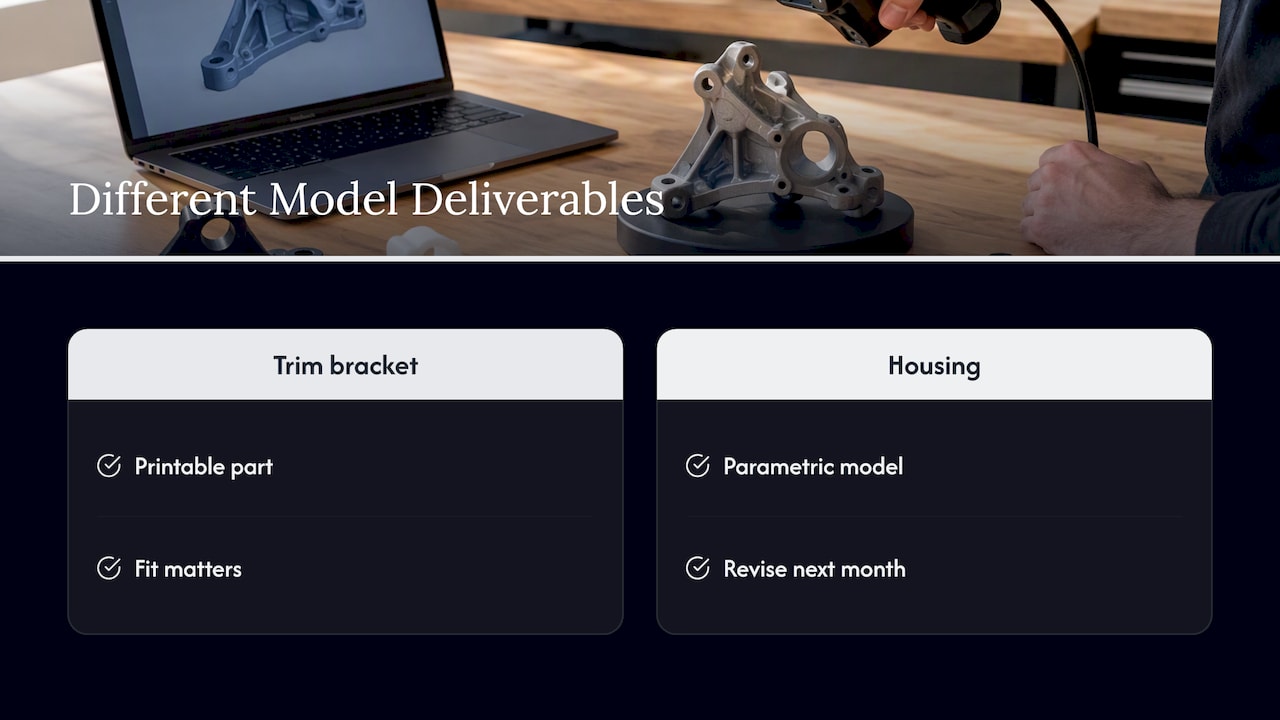
We have seen the same pattern across automotive restoration shops, product developers, and small manufacturers: the scan is rarely the bottleneck. The bottleneck is a clear decision about what the finished model is for. A shop reproducing a discontinued trim bracket wants a printable, fitting part. An engineer reverse-engineering a housing wants a parametric model they can revise next month. Those are different deliverables from the same scan.
We lean toward manual, intent-driven reconstruction for mechanical parts, with the scan as a reference, because the resulting model is something your team can actually edit. We use professional handheld scanning with accuracy to ~0.1 mm, verify critical features against the mesh, and tell you plainly when a feature is better measured by hand than scanned. We also test-print before quoting production jobs, since a printed part reveals fit problems a screen does not.
We only work within what we do well: FDM printing on our Bambu Lab farm, handheld scanning, reverse-engineering CAD, and printed mold masters.
— Justin
Getting a scan-to-CAD project started with us
CC 3D Labs is a 3D printing and 3D scanning service in Bucks County, PA, serving the Greater Philadelphia area. Our 3D Scanning Lab captures parts with professional handheld scanning, and our CAD team turns scans into editable models and, if you need them, printed parts in PLA, PETG, ABS, ASA, PC, or carbon-fiber nylon. See the full list on our services page.
Local customers can use residential pickup (we have no walk-in storefront), and finished orders ship anywhere in the United States. We quote each job individually, so there is no published price list and no blanket turnaround promise. Tell us what the part does and we will tell you what the workflow should look like.
FAQ
How long does a scan-to-CAD project take?
It depends on part complexity, how many functional features need rebuilding, and how clean the scan data is. A simple bracket and a multi-surface housing are very different jobs, so we do not publish blanket timelines. We scope each project individually once we know the part and the end use.
Can you convert an STL directly to a CAD file?
You can convert it to a solid made of tiny triangular faces, but that body usually cannot be edited in a useful way. For editable features, the mesh is used as a reference and the geometry is rebuilt with sketches, extrusions, and surfaces. Our mesh to CAD guide compares the options.
Is scan-to-CAD the same as reverse engineering?
Scan-to-CAD is the core modeling step within reverse engineering. Reverse engineering also covers defining requirements, material and function analysis, and verification. Our practical guide to reverse engineering covers the wider picture.
What file formats do I get?
We match the format to your downstream process. STEP is the usual choice for exchanging editable solids between CAD systems, and STL is typical for printing. Tell us your software and we will confirm what we deliver.
Request a quote
Ready to start? Send us your part details and end use:
- 3D printing: cc3dlabs.com/3d-print-quote/
- 3D scanning: cc3dlabs.com/3d-scan-quote/
- CAD and modeling: cc3dlabs.com/3d-modeling-cad-quote/
Sources
- What is a Scan To CAD Workflow? (Fusion Blog)
- Scan-To-CAD Workflow: STL To STEP/IGES Complete Guide
- Reverse Engineering in Manufacturing: Scan-to-CAD Guide
- Mesh Cleanup (Canion3D)
- Reverse Engineering (Cosmon Documentation)
- Automated Reverse Engineering Meets Component Repair (Fraunhofer IPK)
- Reverse Engineering with 3D Scanning, Automated (Fraunhofer IPK)
- Help Converting Complex Scan Mesh to .Stp File (Autodesk Forums)
- 3D Scanner for CAD (Creaform)
- 3D Scan to CAD Reverse Engineering (Verisurf)