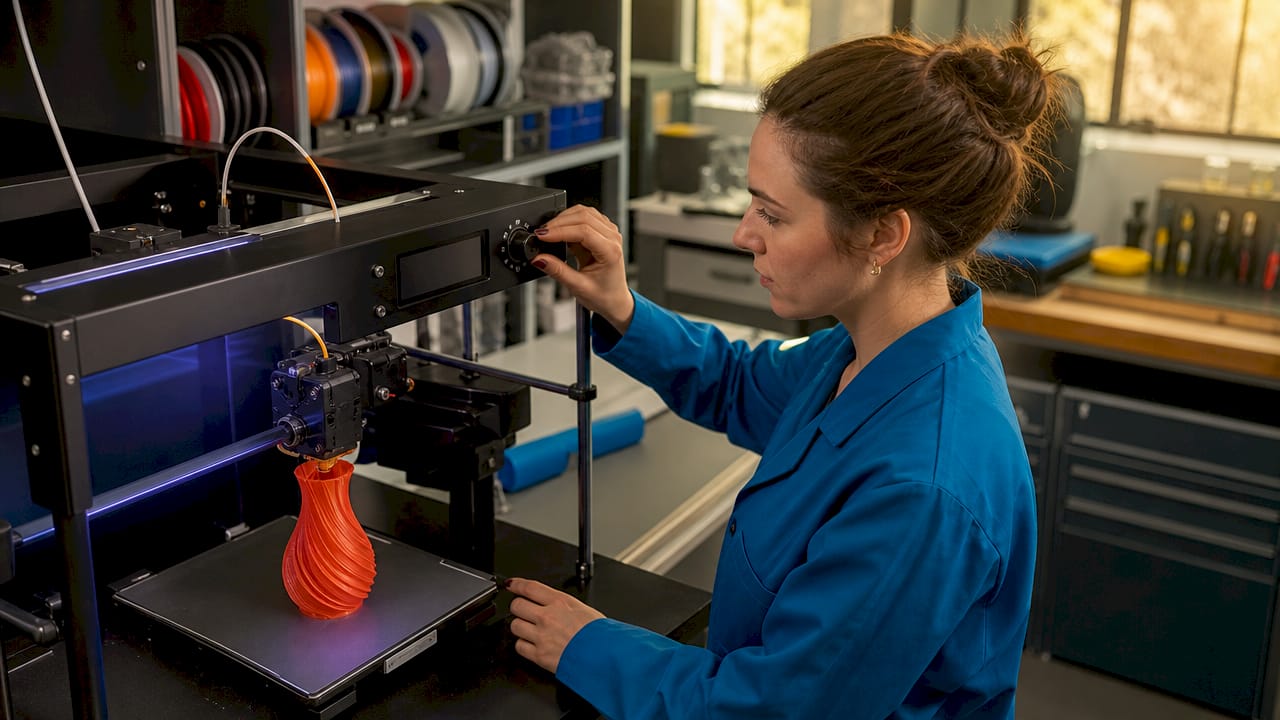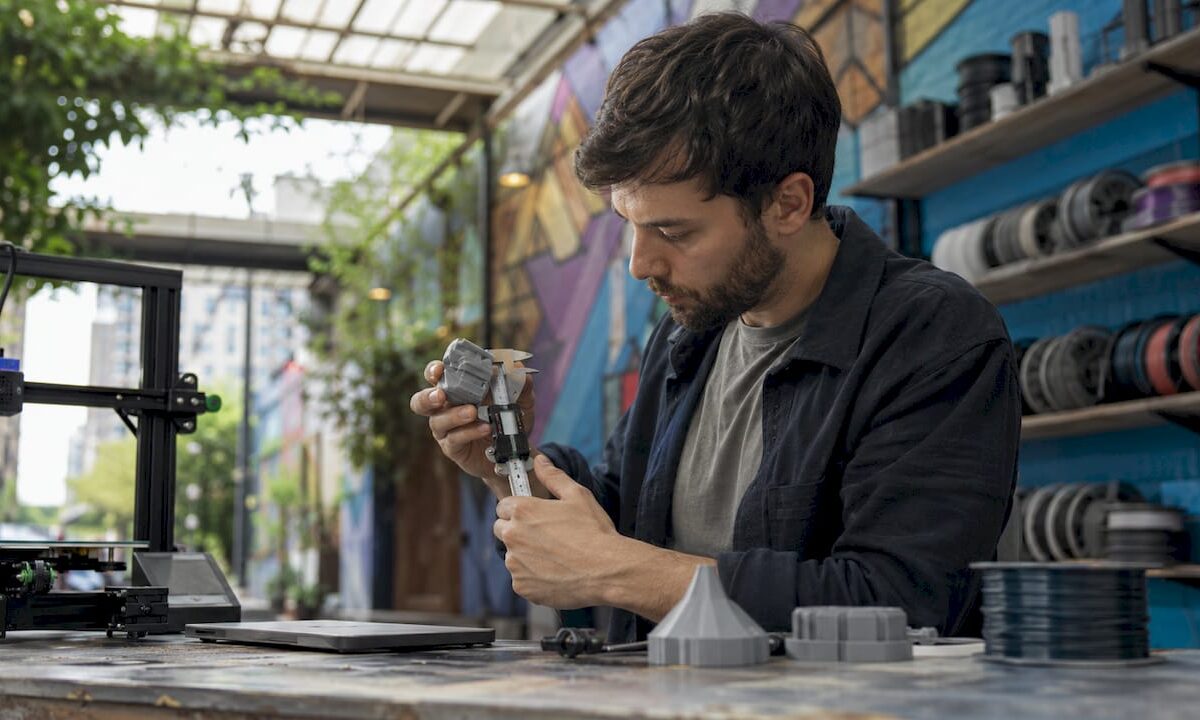
Product developer monitoring desktop 3D printer

Overcome common 3D printing challenges: pro tips for product developers


TL;DR:

  • Many common FDM print failures, such as warping, poor bed adhesion, and anisotropy, arise from thermal and structural issues. Addressing enclosure temperature, bed surface prep, and layer orientation can significantly improve mechanical strength and dimensional stability. Mastering systematic failure analysis with optimized parameters and environment controls distinguishes top engineers from novices.

You pull a prototype off the build plate, measure it against spec, and it’s warped 2mm at the corner. The layer interface cracked under a basic load test. Your material cost is sunk, your timeline is slipping, and the root cause isn’t obvious at first glance. These aren’t rare flukes — they’re predictable failure modes with known solutions. This article walks you through the most persistent mechanical, material, and dimensional challenges in FDM 3D printing, with data-backed strategies and practical settings adjustments you can act on today.

Table of Contents

Key Takeaways

Point Details
Tackle warping and adhesion Control thermal gradients and use enclosures to promote strong first layer and prevent warping.
Optimize infill for strength Select infill and layer parameters based on material and mechanical performance targets.
Minimize dimensional drift Account for thermal cycling and orientation to maintain tight tolerances.
Embrace expert tuning Advanced troubleshooting and layering techniques resolve stubborn quality issues for production parts.
Professional help speeds results When issues persist, specialist 3D printing services can accelerate troubleshooting and delivery.

Mechanical issues: warping, bed adhesion, and anisotropy

Most print failures trace back to three interconnected problems: warping, poor bed adhesion, and structural weakness from anisotropy. Understanding why each happens is the first step toward eliminating them from your workflow.

Warping and poor bed adhesion are among the most common mechanical challenges in FDM printing, caused by thermal shrinkage and uneven cooling, particularly with ABS and Nylon. When the bottom layers cool faster than the layers above them, differential contraction bends corners upward. This is especially destructive for flat, wide parts where the geometry amplifies every degree of temperature change.

For engineers building functional prototypes, the fix involves more than just spreading glue stick on the print bed. Here are the main factors to address:

  • Enclosure temperature control: Keep ambient air around 40 to 50°C for ABS; this slows the cooling rate and reduces stress buildup between layers.
  • Bed surface and prep: Use PEI sheets, glass with adhesive, or specialized surfaces matched to your material. Clean with IPA before every run.
  • First layer calibration: A first layer squished 10 to 15% below nominal layer height maximizes contact area and adhesion force.
  • Brim and raft usage: Wide brims (at least 8mm) physically resist corner lift. Rafts add thermal mass at the base and help equalize temperature.

“For materials prone to warping like ABS and Nylon, enclosing the build volume and tightly calibrating the first layer settings are non-negotiable steps before advanced parameter tuning.” — Recommendations from FDM troubleshooting best practices.

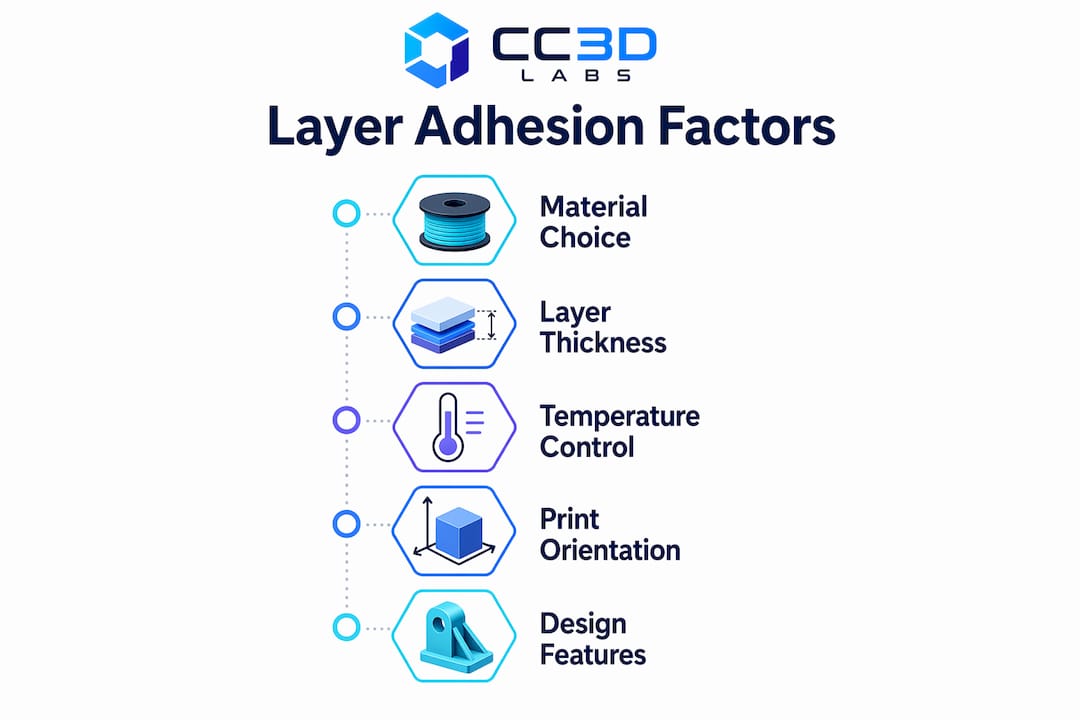
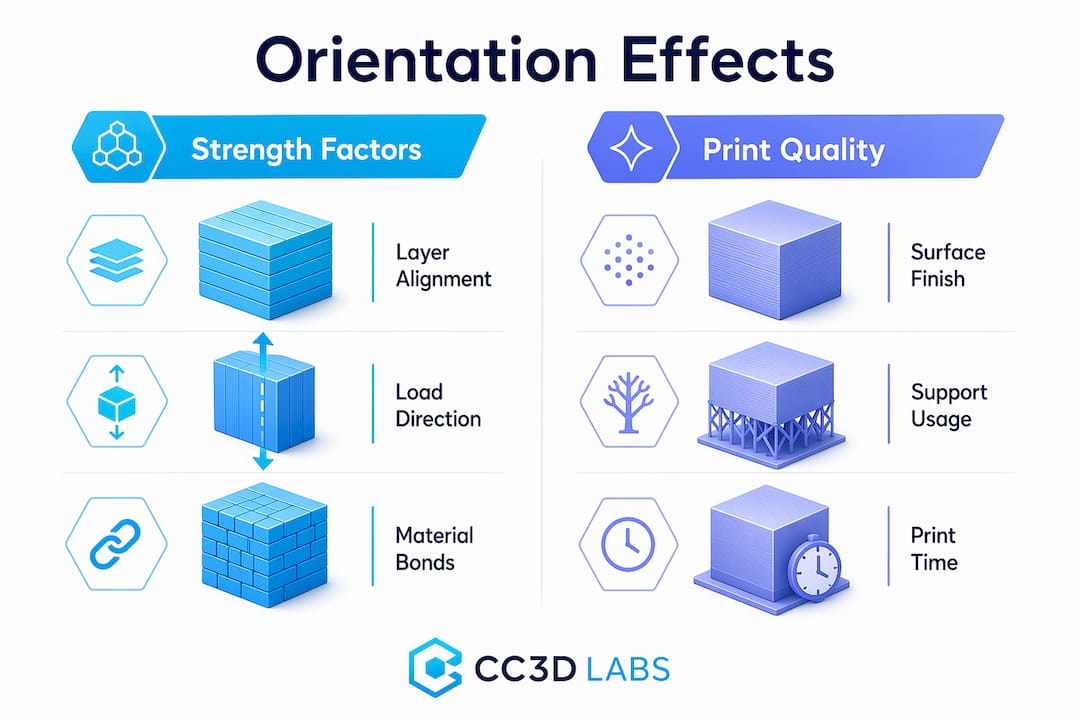
Anisotropy is the other silent killer. Because FDM prints layer by layer, the bond between layers is always the weakest link in the structure. Flexural strength drops 40%+ at a 90° raster angle compared to 0°, with PLA reaching optimal performance at 0° orientation and 50% infill (167 MPa), and ABS peaking at 0° orientation with 75% infill (126 MPa). If your part will see bending loads, the layer stacking direction relative to load direction is not a detail — it’s a design decision.

When working on manufacturing-grade 3D printing projects, these baseline mechanical principles need to be locked in before you start optimizing higher-level parameters.

Pro Tip: Before printing any structural prototype, sketch out the primary load direction on paper and orient the model so critical surfaces are parallel to the raster lines. This one decision can roughly double effective flexural strength without changing a single slicer setting.

For anyone newer to these concepts, the filament 3D printing prototyping guide provides a solid foundation before tackling advanced troubleshooting.

Strength and material parameter selection: the infill and raster effect

Once you understand the mechanical failure sources, the next problem is knowing exactly which parameters to adjust for your specific material and application. Infill and raster angle are not just cosmetic settings — they are structural design variables.

Infill density contributes up to 80% of the variation in tensile, compressive, and impact strength, while layer thickness has the biggest influence on hardness and surface roughness. The practical implication: if you need a load-bearing part, infill is your primary lever. If you need a smooth surface for a fit-check prototype, layer thickness takes priority.

Here’s a step-by-step approach to selecting infill and raster angle for common engineering materials:

  1. Identify the primary load type (tensile, compressive, bending, impact). Each responds differently to infill patterns and density.
  2. Select material based on operating environment. ABS for moderate heat and chemical exposure, PLA for room-temperature prototypes, Nylon for dynamic or fatigue-heavy applications.
  3. Set raster angle to 0° as the starting default for maximum strength in the load direction. Reserve 45° or alternating rasters for isotropic requirements.
  4. Set infill starting point based on the table below, then adjust after a destructive test sample.
  5. Print a small coupon first. Test before committing material and time to the full part.
Material Optimal raster angle Infill % Flexural strength Notes
PLA 50% 167 MPa Best for room-temp structural prototypes
ABS 75% 126 MPa Needs enclosure; warping risk above 100mm
Nylon 0° to 45° 60 to 75% Varies Moisture absorption affects results; dry filament before printing
PETG 45° alternating 50 to 60% ~120 MPa Good layer adhesion; less anisotropy than ABS

The optimal mechanical parameters for each material matter, but they only deliver results when the print environment (enclosure, bed temp, ambient humidity) supports them. Engineers who treat slicer settings as isolated variables without controlling the full print environment consistently get inconsistent results.

Pro Tip: Run a 3-sample destructive test at your target infill and raster settings before committing to a full production run. A simple bend or pull test on small coupons catches 80% of strength-related surprises before they cost you time and material on full-sized parts.

Engineer examines broken 3D printed samples

For a deeper look at how geometry choices interact with these parameters, the resource on designing reliable 3D prints is worth reviewing before finalizing your CAD for print.

Dimensional accuracy and stability under thermal cycling

Strength and adhesion matter at print time, but many engineering parts face an equally serious challenge after they leave the printer: dimensional instability under repeated temperature changes. This is critical for any part used in automotive testing, outdoor hardware, or environments with significant temperature swings.

Dimensional drift under thermal cycling is well-documented: parts can show a height increase of +0.3 mm after just 10 cycles between -20°C and 80°C, with the Z-direction the most affected due to anisotropy between layers. For parts with tight tolerances on height, stacking, or assembly clearance, that 0.3 mm can mean the difference between a fit and a failure.

The Z-direction is vulnerable for a structural reason: the bond between layers is weaker than the base polymer itself. When thermal expansion and contraction work on that interface repeatedly, the cumulative dimensional shift is greater than what you’d see in an injection-molded part made from the same base material.

Here’s a practical checklist to minimize thermal drift in dimensionally critical parts:

  • Pre-condition parts before measuring. Let them stabilize at room temperature for at least 2 hours after printing before taking dimensional readings.
  • Orient tall features horizontally where tolerance matters. A feature that runs in the XY plane is more dimensionally stable than one that grows in Z.
  • Use an enclosure during printing to slow cooling uniformity and reduce residual stress that contributes to post-print drift.
  • Anneal parts after printing. For PLA, annealing at 60 to 65°C for 30 to 60 minutes stress-relieves the polymer and improves dimensional stability under subsequent thermal loads.
  • Specify material with appropriate thermal coefficient. PETG and ABS both outperform PLA at elevated temperatures; check the glass transition temperature against your expected operating range.

If you’re not familiar with terms like anisotropy, glass transition temperature, or layer adhesion mechanics, the 3D printing terminology resource breaks these down clearly for product developers.

The industry is also moving toward tighter process controls for thermal stability, which you can explore in manufacturing trends in 3D printing to understand where the best practices are headed in 2026.

Expert troubleshooting: fine-tuning, layering, and advanced material tips

With the fundamentals addressed, the final layer of mastery involves diagnosing persistent quality issues that survive basic parameter optimization. These are the problems that show up in advanced prototypes and pre-production runs, and they require a more systematic approach.

The following troubleshooting moves address common high-level flaws:

  • Stringing and oozing: Increase retraction distance by 0.5mm increments and reduce travel speed. Dry filament thoroughly before printing, especially with hygroscopic materials like Nylon and PETG.
  • Under-extrusion: Check for partial clogs, recalibrate the extruder e-steps, and verify that flow rate matches actual filament diameter at the tip.
  • Layer separation: Increase layer temperature in 5°C increments and reduce print speed on perimeter passes. Check that part cooling fans aren’t overwhelming inter-layer bonding on materials like ABS.
  • Surface inconsistency on top layers: Increase top layer count from 3 to 5, and verify that infill percentage is high enough to support bridging at the top.

Retraction and flow calibration directly affect part quality in ways that don’t show up in standard strength testing but can catastrophically affect functional performance and appearance. Setting 0° raster and 50 to 75% infill for maximum structural performance is part of this optimization loop.

Advanced layering strategies deserve particular attention for fatigue applications. Multiplane layering, where the model is split and printed in sections oriented on different axes, can meaningfully mitigate Z-direction weakness. It adds complexity, but for parts that will see cyclic loading, it’s a legitimate engineering intervention rather than a workaround.

“Notches and stress concentrations in printed parts reduce fatigue life dramatically. A sharp root radius of just 0.3 mm can reduce epoxy fatigue life by two-thirds, and the same principle applies to layer transitions and internal geometry in FDM parts.”

This is an often-overlooked design point. Engineers frequently focus on infill percentage and raster angle while ignoring sharp internal corners or abrupt geometry transitions that act as stress concentrators during cyclic loading. Rounding internal radii to at least 0.5mm and smoothing layer transition geometry can have more impact than an extra 10% of infill.

For a full walkthrough of how to implement these strategies from print setup through post-processing, the step-by-step guide for quality prints provides actionable detail on each stage.

Comparison summary: challenges, impacts, and solutions at a glance

Use this table as a reference checklist when diagnosing a failed print or planning a new high-stakes prototype.

Challenge Symptom Root cause Affected property Proven fix
Warping Lifted corners, base distortion Uneven cooling, thermal shrinkage Dimensional accuracy, adhesion Enclosure, heated bed, brim, first layer calibration
Anisotropy Weak Z-axis fractures Layer bonding weaker than bulk Flexural and tensile strength 0° raster, orientation control, multiplane layering
Poor bed adhesion Part detaches mid-print Dirty bed, wrong surface, low temp Print completion, dimensional base IPA clean, PEI sheet, bed temp match to material
Dimensional drift Tolerance failure after use Thermal cycling, Z-anisotropy Assembly fit, tolerance stack-up Pre-conditioning, annealing, horizontal feature orientation
Strength loss Fracture under expected load Low infill, wrong raster, wrong material Load-bearing capacity Optimize infill, raster angle, run coupon tests

Each row in this table maps to a root cause you can test and a fix you can implement immediately. The most common mistake is treating these as unrelated problems when they often compound: warping creates residual stress that worsens anisotropy-driven failure under load.

Beyond the basics: why mastering failure modes separates top engineers

Here’s an uncomfortable observation from working with product developers at all levels: the engineers who produce the most reliable printed parts aren’t necessarily using better machines or more exotic materials. They’re the ones who document failures systematically and treat every failed print as diagnostic data.

Textbooks cover the ideal behavior of materials. They rarely cover what happens when ABS prints on a Tuesday in summer at 72% humidity and the first layer adhesion degrades compared to a dry February run. The real world is messy, and default slicer profiles are designed for average conditions, not for your specific geometry, ambient environment, or load requirements.

The engineers who outperform their peers share a common habit: they don’t accept “it just failed” as a root cause. They ask which direction it failed, at what layer, under what load, after how many cycles. That diagnostic precision is what allows rapid iteration instead of repeated guessing.

Chasing new printer releases or exotic filaments without mastering failure analysis is a trap. A well-dialed FDM printer with calibrated settings for manufacturing-grade print quality will consistently outperform a newer machine running on default profiles. Process mastery compounds. Hardware upgrades plateau.

The engineers who build durable, accurate prototypes are the ones who embrace the analytical layer underneath the print settings. That’s not a personality type. It’s a skill you build deliberately, starting with the frameworks in this article.

Professional support and rapid solutions for 3D printing challenges

Persistent print failures can eat weeks of development time when you’re working without access to experienced process feedback. Sometimes the fastest path forward isn’t tuning another setting — it’s getting a professional set of eyes on your geometry, material selection, and print strategy.

https://cc3dlabs.com

At CC 3D Labs, we work directly with product developers and engineers facing exactly the challenges covered in this article. Whether you need rapid turnaround on a tight-tolerance prototype, expert guidance on material and parameter selection, or reliable batch production with verified dimensional accuracy, our team near Philadelphia is set up to deliver. Explore our full 3D printing services, or start with the guide to rapid prototyping to understand how a professional workflow compresses your iteration cycle. For filament-based projects specifically, prototyping with filament printing outlines exactly how we approach each stage from design review to final part delivery.

Frequently asked questions

What causes prints to warp during 3D printing?

Warping is caused by uneven cooling and thermal shrinkage in the base layers, especially with ABS and Nylon. Using an enclosure, a heated bed, and a wide brim effectively reduces warping across most material types.

How does infill density affect part strength in 3D printing?

Infill density contributes up to 80% of the variation in tensile, compressive, and impact strength in FDM printed parts. Higher infill significantly increases load-bearing capacity while layer thickness primarily affects surface hardness and finish.

Why are parts weaker in the Z-direction in FDM 3D printing?

The 40%+ drop in flexural strength at 90° raster angle compared to 0° is a direct result of inter-layer bonding being weaker than the bulk polymer. Orienting the part so critical load paths run in the XY plane is the most effective structural mitigation.

What is the impact of thermal cycling on dimensional accuracy?

Thermal cycling induces measurable dimensional drift, with parts showing up to +0.3 mm height change after 10 cycles between -20°C and 80°C. The Z-direction is most vulnerable due to the anisotropic nature of layer bonding in FDM parts.

How can I improve bed adhesion for better 3D print results?

Clean the print bed with IPA before each run, use a surface matched to your material like PEI for ABS or glass for PLA, and calibrate your first layer height to slightly over-extrude for maximum contact area. Adding an enclosure to stabilize ambient temperature eliminates the thermal differential that causes early delamination.

Engineer reviews 3D print gallery workspace

How project galleries improve your 3D printing designs


TL;DR:

  • Most professional 3D printing galleries include failed prints and process iterations, which reveal the true quality and limitations. These curated collections serve as operational tools, showcasing real results, process improvements, and reliability for businesses evaluating suppliers or benchmarking designs. Unlike hobbyist sites, professional galleries prioritize function, batch consistency, and transparency, enabling informed decision-making and process optimization.

Most people assume a 3D printing project gallery is just a portfolio of polished wins. The reality is more useful. Professional galleries often include failed prints, visible layer lines, and mid-process iterations. Those aren’t flaws in the presentation. They’re the most valuable part. For businesses and product developers, a curated visual collection of 3D printing projects isn’t just inspiration material. It’s a living record of what works, what doesn’t, and what’s possible at scale.

Table of Contents

Key Takeaways

Point Details
Curated showcase A project gallery displays completed 3D print projects for inspiration and evaluation.
Diverse categories Galleries feature product designs, art, prototypes, and functional parts with material and geometry details.
Learning from failure Displaying failed prints and iterative improvements helps teams refine products and innovate.
Business value Professional galleries focus on functionality, scalability, and real-world metrics for product development.
Actionable insights Leveraging galleries streamlines evaluation and inspires smarter design for businesses.

A project gallery is a structured, visual showcase of completed 3D printing work. Think of it as a searchable record of outputs. It displays finished models, prototypes, functional parts, and sometimes rejected designs, all organized to help viewers understand what a printer or printing service can actually produce.

For businesses evaluating a supplier or trying to benchmark their own outputs, a gallery does something a spec sheet can’t: it shows real results. You can see how a material behaves on curved surfaces, how fine details hold up at small scales, and how batch production looks when 50 identical parts come off the same printer.

Key business uses of a project gallery include:

  • Evaluating supplier capabilities before committing to a production run
  • Benchmarking your own designs against industry-standard outputs
  • Identifying materials and finishes that fit your product requirements
  • Discovering design techniques that reduce print failures or material waste
  • Speeding up client approvals by showing comparable past projects

A CAD project gallery takes this one step further by displaying the modeling process alongside the printed result. This is especially useful for product developers who want to verify that a supplier understands geometry, tolerances, and design intent. Our 3D printed project gallery at CC3D Labs exists precisely for this reason. Not just to look good, but to give you a factual baseline for evaluating what we produce.

A project gallery in 3D printing is a curated online showcase or visual collection displaying completed 3D printed projects, models, and designs to inspire makers, designers, and businesses.

That definition is useful but doesn’t go far enough. For professionals, galleries aren’t passive inspiration boards. They’re decision-making tools.

Typical categories and features of project galleries

A well-built professional gallery isn’t one long scroll of random prints. It’s organized by category, material type, application, and sometimes production scale. That structure is what makes it functional for business users rather than just visually appealing.

Professional gallery categories typically include 3D printed art, characters, architectural models, product designs, and functional prototypes, each highlighting textures, materials, and geometry complexity. Here’s how those categories map to real business use cases:

Gallery category What it shows Best used for
Functional prototypes Wall thickness, tolerances, fit and assembly Product development teams
Architectural models Fine geometry, surface detail Design and construction firms
Batch production Part consistency across 50 to 500+ units Manufacturing procurement
Product design Material finishes, color matching, branding Consumer product developers
Art and characters Complex geometry, multi-color capability Branded merchandise, display items
Iterative designs Multiple versions of the same part R&D and engineering teams

What to look for in each category:

  • Textures and surface quality: Does the finish match your product requirements?
  • Geometric complexity: Can the printer handle overhangs, interlocking parts, or fine threads?
  • Material variety: Are PETG, ABS, TPU, and engineering-grade filaments all represented?
  • Batch consistency: Do repeated parts look identical, or do small variations appear across the run?

There are creative applications that push well beyond standard prototyping. Galleries that include these examples give product developers a broader picture of what’s achievable. Explore a filament prototype gallery to see how different filament choices affect the final output at both small and production scale.

It’s also worth looking at how larger manufacturers use galleries. Sites like Conquest Manufacturing provide production-oriented examples that show how professional-grade equipment handles volume and material complexity.

Pro Tip: When reviewing a gallery, don’t just look at the best examples. Look for consistent quality across ordinary projects. That consistency is a better signal of a provider’s reliability than a single standout print.

Why project galleries include failures and iterative improvements

This is the part most businesses overlook. A gallery that only shows flawless finished products is telling half the story. The most informative galleries include failed prints and iterative improvements that reveal how craftsmanship and process optimization actually work in practice.

Layer lines are a perfect example. In amateur circles, visible layer lines are considered a flaw. In professional contexts, they’re data. The direction, consistency, and spacing of layer lines tell you about print orientation, speed settings, and material behavior. A gallery that shows layer lines and explains why they appear is teaching you something useful.

Close-up of 3D print layer lines and flaws

Here’s a side-by-side look at how iterative galleries compare to single-result displays:

Gallery type What’s shown Business value
Single-result display Only the final, approved version Shows outcome only
Iterative gallery v1, v2, v3 with notes on changes Shows process improvement
Failure gallery Failed prints with explanation Builds trust and transparency
Annotated gallery Each image includes print settings Enables replication and benchmarking

Design teams that use iterative galleries in their development process catch problems earlier. If you can see that a similar part failed at a specific wall thickness three versions ago, you avoid repeating that mistake in your own design file. This is particularly valuable when prototyping quality standards need to hold across multiple rounds of revision.

Galleries that track design evolution also connect directly to 2026 manufacturing trends, where shorter development cycles and first-time-right printing are becoming competitive requirements. Iterative documentation is how you get there faster.

Pro Tip: When evaluating a supplier through their gallery, ask if they can share the version history for a project similar to yours. A supplier willing to show their iterative process is one confident in their workflow.

Professional vs. hobbyist project galleries: A comparison

Not all galleries serve the same audience. Understanding the difference matters a great deal when you’re trying to use gallery content to drive business decisions.

Infographic compares professional and hobbyist 3D print galleries

Hobbyist galleries prioritize aesthetics and creative sharing (platforms like Thingiverse are a well-known example), while professional galleries emphasize functionality, scalability, and batch production metrics more like case studies from services such as 3DPRINTUK. Both have value, but they’re optimized for completely different goals.

Hobbyist galleries tend to:

  • Celebrate creative and artistic expression over function
  • Focus on community engagement and downloads
  • Measure success by likes, remixes, and shares
  • Show individual one-off prints rather than production runs
  • Lack material or tolerance specifications

Professional galleries, on the other hand, tend to:

  • Document functional results including tensile strength, layer adhesion, and dimensional accuracy
  • Show batch production consistency across repeated parts
  • Include material datasheets and process notes
  • Benchmark performance against design requirements
  • Prioritize scalability data that informs procurement decisions

For businesses making sourcing decisions, the difference is everything. A professional gallery helps you answer: can this provider handle my volume, my tolerances, and my material requirements? A hobbyist gallery can spark creative ideas, but it won’t tell you whether a part will survive a real-world mechanical test.

The batch production guide covers this in detail, including how to evaluate quantity, consistency, and cost trade-offs. For businesses that need parts to perform in the field, manufacturing-grade 3D printing sets a different quality bar entirely. Make sure the gallery you’re reviewing reflects those standards before you commit to a supplier.

Using a gallery well takes a bit of structure. Here’s a practical process for extracting real value from any professional 3D printing project gallery.

  1. Define your evaluation criteria first. Before you open a gallery, write down what matters to you: material type, surface finish, tolerance range, batch size, or geometric complexity. Having criteria prevents you from getting distracted by impressive-looking prints that don’t apply to your use case.

  2. Filter by category. Use the gallery’s category structure to focus on projects similar to yours. If you’re developing a functional mechanical part, skip the art section and go straight to prototypes and production parts.

  3. Look for documentation depth. The best galleries include print settings, material choices, post-processing steps, and notes on design changes. Galleries without this context offer limited business value.

  4. Study the failures, not just the wins. Note what caused failures and how they were resolved. This is often the most actionable content in a professional gallery.

  5. Use gallery examples as conversation starters. When briefing a 3D printing provider, reference specific gallery projects that match your requirements. This speeds up scoping and reduces back-and-forth on expectations.

  6. Track your own design iterations. Don’t just consume other people’s galleries. Build your own. Document your v1 through v5 prints with notes on what changed and why. This internal record becomes a powerful reference for your team over time.

Knowing what can be 3D printed is the starting point for this whole process. Understanding the full range of printed prototypes and parts helps you set realistic goals before you ever look at a gallery.

Pro Tip: Screenshot gallery examples that closely match your project and create a reference folder for each active product development project. This gives your design team a visual brief without lengthy written descriptions.

What most articles miss about project galleries for professionals

Most coverage of 3D printing galleries treats them as marketing assets. Eye candy for potential customers. That framing undersells what a gallery actually does at the professional level.

A well-built gallery is an operational tool. When we document a project at CC3D Labs, that documentation goes beyond showing off the final part. We track what settings were used, how the design evolved across iterations, what failure modes appeared and how they were resolved, and what the final output looked like against the original CAD file. That record has real business value.

The galleries that actually move the needle for product developers are the ones that surface layer artifacts like layer lines and document them, rather than hiding them through post-processing or selective photography. Those details signal to a technical buyer that a supplier understands their own process deeply enough to explain it.

Here’s the insight most businesses don’t act on: the best use of a gallery isn’t passive browsing. It’s active benchmarking. Pull a gallery example that matches your spec, compare it to your own previous outputs, and identify the specific gap. Then ask your supplier to explain how they’d close it. That conversation is worth more than any spec sheet.

Batch metrics are another underutilized gallery feature. When a gallery shows 200 identical parts with consistent color, layer adhesion, and dimensional accuracy, it’s making a data-driven argument about why quality matters at production scale. That’s the argument your procurement team needs to hear.

Treat project galleries as performance dashboards. Look for consistency, transparency about failures, and documented iteration. Those three signals tell you more about a supplier’s reliability than any number of polished hero shots.

If you’ve been evaluating suppliers, benchmarking designs, or trying to improve your product development cycle, the right gallery makes that process significantly faster.

https://cc3dlabs.com

At CC3D Labs, our 3D printing services are built around documented, transparent production. Our CC3D Labs project gallery includes functional prototypes, batch production examples, and iterative design documentation, so you can evaluate our outputs against your actual requirements before submitting a single file. We serve businesses and product developers near Philadelphia and internationally, with free online estimates and design support included. Browse our gallery, explore what can be printed, and see exactly what production-grade filament printing looks like when quality is tracked from v1 to final delivery.

Frequently asked questions

Galleries provide real benchmarks, show iterative design improvements, and help teams spot failure patterns early, cutting down revision cycles and improving design decisions before production begins.

Professional galleries typically organize content into functional prototypes, batch production runs, architectural models, product designs, and art pieces, each showcasing materials, textures, and geometry relevant to that application.

Why do some galleries highlight failures and print artifacts?

Showing layer lines and failed prints builds transparency and helps buyers assess process quality, evaluate a supplier’s troubleshooting ability, and understand the realistic range of outputs.

How do professional galleries differ from hobbyist galleries?

Professional galleries prioritize production metrics like part strength, batch consistency, and scalability, while hobbyist galleries focus primarily on creative expression and community sharing without functional documentation.

Absolutely. A gallery gives you concrete, comparable examples of a supplier’s quality standards and production scale, making it one of the most reliable evaluation tools available before you sign any production agreement.

Teacher guiding students at classroom 3D printer

Harnessing 3D Printing in Education: Transform Student Learning


TL;DR:

  • 3D printing significantly improves student understanding and engagement in STEM subjects.
  • Successful integration relies on curriculum-first planning, teacher training, and proper workflow.
  • Common challenges include high costs, resource management, and curriculum alignment, but solutions exist.

A recent pre-post study with 32 Grade 6 students found significant academic gains in space science after using 3D-printed models, and that result should make every educator pause. 3D printing in schools is no longer a novelty reserved for tech showcases or maker fairs. It has become an evidence-based instructional tool that strengthens student understanding, sharpens problem-solving, and bridges the gap between abstract content and hands-on discovery. This guide walks educators and administrators through the research, the practical frameworks, the real challenges, and the curriculum strategies that make 3D printing actually work in learning environments.

Table of Contents

Key Takeaways

Point Details
3D printing boosts engagement Integrating 3D printing increases student engagement and skill development in STEM and beyond.
Teacher preparation is key Educator training and curriculum-first planning enable effective and sustainable classroom integration.
Overcome barriers wisely Address cost, training, and durability challenges with evidence-backed, practical solutions and material choices.
Focus on learning goals Success comes from aligning technology with meaningful curriculum objectives, not just using flashy tools.

The evolution of 3D printing in education

Early 3D printers entered schools as expensive curiosities. They sat in corners of computer labs, printed plastic trinkets, and impressed visitors at open houses. Teachers rarely had time to integrate them meaningfully, and students used them for show rather than learning. That era is largely behind us.

Over the past decade, falling hardware costs, open-source design software, and a strong push toward project-based learning (PBL) and challenge-based learning (CBL) shifted the role of the printer from novelty to instructional asset. PBL asks students to investigate real-world problems and create tangible outputs. CBL pushes them further, requiring them to tackle an authentic challenge with measurable results. In both models, a physical, touchable prototype is far more powerful than a slide deck.

The S.T.E.M. emphasis in K-12 and higher education also accelerated adoption. Schools needed tools that connected science, technology, engineering, and mathematics in visible, tactile ways. A 3D-printed model of a cell, a bridge stress-test prototype, or a scaled architectural model does exactly that.

Key drivers behind classroom adoption include:

  • Project-based and challenge-based learning requiring physical deliverables
  • S.T.E.M. curriculum mandates that reward cross-disciplinary application
  • Lower-cost FDM printers (FDM stands for fused deposition modeling, the most common filament-based printing method) making entry more accessible
  • Open-source design tools like Tinkercad and Fusion 360 reducing the design learning curve
  • Maker culture normalizing fabrication as a core academic skill

The TPACK framework (Technological Pedagogical Content Knowledge) has become a critical guide for teacher professional development. TPACK helps educators think about three overlapping skill areas: knowing the technology, knowing how to teach, and knowing the subject matter. When schools train teachers using TPACK, they produce instructors who can confidently connect the printer to a learning objective rather than using it as a standalone activity.

Research confirms the pattern. A systematic review of 20 studies on 3D printing in teacher education found that while the technology clearly enhances skill development and student engagement, schools consistently face challenges around resource availability, time constraints, and curriculum integration.

“The technology is not the lesson. The lesson is the lesson. 3D printing is a powerful vehicle, but only when the driver knows where they’re going.”

For those curious about what creative 3D printing applications look like in practice, the range is genuinely surprising, from working mechanical assemblies to anatomical models that students can hold and examine.

How 3D printing transforms learning outcomes

Evidence for measurable gains keeps building. In the Grade 6 space science study mentioned earlier, students who used 3D-printed models of planets, lunar phases, and orbital systems scored significantly higher on post-tests than they did on pre-tests. The models gave abstract content a physical form. Students could rotate, compare, and manipulate objects that would otherwise exist only as textbook images.

Students studying 3D-printed spacecraft model

At the university level, the impact shifts slightly. Rather than boosting content recall, 3D printing in higher education tends to strengthen design thinking, iterative problem-solving, and the connection between theoretical knowledge and functional prototypes. Engineering programs that integrate challenge-based learning with 3D prototyping report improvements in prototype quality alongside stronger critical thinking and creativity outcomes.

Here is a snapshot of documented outcomes across educational levels:

Setting Subject area Outcome measured Finding
Grade 6 K-12 Space science Academic performance Significant pre-post improvement
University engineering Mechanical design Prototype quality, creativity Improved with CBL integration
Teacher education Cross-disciplinary Skill development, engagement Enhanced, with noted resource challenges
Secondary STEM Physics/engineering Spatial reasoning Measurably improved

Beyond academic scores, students who work with 3D printers regularly develop skills that traditional instruction struggles to build. These include:

  • Spatial reasoning, the ability to mentally rotate and visualize objects in three dimensions
  • Iterative design thinking, understanding that a first attempt is a starting point, not a final product
  • Technical communication, translating an idea from words to a CAD model that a machine can execute
  • Material awareness, learning how real-world choices like wall thickness and infill density affect function

Prioritizing quality in educational 3D prints matters more than many educators initially expect. A poorly printed model with visible layer delamination or warped geometry can actually confuse students rather than help them. When the physical artifact is accurate and well-made, the learning it enables is far more reliable.

Key stat: The Grade 6 study used a structured pre-post test design, one of the strongest formats for measuring actual learning gains, making its findings more credible than typical anecdotal classroom reports.

Implementing 3D printing: Practical methods and proven frameworks

Moving from theory to practice requires a clear process. Most successful classroom implementations follow a consistent workflow that educators can adapt regardless of subject area or grade level.

  1. Define the learning objective first. Before anyone opens design software, identify what students need to understand or be able to do. The print should serve the objective, not the other way around.
  2. Model and design. Students create or modify a 3D model using tools like Tinkercad (beginner-friendly) or Fusion 360 (more advanced). This stage builds CAD literacy and spatial thinking.
  3. Slice the model. Slicing software (such as Cura or PrusaSlicer) converts the 3D design into printer instructions. Students learn about layer height, print speed, support structures, and infill, all legitimate engineering considerations.
  4. Print and evaluate. The physical object emerges, and students immediately compare it against their intentions. Does it match? If not, why? What would they change?
  5. Iterate. Redesign based on findings. This is where the deepest learning happens, when students treat failure as data.

This workflow maps naturally onto both PBL and CBL frameworks. In PBL, students might design a water filtration prototype over several weeks. In CBL, they might be given a specific structural challenge, like building a bridge that holds a set weight using minimal material, and iterate until they meet it.

The TPACK model recommends that teacher training programs focus on design intent and materials science alongside printer operation. A teacher who understands why a model is printed a certain way can guide students far more effectively than one who only knows how to press “print.”

For higher education specifically, DfAM (Design for Additive Manufacturing) coursework offered by organizations like ASTM International and Wohlers Associates provides a rigorous, industry-aligned curriculum framework that engineering departments can integrate directly.

Approach Best for Key benefit Limitation
PBL (Project-Based Learning) K-12 through undergrad Authentic deliverables, sustained engagement Requires significant planning time
CBL (Challenge-Based Learning) University engineering Real constraints, iterative improvement Needs access to reliable printers
TPACK-driven PD Teacher training Balances tech, pedagogy, and content Requires ongoing professional development
DfAM coursework Higher education Industry-ready skills, materials knowledge Specialized, less accessible for K-12

Pro Tip: When designing reliable prints for classroom use, orient models to minimize overhangs and maximize contact with the build plate. This reduces failed prints dramatically, which is critical when class time is limited.

Infographic illustrating quality tips for classroom 3D prints

Choosing classroom 3D printing materials is equally important. PLA is beginner-friendly and biodegradable, making it a sensible starting point. PETG offers better durability and impact resistance for models students will handle frequently. ABS is harder to print reliably without an enclosure and is better suited to university engineering labs than middle school classrooms.

Real-world challenges and sustainable solutions

The research is clear, and the frameworks are solid. But every administrator knows that implementation is where the best plans meet real friction. Understanding the most common barriers lets you address them before they derail your program.

School 3D printing challenges documented in research include:

  • High upfront cost for hardware, filament, and software licenses
  • Insufficient teacher training, leaving educators unsure how to connect printing to curriculum
  • Equipment maintenance, as consumer-grade printers require regular calibration and part replacement
  • Time pressure, since even a small print can take 30 to 90 minutes, creating scheduling challenges
  • Model fragility, where thin-walled or poorly designed prints break during normal classroom handling
  • Curriculum misalignment, where printing becomes a standalone activity disconnected from learning standards

Each of these has a practical solution.

For cost, start with one or two reliable FDM printers rather than a lab full of cheaper units. A single, well-maintained Prusa or Bambu machine produces better outcomes than five poorly supported alternatives. Apply for S.T.E.M. grants, many of which specifically list additive manufacturing as a fundable technology.

For teacher training, invest in hands-on workshops before any printer arrives. Teachers who have designed, sliced, and printed something themselves before teaching it are far more confident and effective. Schedule dedicated prep time in the weeks before launch.

For maintenance, designate a student “print crew” or a faculty tech lead responsible for machine upkeep. Clear protocols for calibration, bed leveling, and nozzle cleaning extend printer lifespan significantly.

For model fragility, material selection for durability is the first line of defense. PETG prints tend to survive classroom handling far better than PLA when models will be passed around repeatedly. Increasing wall thickness and infill percentage in the slicing settings also improves resilience without adding major print time.

Pro Tip: Pre-slice and pre-queue print jobs during the week before a project unit. Running printers during non-class hours, overnight or on weekends, eliminates the in-class wait time problem entirely and keeps the learning momentum high.

Why a curriculum-first mindset matters for 3D printing success

Here is the uncomfortable pattern we see repeatedly: schools invest in printers, run a few exciting demo sessions, generate some social media buzz, and then watch utilization drop sharply after the first semester. The printers gather dust. Teachers feel guilty they’re not using them. The technology gets blamed.

The technology is rarely the problem. The planning is.

Most failed 3D printing programs start with the machine and work backward toward a justification. They buy the printer, then ask, “What can we print?” The better question is always, “What do students need to understand, and can a physical model help?” When the answer to that second question is yes, 3D printing becomes a powerful instructional tool. When it’s no, the printer should sit this one out.

Research reinforces this. Expert guidance on DfAM integration emphasizes curriculum-first thinking over tool-centric approaches. The most effective university programs start by teaching design intent and materials science, then introduce the printer as the tool that makes the design real. The machine serves the curriculum, not the other way around.

This mindset shift has real consequences for administrators making purchasing decisions. Before buying equipment, map out at least one full semester of curriculum units where 3D printing has a clear, documented role. Identify the learning standard, the student output, and the assessment. If you can’t fill a full semester with purposeful use, start smaller.

The creative integrations in curriculum that generate the best student outcomes share a common trait: the teacher designed the learning experience before opening any design software. The printer was the final step in a well-planned instructional sequence, not the starting point.

Students don’t benefit from 3D printing because it’s exciting. They benefit because it gives their thinking a physical form, and that physical form reveals gaps, errors, and insights that no worksheet ever could.

Explore 3D printing solutions for your school

Whether you’re building a new maker program, scaling an existing one, or looking to print higher-quality models than your current equipment allows, professional support makes a real difference.

https://cc3dlabs.com

At CC 3D Labs, we work with educators and institutions to produce precise, durable educational 3D printing applications ranging from anatomical models and engineering prototypes to visual aids and architectural scale models. Our filament-based 3D printing services for schools include multi-color prints, CAD support, and quick turnaround times that work around your academic schedule. When you need custom 3D prints that meet specific dimensional or material requirements, we can help you get them right the first time. Request a free online estimate and find out what’s possible for your program.

Frequently asked questions

What skills do students gain from 3D printing in school?

Students develop problem-solving, creativity, spatial reasoning, and design thinking, particularly in STEM subjects. Research shows that challenge-based learning with 3D printing specifically improves prototype quality and fosters iterative, critical thinking in engineering courses.

What are the biggest challenges for schools adopting 3D printing?

Key challenges include high costs, teacher training gaps, equipment maintenance, time management, and ensuring curriculum alignment. These documented barriers are consistent across K-12 and higher education settings, but each has a practical solution when addressed proactively.

How should schools train teachers for 3D printing integration?

Effective training uses hands-on workshops, curriculum-first planning, and frameworks like TPACK to build confidence and skills. Programs that follow structured teacher development methodologies produce educators who can connect the technology to specific learning outcomes rather than using it as a standalone activity.

PETG is a strong choice for school environments because it offers durability, impact resistance, and manageable print settings. Guidance for administrators recommends prioritizing PETG filament alongside accessible FDM printers for the best combination of cost-effectiveness and classroom durability.

Engineer editing CAD model in workspace

How CAD integration drives 3D printing precision


TL;DR:

  • CAD design decisions directly influence print quality, strength, and success in 3D printing.
  • Properly optimized CAD models reduce failures caused by mesh issues, overhangs, and unsupported geometries.
  • Mastering CAD workflows is more impactful for quality and efficiency than investing in expensive printers.

Even the most expensive FDM printer on the market cannot compensate for a poorly built CAD file. That counterintuitive reality catches a lot of product developers off guard, especially those who assume hardware upgrades are the fastest path to better prints. The truth is that CAD is the foundational step in every 3D printing workflow, converting your concept into a precise digital model that gets exported, sliced, and ultimately printed. Every tolerance, wall thickness, and mesh decision you make in CAD ripples forward into the physical part. Understanding that connection is what separates teams that iterate quickly from those stuck reprinting the same prototype three times.

Table of Contents

Key Takeaways

Point Details
CAD is foundational Every 3D print project’s success begins and ends with how well you design and optimize your digital CAD model.
Follow DfAM best practices Design for Additive Manufacturing rules like correct wall thickness and support planning prevent failed prints.
Optimize for performance Tweaking orientation, infill, and mesh within CAD boosts strength and reduces production time and cost.
Account for advanced issues Factoring in anisotropy and potential hybrid machining from the CAD stage yields better functional parts.
Invest in CAD expertise Skillful CAD work typically enables more innovation and reliability than investing in costly printers alone.

How CAD shapes the 3D printing process

CAD, or computer-aided design, is the software environment where your idea becomes a geometric, measurable model. It is not simply a drawing tool. In the context of 3D printing, CAD determines whether a part is even printable, and at what level of accuracy it will come out of the machine.

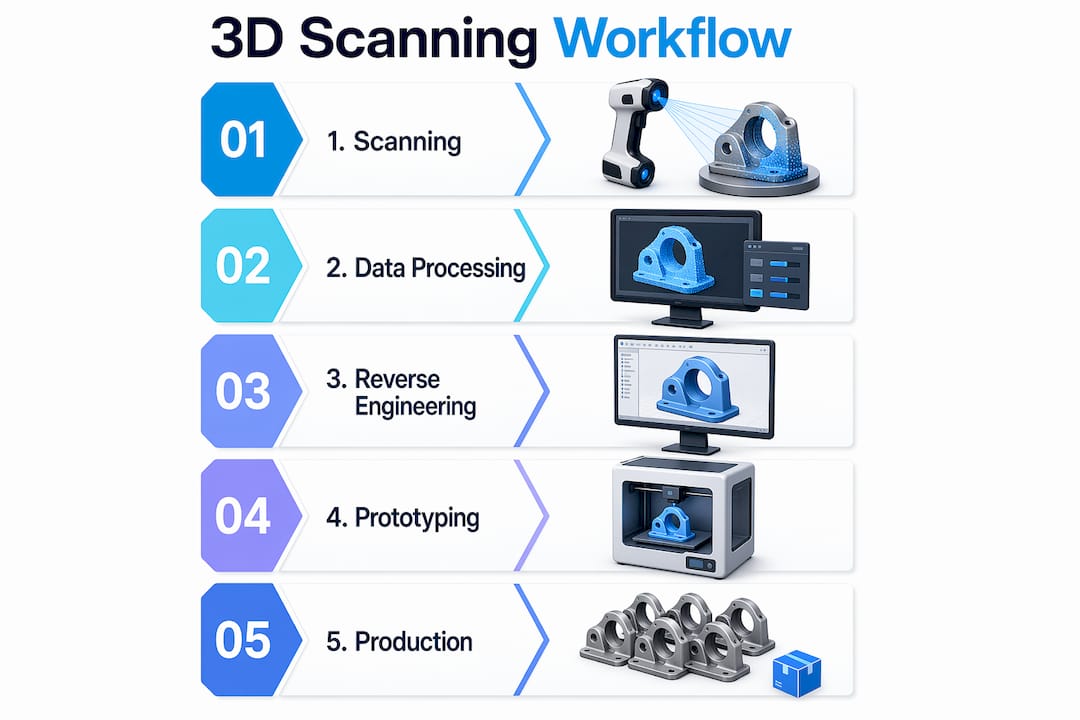
The workflow runs like this: you design a 3D model in CAD, export it as a machine-readable file, feed that into slicing software, and the slicer generates the toolpath your printer follows. The most common export format is STL (stereolithography), which approximates curved surfaces using triangular mesh facets. Higher triangle density produces smoother curves but inflates file size. Other formats like 3MF and STEP carry additional metadata such as color, scale, and assembly information, making them increasingly preferred for complex production jobs.

Infographic showing CAD to 3D printer workflow steps

Here is why this matters in practice. An STL file with too-low resolution will print visible faceting on a curved medical enclosure or an aerodynamic intake. A mesh with non-manifold edges, gaps, or overlapping surfaces creates ambiguous geometry that slicers interpret incorrectly, leading to missing walls or hollow sections in a part that was supposed to be solid. Understanding the best CAD file formats for your specific workflow prevents a whole category of upstream errors before you ever hit print.

What CAD controls in 3D printing:

  • Part geometry, including all wall thicknesses and internal features
  • Surface topology and mesh quality
  • Assembly fit and tolerancing
  • Export format and resolution
  • Whether geometry is valid and printable without repair

“CAD directly impacts print quality, precision, and success. The wrong design decisions create failures that no printer setting can fix.”

The key shift in mindset is treating CAD not as a design tool but as a manufacturing specification tool. Every decision you make in the model is a decision about how the printer will behave layer by layer.

Key CAD methodologies for print success

Design for additive manufacturing, commonly called DfAM, is the discipline of shaping CAD decisions around the specific constraints and advantages of 3D printing. It is distinct from design for injection molding or machining, and applying the wrong framework causes obvious problems.

The

core DfAM practices every engineer should internalize include minimum wall thickness guidelines, overhang management, hole geometry, stress-relief features, and watertight meshes. These are not aesthetic preferences. They are parameters grounded in how filament or resin behaves during deposition or curing.

Critical DfAM parameters for FDM and SLA:

  • Minimum wall thickness: 1.0 to 2.0mm for FDM, 0.5 to 1.0mm for SLA
  • Overhang angle: Keep overhangs under 45 degrees from vertical to avoid drooping without supports
  • Teardrop holes: Orient vertical holes as teardrops to eliminate bridging failure at the top
  • Fillets and chamfers: Add internal fillets to corners to reduce stress concentrations and delamination risk
  • Mesh integrity: All surfaces must form a closed, watertight volume with no holes, gaps, or non-manifold edges
DfAM Parameter FDM Guideline SLA Guideline
Minimum wall thickness 1.2 to 2.0mm 0.5 to 1.0mm
Overhang angle Less than 45° Less than 30°
Minimum hole diameter 2.0mm 0.5mm
Fillet radius 0.5mm minimum 0.3mm minimum
Mesh type Watertight, manifold Watertight, manifold

When designing reliable prints, overhang management is often where teams stumble first. A bracket arm designed without awareness of the printer’s 45 degree threshold will require heavy supports that are time-consuming to remove and often leave cosmetic or dimensional defects on the contact surface. Redesigning the arm with a chamfer instead of a perpendicular face eliminates the support entirely.

Technician inspecting 3D print overhang issues

Pro Tip: When your geometry calls for a hole parallel to the build plate, model it as a teardrop shape pointing upward. The slicer will bridge the flat underside cleanly, and you end up with a more accurate bore than a standard circle produces.

Watertight meshes deserve special attention because this is where many imported or converted models fail silently. A mesh that looks correct in CAD may contain microscopically open surfaces. Slicers either crash or generate malformed toolpaths from non-manifold geometry. Running a mesh repair check inside your CAD tool or a validator like Meshmixer before export is not optional on mission-critical parts. For more on how these rules translate into real outcomes, explore the print accuracy tips that guide our own production process.

Optimizing CAD files for stronger, more efficient parts

Once your model is geometrically sound and DfAM-compliant, the next layer of optimization focuses on performance. This is where CAD decisions directly affect mechanical strength, print time, and material cost simultaneously.

Step-by-step CAD optimization for production-ready parts:

  1. Analyze part orientation in the slicer before finalizing the model. The axis of greatest load should align with the XY build plane, not the Z axis.
  2. Identify all surfaces that would require supports and explore geometry modifications to minimize them.
  3. Choose between solid and lattice infill based on the part’s function. Load-bearing parts often need solid infill; structural housings can use gyroid or honeycomb lattice patterns without sacrificing rigidity.
  4. Set layer thickness based on your precision requirements. Thinner layers produce stronger, more accurate parts at the cost of print time.
  5. Confirm mesh resolution is high enough to accurately represent curves without over-bloating file size.
  6. Validate thermal settings in your CAD metadata or production notes if you are working with engineering-grade filaments like Nylon or PETG.

CAD pre-processing optimization analyzes part orientation to minimize supports, cut material use, and reduce print time. Tools like Siemens NX with DfAM modules can compare solid versus lattice infill configurations computationally, letting you evaluate structural performance before a single gram of filament is consumed.

The data on this is compelling. Empirical research on FDM shows that optimized CAD-printed PLA cubes reach compressive strength values around 31.4 MPa. Layer thickness is the single most influential parameter: a low layer thickness of 0.15mm combined with a high extruder temperature of 225 degrees Celsius produces the maximum combined performance index across strength and surface quality.

Configuration Layer Thickness Extruder Temp Compressive Strength
Optimized 0.15mm 225°C ~31.4 MPa
Standard 0.2mm 210°C ~24 MPa
Low quality 0.3mm 200°C ~18 MPa

This is not trivial. A 30 to 40 percent difference in part strength comes from CAD and process settings, not from switching to a more expensive printer. When you are developing functional prototypes or end-use parts, refer to manufacturing-grade methods to understand how these optimization principles apply at production scale. For teams new to this level of detail, a step-by-step prototype guide can bridge the gap between concept and validated part.

Advanced considerations: Anisotropy, lattices, and hybrid processes

For engineers pushing the mechanical limits of 3D printed parts, three topics demand serious CAD-level attention: anisotropy, lattice structure design, and hybrid manufacturing workflows.

Anisotropy refers to the directional variation in mechanical properties that FDM parts exhibit by default. Because material is deposited in layers, bonds between layers are inherently weaker than bonds within a layer. FDM anisotropy can result in a strength drop of up to 70 percent in the Z axis compared to the XY plane. In CAD terms, this means that a part carrying tensile loads in the Z direction will fail at a fraction of the force a same-geometry machined metal part would tolerate.

The CAD response to anisotropy is deliberate orientation strategy. You map the dominant load vectors onto the XY plane during the design phase, not as an afterthought during slicing. In some cases, this means splitting a part into two components that are printed separately and bonded, rather than printing a single piece in an unfavorable orientation.

Lattice structures offer compelling advantages for weight reduction in aerospace, robotics, and medical devices. A gyroid lattice can maintain 70 to 80 percent of a solid part’s stiffness at 40 percent of the material volume. However, internal lattices create a support removal challenge that most standard post-processing tools cannot address cleanly.

Key points for CAD-level lattice design:

  • Define lattice cell size relative to nozzle diameter. Cells too small for the nozzle diameter will not print accurately.
  • Avoid lattice regions adjacent to mating surfaces that require dimensional precision.
  • Include drain holes in enclosed lattice zones to allow powder or resin evacuation in SLS and SLA processes.
  • Simulate load distribution before committing to a cell pattern. Not all lattice geometries perform equally under all load types.

Pro Tip: If you are designing a lattice for structural lightweighting, run an FEA (finite element analysis) pass inside your CAD tool before exporting. Topology optimization outputs combined with lattice infill give you a data-backed starting point instead of an educated guess.

Hybrid manufacturing recognizes that 3D printing alone does not always achieve the tight tolerances that functional parts require. Post-print CNC machining on bearing surfaces, threaded holes, and mating faces is increasingly common in precision applications. This means your CAD model needs to include machining allowances, datum references for fixturing, and feature flags that differentiate printed surfaces from machined surfaces. Planning these details in CAD from the start avoids costly reprints and setup errors downstream. For guidance on balancing print complexity with production volume, the tips for low-volume production are directly applicable here.

Our take: Why great CAD still trumps expensive printers

We work with product developers and engineers across a wide range of industries, and one pattern shows up consistently: teams that struggle with print quality are almost always struggling with CAD quality first. The printer is rarely the problem. A printer running with a well-optimized, DfAM-compliant file will outperform a top-shelf machine running a poorly constructed model every single time.

The uncomfortable reality is that most 3D print failures, including warping, delamination, dimensional inaccuracy, and weak mechanical performance, are downstream effects of decisions made in CAD, not printer malfunctions. Engineers who understand DfAM, mesh integrity, orientation strategy, and material behavior at the design stage spend dramatically less time troubleshooting and iterating. Their first print is often their last prototype before production.

There is also an important counterargument worth naming honestly. As hybrid manufacturing research makes clear, 3D printing excels at prototyping and low-volume production, but scaling to true production volumes for complex, precision-critical parts often still requires integration with traditional machining. CAD skills become even more valuable in that hybrid context because you are designing simultaneously for two very different manufacturing constraints.

Our recommendation is this: invest the time to master your CAD workflow before you consider upgrading your printer. The return on that investment is higher, more transferable, and more immediately visible in print outcomes. Understanding why quality matters at the design stage is what gives you repeatable results, not a more expensive machine.

Ready to leverage pro-level CAD and 3D printing?

Putting these CAD principles into practice requires both expertise and the right production environment. At CC 3D Labs, we specialize in bridging the gap between your digital design and a precisely printed physical part, whether you are developing a functional prototype or moving into batch production.

https://cc3dlabs.com

Our team works directly with professional 3D printing services optimized for engineering-grade accuracy, reviewing CAD files for DfAM compliance before a single layer is printed. Whether you need on-demand prototypes with fast turnaround or guidance on production-ready part design, we bring the technical depth to make your designs work the first time. Browse our CAD project gallery to see the range of complex, precise parts we produce for clients across industries, and reach out for a free estimate when you are ready to move from concept to part.

Frequently asked questions

Why is CAD so important in 3D printing?

CAD provides the exact digital blueprint that determines whether a part is printable, how accurate it will be, and whether it will meet mechanical requirements. As foundational workflow research confirms, poor CAD decisions lead directly to failed or inaccurate prints regardless of printer quality.

Which CAD features matter most for strong 3D printed parts?

Wall thickness, mesh watertightness, part orientation, and well-placed fillets are the most critical design factors. DfAM practice guidelines specify minimum wall thickness of 1 to 2mm for FDM, with overhangs kept under 45 degrees and fillets applied at all internal corners to reduce stress.

How does CAD affect print time and material use?

Part orientation and infill strategy are the two biggest levers. Pre-processing optimization tools can compare solid versus lattice infill configurations and evaluate orientation options to minimize support structures, material consumption, and total print time before the job starts.

Do I always need to redesign parts in CAD for 3D printing?

Nearly always, yes. Parts designed for injection molding or machining often include geometry that is unprintable or structurally weak when 3D printed. Adapting designs to 3D printing-specific rules in CAD is essential for achieving reliable dimensional accuracy and mechanical performance.

What are the biggest challenges with CAD in 3D printing?

The most common challenges are managing anisotropic mechanical properties through orientation strategy, ensuring fully watertight mesh geometry, and designing parts that account for hybrid post-print machining. FDM anisotropy alone can reduce Z-axis strength by up to 70 percent when load alignment is not addressed in CAD.