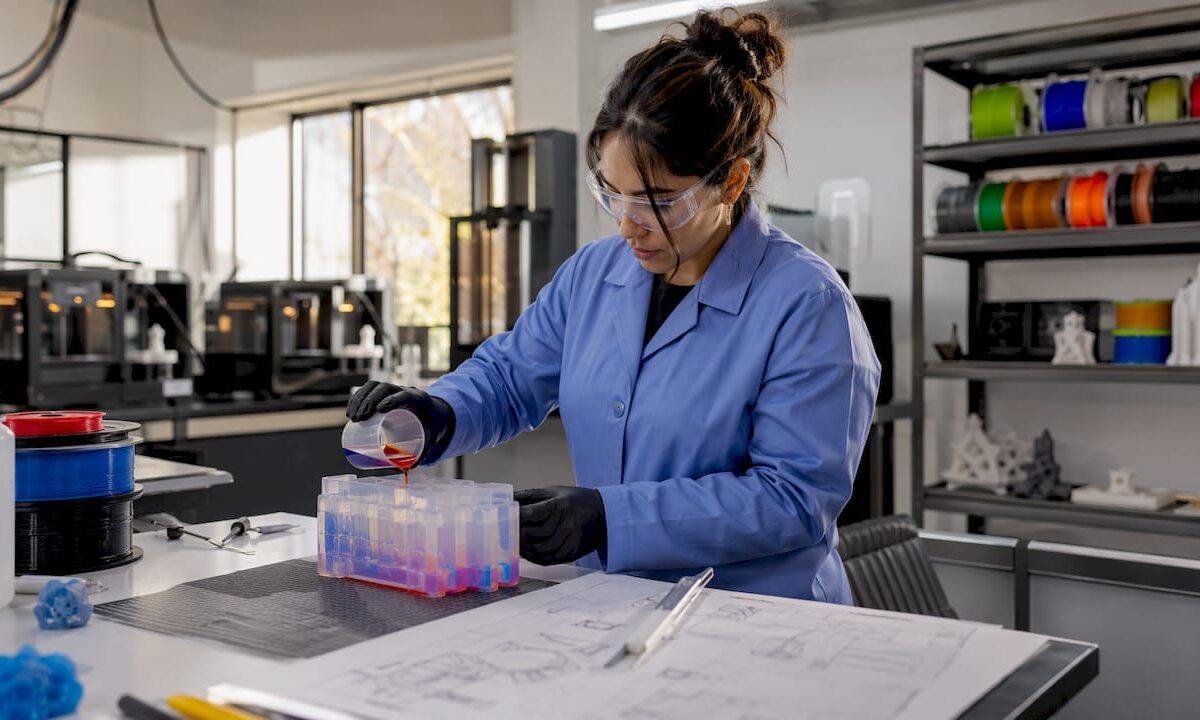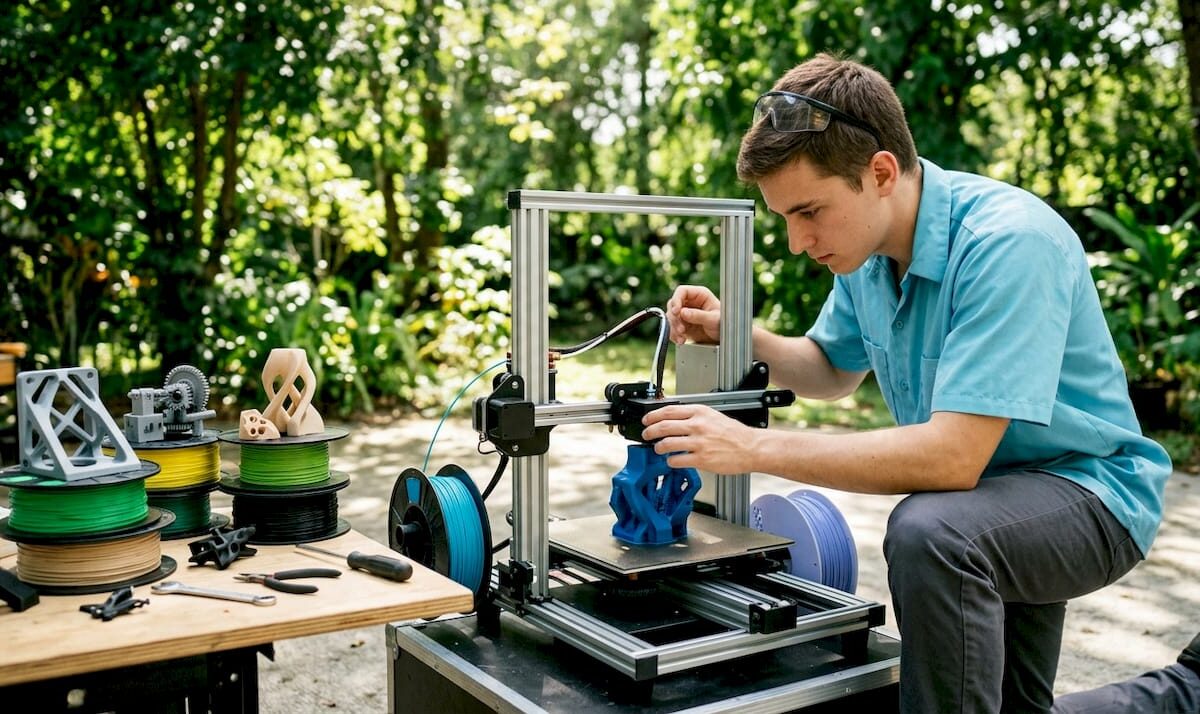
Maker prepping multi-color FDM print in workspace

How to Create Multi-Color Prints: FDM Creator’s Guide


TL;DR:

  • Multi-color 3D printing in FDM requires matching techniques to specific hardware types, from manual filament swaps to multi-toolhead systems. Software like PrusaSlicer supports color assignment and preview, enabling effective control over complex multi-color models. Advanced systems such as the MMU3 and multi-toolhead printers offer higher fidelity and lower waste, but manual swaps remain accessible for simpler projects.

Multi-color 3D printing is one of the most exciting capabilities in FDM printing today, but getting it right takes more than just loading a colorful filament. If you want to know how to create multi-color prints that actually look sharp, you need to understand which workflow matches your hardware, how slicers handle color assignment, and where most creators go wrong. This guide walks you through every major approach, from simple manual filament swaps on a single-extruder machine all the way up to multi-toolhead systems, with practical tips at every level.

Table of Contents

Key Takeaways

Point Details
Match method to hardware Your printer type determines which multi-color technique is actually achievable without modifications.
Use 3MF over STL STL files strip color data; 3MF format keeps color regions intact for clean slicer assignment.
Purge waste adds up fast Filament purging between color changes can exceed the volume of the model itself if not managed carefully.
MMU3 unlocks five colors per layer Multi-filament add-ons like the Prusa MMU3 allow true per-layer color mixing without manual pauses.
Slicer preview is non-negotiable Always verify filament assignments in slicer preview before sending a multi-color job to the printer.

How to create multi-color prints: tools and setup

Before you touch a slicer, you need the right hardware and software in place. The method you use to produce multi-color prints depends almost entirely on your printer setup.

Printer types for multi-color printing:

  • Single-extruder printers (e.g., Prusa MK4S): Support manual filament swaps between layers. Simple, low-cost, but limited to one color per layer at a time.
  • Multi-filament add-ons (e.g., Prusa MMU3): Attach to a single-extruder printer and automate filament switching, supporting up to five colors.
  • Multi-extruder or multi-toolhead printers (e.g., Prusa XL): Feature independent printheads per color, offering the cleanest transitions and lowest purge waste.

Software matters just as much as hardware. PrusaSlicer is the go-to option for most multi-color workflows because it supports model painting and color assignment using brushes and smart fill tools. BambuStudio offers similar functionality for Bambu hardware. Both let you preview filament assignments per object before printing.

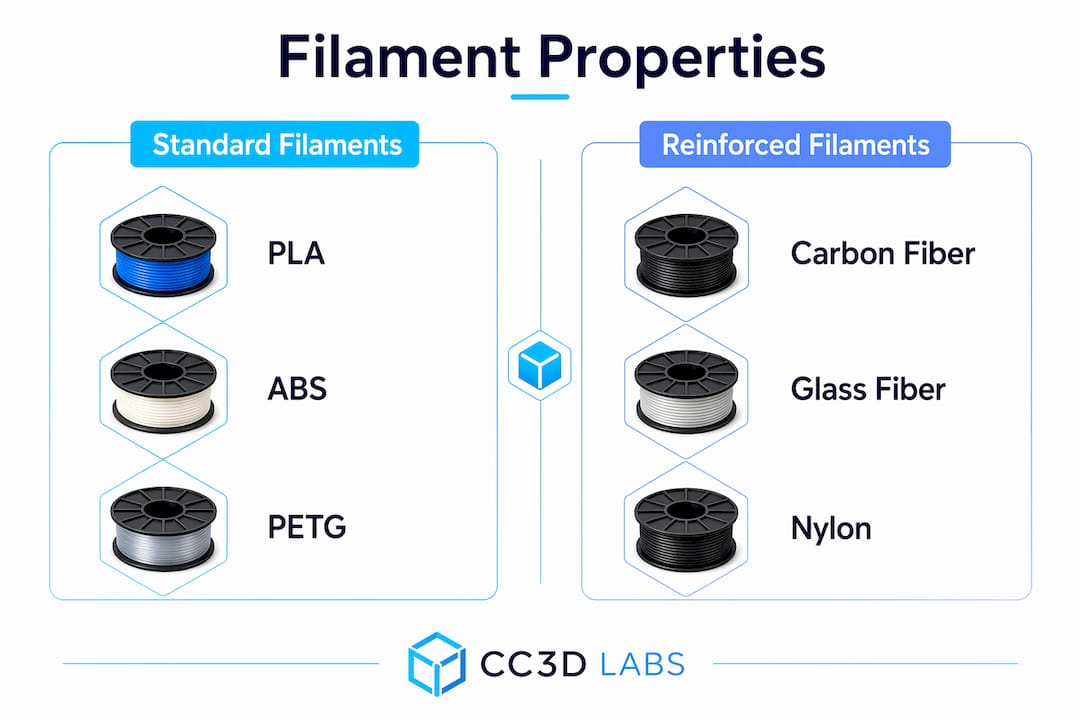
For filament materials, PLA is the easiest starting point since it sticks well between layers and comes in hundreds of colors. PETG is a step up in durability. When mixing filament types across extruders, check compatibility first. Running PLA in one nozzle and TPU in another on the same layer can cause adhesion failures if temperature settings are not optimized.

Hardware Option Colors Possible Waste Level Best For
Single extruder + manual swap 2 to 6 (layer-based) Low Beginners, simple designs
MMU3 add-on Up to 5 per layer Medium Hobbyists, detailed models
Multi-toolhead (XL) Up to 5 per layer Low to medium Professionals, high fidelity
Multi-nozzle carousel systems 12+ colors Very low Advanced, specialized use

Pro Tip: Always slice your model at 100% scale before assigning colors. Re-scaling after color regions are painted in the slicer can shift assignments and create mismatches at boundaries.

The manual filament change method

The most accessible path to making colorful prints on any FDM printer is the manual filament swap method. You do not need any add-ons or extra hardware. What you do need is a slicer that supports color change markers and the patience to babysit the printer during the job.

Here is how to do it step by step:

  1. Prepare your model. Keep it simple for your first attempt. A flat logo or layered badge works perfectly because the color regions align naturally with horizontal layers.
  2. Set color change markers in your slicer. In PrusaSlicer, right-click on the layer preview timeline and add a “Color Change” marker at the exact layer height where you want the transition. The printer will pause and prompt you to swap filament. Manual color change automatically pauses at the specified layer.
  3. Swap the filament. When the printer pauses, unload the current filament, load the new color, and purge until the new color runs clean through the nozzle. Do not rush this step.
  4. Resume the print. Confirm the swap in the printer interface and watch the first few layers to confirm the color is correct before walking away.

Limitations to know upfront: The manual swap method cannot blend two colors within a single layer. Every color change applies to a full horizontal layer and above. That means complex multi-color graphics with side-by-side colors in the same layer are not achievable this way.

Pro Tip: Print a small purge block next to your model. It catches residual color bleed without contaminating your actual print, and you just discard it when done.

A few common mistakes to avoid:

  • Pulling the filament too fast during unload and leaving a clog at the nozzle tip
  • Not purging enough material before resuming, which causes color spotting on the first few layers of the new color
  • Forgetting to re-level the bed after a swap if the printer was bumped

Using multi-filament add-ons like the MMU3

When you want more than two or three colors without standing at the printer for hours, a multi-material unit changes everything. The Prusa MMU3 attaches to a compatible Prusa printer and manages automated filament loading and unloading across up to five spools.

How the MMU3 workflow works:

  • You load up to five filament spools into the MMU3 unit and thread them into the selector.
  • In PrusaSlicer, you paint different regions of your model with different filament assignments using the brush or smart fill tool.
  • During printing, the MMU3 unloads the active filament, selects the next one, and loads it into the nozzle automatically.
  • Purge material is deposited into a wipe tower printed alongside your model, using an efficient unload method similar to a cold pull to reduce waste.

The filament mapping UI in PrusaSlicer also lets you reassign which filament slot handles which model region. If a spool runs out mid-print, you can remap to a backup without starting over. That is a genuinely useful feature on longer jobs.

Feature MMU3 Manual Swap
Colors per layer Up to 5 1
Requires user intervention No Yes
Purge waste Medium (wipe tower) Low (manual purge)
Setup complexity Moderate Minimal
Best color separation Excellent Layer-level only

Managing the wipe tower is one of the bigger decisions in the MMU3 workflow. You can reduce its size in slicer settings, but go too small and you get color contamination between transitions. For most hobbyist projects, leaving the wipe tower at default settings and optimizing later is the right call.

Pro Tip: Group your color changes so that adjacent layers use the same filament as often as possible. Fewer actual switches per layer means a smaller wipe tower and faster print times.

Advanced multi-toolhead and multi-nozzle systems

Multi-toolhead printers represent the highest level of multi-color printing available to creators today. Instead of routing different filaments through a single nozzle (which always requires purging), these machines physically swap the entire printhead for each color.

Technician working with multi-toolhead 3D printer

The Prusa XL toolchanger supports up to five independent tool heads, each with its own extruder and nozzle. When a color switch is needed, the printer docks the current head and picks up the next one. Because no filament residue remains in a shared nozzle, the wipe tower shrinks dramatically and color fidelity improves.

Even further along the spectrum are carousel-style multi-nozzle systems. A 12-nozzle rotating printer cuts the filament and rotates a new nozzle into position rather than purging, which nearly eliminates purge waste entirely. This approach solves one of the most persistent pain points in multi-color FDM printing.

Advantages of multi-toolhead systems:

  • True per-layer color placement with no bleed between regions
  • Different nozzle sizes per tool head (detail nozzle for fine color work, larger nozzle for structural infill)
  • Support for mixed materials in a single print, such as flexible TPU alongside rigid PLA
  • Lower filament waste than MMU-style systems on complex multi-color models

The tradeoff is cost and footprint. The Prusa XL costs several times more than a standard MK4S. For a hobbyist running occasional multi-color projects, the MMU3 add-on delivers strong results at a fraction of the price. For creators producing high-detail multi-color work regularly, or running batch multi-color jobs, a toolchanger system pays off quickly in time and material savings.

Troubleshooting common multi-color print problems

Even with a solid setup, multi-color prints introduce failure modes that single-color jobs never surface. Here is how to address the most common ones.

Color bleeding between regions is the most frustrating issue. It usually means your wipe tower is too small, your purge volume is too low, or your retraction settings are not tuned. Increase the wipe tower width in slicer settings by 10mm increments and re-test until transitions run clean.

Filament misloads with MMU systems often happen when you mix pause-based color swaps with object-based painting in the same print job. Verify your slicer preview carefully before printing and avoid combining both methods in a single file.

File format matters more than most creators realize. The STL format lacks color data, which means every color assignment has to be done manually in the slicer after import. A 3MF file, by contrast, carries color region assignments directly. If you are designing your own multi-color model, export from your CAD software as a multi-body 3MF where each color is a separate object. It saves a significant amount of setup time.

Pro Tip: Tools like MosaicFlow use AI to separate color regions from an uploaded image and export a ready-to-slice 3MF file. For creators who want to turn artwork or logos into multi-color prints quickly, this shortcut is worth knowing.

For anyone dealing with purge waste exceeding model volume, the first fix is reducing unnecessary color switches. Review your slicer’s layer preview and consolidate layers where the color change order does not affect appearance. Every eliminated switch saves filament and print time.

File preparation and slicer settings are where most multi-color prints are won or lost. The printer does exactly what the G-code tells it to.

My take on where multi-color printing actually stands

I’ve worked hands-on with multi-color FDM setups across the spectrum, from basic layer swaps to full toolchanger systems, and my honest view is that we are in a genuinely interesting period for this technology.

The manual filament swap method gets a lot of dismissal, but I think it is underrated for specific use cases. If you want a clean two-tone or three-tone print and you are not in a hurry, it produces surprisingly sharp results with zero additional hardware investment. The limitations are real, but so is the simplicity.

What I’ve learned about MMU-style systems is that patience with setup pays dividends later. The first time I dialed in a wipe tower and filament mapping on a complex five-color badge print, I spent three hours on prep and ten minutes on the actual print. That ratio flips fast once the workflow clicks.

The biggest shift I’ve seen recently is software catching up to hardware. The multi-color 3D printing methods available now are genuinely more accessible than they were two years ago, largely because slicers have gotten smarter about color assignment and waste reduction. The hardware innovations are exciting, but software is what makes them usable for everyday creators.

My advice: start with manual swaps to understand how color transitions work physically, then graduate to an MMU-style add-on when you want automation. Only invest in a toolchanger system if multi-color printing is a core part of your workflow, not an occasional experiment.

— Justin

Take your multi-color prints further with Cc3dlabs

If you have pushed your home setup as far as it goes and want genuinely professional results, Cc3dlabs is the next step worth considering.

https://cc3dlabs.com

Cc3dlabs operates near Philadelphia and specializes in professional multi-color printing for creators, product developers, and businesses. Their team works with advanced multi-filament FDM systems to produce high-fidelity color prints across prototypes, display models, and functional parts. Whether you need a single detailed prototype or a production batch, Cc3dlabs handles the file prep, material selection, and print execution so you get clean, repeatable results without the learning curve. Get a free online estimate through their 3D printing services page, and see what professional-grade multi-color capability actually looks like.

FAQ

What are multi-color prints in 3D printing?

Multi-color prints are FDM 3D printed objects that incorporate two or more filament colors in a single model. They are produced through manual filament swaps, multi-filament add-ons, or multi-toolhead printers depending on the desired complexity.

Can any FDM printer make multi-color prints?

Yes. Any FDM printer can produce basic multi-color prints using manual filament changes at specified layer heights. For per-layer color placement and more than two colors, a multi-filament add-on or multi-extruder system is required.

How do I reduce waste when printing in multiple colors?

Minimize the number of color switches per layer, increase wipe tower efficiency in your slicer, and consider a toolchanger system for high-color-count jobs, since purge waste can exceed model volume in standard MMU setups.

Infographic steps to reduce waste in multi-color prints

What file format works best for multi-color 3D printing?

3MF is the preferred format because it retains color region assignments that STL files cannot store. Designing multi-body models where each color is a separate object makes slicer color assignment much faster and more accurate.

How many colors can I print at once with FDM?

Manual filament swaps support as many colors as you are willing to swap, but only one color per layer. The Prusa MMU3 supports up to five colors simultaneously per layer, while advanced carousel nozzle systems can handle twelve or more.

Woman removing supports from 3D print at workbench

What Is Post-Processing in 3D Printing and Why It Matters


TL;DR:

  • Post-processing in 3D printing includes support removal, cleaning, curing, sanding, and surface treatments that determine part functionality and appearance. It is essential for achieving professional quality, mechanical strength, and compliance with industrial standards, especially for metal or high-stakes components. Properly matching techniques to end-use and planning sequences early optimizes results and reduces errors in additive manufacturing.

Most people assume the hard work ends when the print finishes. It doesn’t. What is post-processing in 3D printing? It’s every step you take after the printer stops: removing supports, cleaning away residue, sanding surfaces, applying coatings, or running parts through advanced finishing treatments. These steps determine whether your print is a rough prototype or a production-ready component. Skip them, and even a technically perfect print can fail a fit test, look unprofessional, or break under load. Master them, and you unlock the full potential of additive manufacturing.

Table of Contents

Key Takeaways

Point Details
Post-processing defines final quality The printing process creates geometry, but finishing determines whether a part is functional and presentable.
Core steps apply across technologies Cleaning, support removal, and curing are foundational regardless of whether you use FDM, SLS, or resin printing.
Surface finishing changes mechanics Spray painting and sanding affect not just appearance but also hardness, roughness, and dimensional accuracy.
Advanced methods meet industrial standards Metal parts often require electro-polishing, laser treatment, or plating to satisfy aerospace and medical certifications.
Match technique to end-use A visual prototype needs different finishing than a load-bearing functional part. Knowing the difference saves time and money.

What is post-processing in 3D printing: the fundamentals

Before you decide which finishing method to use, you need to understand the three foundational steps that apply to almost every print technology. These aren’t optional. They’re where you prepare the part for any further work.

Support removal and cleaning

Support structures are temporary scaffolding. For FDM prints, you typically snap or cut them away with flush cutters and pliers. For resin prints, you dissolve or peel them off after washing the part in isopropyl alcohol. The material matters here. Water-soluble PVA supports can simply dissolve in water when used with dual-extrusion FDM printers, which is a genuine convenience for complex geometries.

Cleaning is equally non-negotiable. Resin prints must be washed to remove uncured liquid resin before UV curing. SLS powder-bed prints are covered in semi-sintered powder that has to be removed before any other step. Automated media blasting can reduce SLS cleaning time to as little as 5 minutes, compared to the labor-intensive brushing that used to be standard. And for parts with complex cavities, automated blasting cleans negative features that a brush simply cannot reach.

Curing for resin-based prints

UV curing is mandatory for any photopolymer print. Without it, the part remains brittle, sticky, and chemically unstable. Most desktop users cure parts in a dedicated UV curing station for 2 to 15 minutes depending on part thickness and resin type. Industrial setups use calibrated UV ovens with temperature control to achieve consistent mechanical properties across a production batch.

Man curing resin 3D print in UV chamber

Pro Tip: After curing a resin part, let it cool completely before handling. Warm resin is softer and more prone to warping under pressure from your fingers.

Surface finishing techniques and their trade-offs

Once your part is clean and structurally stable, surface finishing determines how it looks and how it performs. This is where the role of post-processing in 3D prints becomes most visible, and most consequential.

Sanding and mechanical polishing

Sanding is the most accessible 3D printing finishing method available. You start with a coarse grit (around 120 to 200) to knock down layer lines, then work progressively toward finer grits (400, 800, 2000) for a smooth surface. For tight geometries or internal channels, flexible sanding sticks or rotary tools work better than flat sandpaper.

Mechanical polishing with a buffing compound after wet sanding can bring FDM parts to an almost glass-like finish. This works particularly well on PETG and ABS. The trade-off: sanding removes material, so if your part has tight tolerances, you need to account for that. To understand how dimensional accuracy interacts with prototype reliability, it’s worth thinking about finishing from the design stage, not after the fact.

Chemical smoothing

Acetone vapor smoothing is the most well-known chemical finishing method for ABS parts. You expose the part to acetone vapor in a controlled container, and the solvent melts the surface layer just enough to flow and fuse the layer lines. The result looks injection-molded. The downside is real: acetone vapor smoothing reduces roughness but softens the material, which can compromise tensile strength and dimensional accuracy.

For PLA, tetrahydrofuran (THF) or ethyl acetate can produce similar effects, though they require careful handling due to toxicity. These chemical approaches are best reserved for appearance models, not load-bearing parts.

Coatings and painting

Painting is underrated as a finishing technique, particularly when you look at the numbers. Spray painting ABS parts reduces surface roughness by 70% and increases hardness by 19%, outperforming acetone dipping and copper sputtering in surface quality improvement. The key is surface preparation: primer first, then two or three light coats, with light sanding between layers.

Infographic showing five steps of post-processing

Finishing method Roughness reduction Effect on hardness Best for
Spray painting ~70% +19% Aesthetics and light mechanical improvement
Acetone vapor (ABS) Significant Slight decrease Visual models only
Sanding (manual) Moderate No direct effect Any material, tight tolerance parts
Shot blasting (metal) 62% to 70% Varies Metal MEX parts

Pro Tip: Apply a UV-resistant clear coat as your final layer on any painted or primed exterior part. It prevents yellowing and surface degradation when the part is used outdoors or under shop lighting.

Advanced post-processing for metal and industrial parts

When you move into metal additive manufacturing or parts destined for aerospace, biomedical, or heavy industrial applications, the types of 3D printing post-processing required change substantially. The stakes are higher, and so are the methods.

Electro-polishing, chem-polishing, and plating

For stainless steel parts produced by laser powder bed fusion or material extrusion, a multi-stage finishing sequence delivers the best results. Combining chemical polishing, electro-polishing, and electroless nickel plating maximizes surface finish and mechanical durability. The optimal sequence is chemical polishing first, then electro-polishing, then electroless nickel plating. Each stage builds on the previous one.

Electroless nickel plating specifically improves corrosion resistance, wear resistance, and surface hardness on AM stainless steel parts. Getting the process parameters right matters: bath temperature, pH, and immersion time all affect coating uniformity and adhesion. This level of finishing is why certain additively manufactured components can pass requirements that were previously only achievable through subtractive machining.

Laser-based surface modification

Laser treatments are among the most precise post-processing techniques available. Laser polishing uses controlled surface melting to smooth surface asperities while maintaining dimensional fidelity. Laser shock peening takes a different approach: it induces compressive residual stresses in the surface to improve fatigue life without adding heat to the bulk of the part.

These techniques matter because post-processing greatly influences fatigue life, corrosion resistance, and dimensional precision of metal parts. Minor surface imperfections can reduce durability significantly when a part cycles through stress millions of times. Shot blasting on metal MEX parts has shown roughness reductions of 62% to 70% on lateral surfaces. That’s not cosmetic. That’s structural.

Regulatory standards and qualification

Post-processing for high-stakes applications isn’t just about performance. It’s about documentation and compliance. Post-processing choices critically impact part certification, requiring rigorous validation protocols especially in aerospace and medical sectors. ASTM and NASA standards define acceptable surface conditions, and hybrid finishing processes often require custom validation plans to demonstrate durability under fatigue, corrosion, and wear conditions.

For manufacturers navigating these requirements, understanding part validation in 3D printing is not optional. You need traceability, documented process parameters, and test results that prove each post-processing stage contributed to the final mechanical specification.

Choosing the right post-processing approach

The benefits of post-processing are only realized when you match the method to the goal. Here’s how to think through that decision systematically.

  1. Define the end-use first. Post-processing method selection should be driven by whether the goal is visual prototyping or mechanical testing. A concept model shown at a client meeting needs a smooth, painted surface. A functional bracket needs dimensional accuracy and structural integrity. Conflating these goals leads to over-processing or under-processing.

  2. Match finishing to material. PLA is difficult to chemically smooth and doesn’t respond well to acetone. ABS is ideal for vapor smoothing but softens if over-treated. Resin requires UV curing before any mechanical finishing. Metal parts need abrasive or electrochemical treatments that plastics never require.

  3. Plan your sequence before you start. The order of operations matters. For a painted FDM part, the correct sequence is: support removal, sanding (coarse to fine), primer coat, light sanding, color coat, clear coat. Skipping primer leads to paint adhesion failures. Skipping coarse sanding before primer wastes fine coats on a rough substrate.

  4. Consider the tolerance budget. Every finishing step removes or adds material. If your part has a 0.1 mm press-fit tolerance, track how much material each step removes. Sanding, vapor smoothing, and coating all affect final dimensions. Build this into your 3D print design workflow from the start.

  5. Prototype your finishing process. Before committing a final production run to a new post-processing sequence, run the process on a test print. This is especially true for chemical treatments and coatings on unfamiliar materials.

Pro Tip: When working with resin parts that will be sanded and painted, cure them at least 30% longer than the manufacturer’s recommended time. A fully cured part sands more cleanly and holds primer without micro-chipping.

My honest take on post-processing

I’ve seen people spend weeks perfecting their print settings and then rush the finishing in an afternoon. That’s backwards. In my experience, the finishing stage regularly accounts for 40 to 60 percent of the time it takes to produce a high-quality, presentation-ready part. The printing is the easy part now. The finishing is where skill actually shows.

What surprises most people I work with is that post-processing isn’t just about aesthetics. I’ve watched parts that looked perfect off the printer fail fatigue tests because the surface condition was inconsistent. The research is clear on this: surface region condition is decisive for long-term durability. That’s not an abstract concern for aerospace engineers. It applies to any functional part that will see repeated stress.

The other thing I’d push back on is the idea that more finishing is always better. I’ve seen parts chemically smoothed into dimensional failure. I’ve seen coatings applied so thickly that mating surfaces no longer fit. Choosing the right print type from the beginning reduces how much corrective finishing you need later. Post-processing is powerful, but it isn’t a fix for poor design decisions or the wrong material choice.

My advice: treat finishing as part of the design process, not an afterthought. Know what your part needs before the print even starts.

— Justin

Let Cc3dlabs handle the finish work

https://cc3dlabs.com

At Cc3dlabs, near Philadelphia, post-processing isn’t something we bolt on at the end. It’s built into every project from the start. Whether you’re working with filament-based prototypes that need a clean, professional surface or functional parts that require consistent dimensional accuracy across a batch, our team applies the right finishing methods for the job. We handle diverse materials, manage tight tolerances, and support clients from single-part prototyping through production-scale orders. Explore our professional 3D printing services to see how we integrate finishing into every part we deliver, locally or shipped anywhere.

FAQ

What does post-processing mean in 3D printing?

Post-processing in 3D printing refers to all steps performed after a part is printed, including support removal, cleaning, curing, sanding, painting, and advanced surface treatments. These steps transform a raw print into a functional or visually finished part.

Why is post-processing important for 3D printed parts?

Post-processing directly affects surface quality, mechanical performance, and dimensional accuracy. Without it, most prints have visible layer lines, rough surfaces, and reduced durability compared to traditionally manufactured parts.

What post-processing technique works best for FDM prints?

For FDM prints, mechanical sanding followed by primer and spray paint is one of the most effective methods, reducing surface roughness by up to 70% while also improving surface hardness. Acetone vapor smoothing works well for ABS appearance models but can reduce mechanical strength.

Do metal 3D printed parts need post-processing?

Yes. Metal additively manufactured parts almost always require post-processing to meet mechanical and regulatory standards. Techniques like electro-polishing, chem-polishing, and electroless nickel plating improve surface finish, corrosion resistance, and fatigue life, which are critical for aerospace and medical applications.

How do I choose the right post-processing method?

Match the method to the end-use. Visual prototypes benefit from sanding, priming, and painting. Functional parts require treatments that preserve or improve mechanical properties without compromising dimensional accuracy. Material type also dictates which chemical or mechanical methods are safe to apply.

Retail designer examines 3D-printed sneaker prototype

The Real Role of 3D Prints in Retail Today


TL;DR:

  • D printing’s role in retail has expanded to include product customization, store redesign, and supply chain optimization. It enables rapid prototyping, personalized products, and sustainable packaging, offering brands a competitive edge. Retailers must manage operational challenges like licensing, fulfillment, and customer expectations to fully leverage this technology.

Most retail owners think 3D printing means one thing: rapid prototyping. You get a concept, print a model, and move on. But the role of 3D prints in retail has grown far past that narrow definition. Brands are now using additive manufacturing to produce custom products, redesign store interiors, create packaging that people photograph before they even open it, and shorten supply chains in ways that would have seemed impractical five years ago. This article breaks down every major application, the real operational challenges you need to prepare for, and how to use this technology to give your customers something they cannot get anywhere else.

Table of Contents

Key takeaways

Point Details
Beyond prototyping The impact of 3D printing in retail spans product customization, packaging, store design, and supply chain agility.
Conversion lift Interactive 3D product content can increase e-commerce conversions by up to 94% compared to standard 2D images.
Packaging as brand asset 3D printed packaging splits into two clear markets: luxury customization and functional protective packaging, each with distinct ROI.
Operations demand discipline Selling 3D prints commercially adds shipping, customer service, and legal overhead that most retailers underestimate.
Start with a partner Working with an experienced 3D printing service reduces upfront risk and speeds up your first market-ready application.

How 3D printing is reshaping retail product development

The most direct 3D printing benefits for retailers show up in product development. Traditional design cycles require tooling, mold creation, and minimum order quantities that can tie up capital for months. With additive manufacturing, you can go from a digital file to a physical product in hours, test customer reactions, and iterate without scrapping thousands of dollars of inventory.

This speed creates real competitive advantages in categories where trends move fast.

Customization as a product category

Hyper-customization is where the 3D print applications in retail get genuinely interesting. Brands in jewelry, fashion, and footwear are treating customization as the product itself, not just a feature. Syntilay’s in-store 3D scanning experience in Times Square is a clear example. Shoppers scan their feet and receive custom fit 3D printed shoes built to their exact measurements. The shoes fit better than anything off a standard shelf. That precision becomes the sales pitch.

Beyond footwear, jewelry retailers let customers choose stone placement, engravings, and band dimensions through a configuration tool, then print the piece on demand. The customer is no longer buying from a catalog. They are co-designing a product that only they will own.

On the digital side, e-commerce retailers adding interactive 3D content to product pages see conversion rates up to 94% higher than pages using standard 2D photography. Shoppers who can rotate, zoom, and inspect a product model are more confident and buy more often.

  • Rapid iteration on new product concepts without tooling costs
  • On-demand production of personalized goods in fashion and accessories
  • Reduction of dead stock through made-to-order manufacturing
  • Interactive 3D models on product pages that increase buyer confidence
  • Localized product variants for different markets without retooling

Pro Tip: If you sell accessories or small goods online, even a basic 3D model embedded in your product page can measurably reduce return rates. Customers know exactly what they are getting before the package arrives.

3D printed packaging and the unboxing advantage

Packaging is one of the most underused applications when retailers start exploring how 3D prints change retail. Most conversations skip straight to product. But your packaging is the first physical touchpoint a customer has with your brand, and 3D printing gives you design freedom that injection molding simply cannot match at low volumes.

Retailer inspects custom 3D printed boxes

The 3D printed packaging market breaks clearly into two segments, and understanding which one fits your business matters before you invest.

Packaging segment Best fit Core benefit
Luxury customization Cosmetics, jewelry, premium DTC brands Creates memorable unboxing moments and signals brand quality
Functional protective packaging Electronics, fragile goods, industrial products Reduces damage rates with precise geometric fits
On-demand production E-commerce, subscription boxes Eliminates overstock and supports small-batch product launches

The sustainability angle is real too. Additive manufacturing reduces material waste by building up material layer by layer rather than cutting it away. And recycled filaments made from post-consumer plastics are available now, not in some future roadmap.

Infographic with retail 3D printing key stats

Cosmetics brands have been early movers here. A small-batch fragrance company, for example, can print a run of 200 custom cap designs for a seasonal launch without committing to a 10,000-unit mold. That flexibility protects cash flow and lets you test market response before scaling.

Pro Tip: For DTC brands, your packaging is a social media asset. A 3D printed box with a textured logo or geometric form gets photographed and shared. Design for the unboxing video, not just for protection.

Store architecture and displays powered by 3D printing

Retail 3D printing trends in 2026 include something most owners have not considered: printing the store itself. Large-format 3D printing now makes it practical to produce custom architectural elements, ceiling panels, display fixtures, and wall structures at a scale that changes the entire feel of a retail environment.

Lululemon’s collaboration with Aectual is the most cited example in the industry. The brand used large-format 3D printed panels made from recycled consumer waste for store ceiling and display installations. The result checks three boxes at once: it reinforces their sustainability brand message, creates a store environment that feels genuinely distinctive, and uses modular components that can be reconfigured or moved to a new location.

Feature Traditional fixtures 3D printed fixtures
Lead time 8 to 14 weeks 2 to 4 weeks
Minimum order Often 50+ units Single unit possible
Custom geometry Limited by tooling Unlimited design freedom
Sustainability Standard materials Recycled filaments available
Reusability Low modularity Modular and reconfigurable

For 3D printing for product displays specifically, this means you can build fixture systems that match your visual identity exactly instead of buying generic shelving and adding branding as an afterthought. You can explore custom retail display applications to see what this looks like in practice.

Operational challenges you need to plan for

The benefits are real, but the impact of 3D printing in retail also comes with friction that catches retailers off guard. Understanding these challenges before you launch a program protects your margins and your reputation.

The Syntilay example captures one tension clearly. In-store 3D scanning for custom footwear improves product fit, but retailers must manage the visible friction of delayed fulfillment. A customer who scans their foot in your store and waits two weeks for a shoe has a fundamentally different experience than a customer who walks out with a product. You need to build customer education and expectation management into the process itself, not treat them as afterthoughts.

Commercialization also changes your operation in ways that creative enthusiasm tends to obscure. Selling 3D prints professionally adds shipping logistics, customer service workflows, quality control, and returns management. Each of these requires systems and time that can crowd out the creative work that made the idea appealing in the first place.

Legal exposure is a real risk. Owning a 3D model file does not give you commercial licensing rights to sell products made from it. Designers license files with specific use conditions, and selling printed products from a personal-use file is an infringement. This matters most for retailers sourcing designs from third-party libraries.

  • Audit every 3D model file for its licensing terms before selling a single unit
  • Build fulfillment time into the customer experience by framing it as a feature, not a wait
  • Systematize order tracking and customer communication from day one
  • Test quality control processes on small batches before scaling
  • Consider a low-volume manufacturing approach to validate demand before committing to larger runs

Pro Tip: Transparency about production time actually builds trust when you frame it correctly. “Your item is being made specifically for you” lands very differently than “Your order is delayed.” The product is the same. The customer’s feeling is not.

What the future of 3D printing in stores looks like

The future of 3D printing in stores is moving in two directions simultaneously, and both matter for how you plan your investments.

  1. Industrial scale will dominate production. The industrial 3D printing segment holds 82.40% of the market, and that dominance will continue for retailers needing batch production and structural precision.
  2. Desktop 3D printing is growing fast. Desktop units are expanding at a 16.40% CAGR through 2035, meaning affordable, in-store printing capabilities are becoming viable for smaller retailers.
  3. Augmented reality integration is accelerating. Customers will configure products in AR and send specifications directly to a print queue. The gap between “I want this” and “I have this” will keep shrinking.
  4. On-demand localized production will reshape logistics. Producing closer to customers shortens supply lines and lets retailers respond to regional demand patterns without holding centralized inventory.
  5. Sustainability credentials will become a differentiator. Brands using recycled filaments and on-demand production to reduce waste will carry a marketing advantage as customers pay closer attention to how products are made.

You can dig deeper into where technology is heading with 3D printing trends for 2026 to make more informed investment decisions.

My take on using 3D printing in your retail strategy

I’ve seen retailers approach 3D printing one of two ways. The first group treats it as a novelty. They print a few display pieces, show them off at a trade show, and then never operationalize the capability. The second group starts small but builds systems around the technology. That second group tends to win.

What I’ve learned working with retail clients is that the operational side trips people up more than the technology does. The printing itself is not the hard part. Managing customer expectations, securing proper licenses for digital files, and building repeatable fulfillment processes are where most early programs stall.

My honest advice: start with one application, run it as a real business operation from day one, and resist the urge to expand before you’ve worked out the unit economics. A single custom product line with clean fulfillment and happy customers will teach you more than five experimental projects that never fully launch.

The retailers who move early and build disciplined operations around this technology will have an advantage that is genuinely hard to replicate. The ones who treat it as a side experiment will eventually wonder why it never delivered.

— Justin

How Cc3dlabs helps retailers move from idea to product

If you’ve read this far, you know the opportunity is real and so is the complexity. Cc3dlabs works with retail businesses at exactly the point where ideas need to become physical products. Their custom 3D printing and scanning services near Philadelphia cover everything from single prototypes to batch production runs, with multi-color printing, CAD modeling, and quality control built into every project.

https://cc3dlabs.com

For retail applications specifically, the ability to get prototypes and custom parts on demand without minimum order commitments is the kind of flexibility that makes early-stage product development financially practical. Whether you’re testing a custom packaging concept or building a product line around personalized goods, Cc3dlabs brings the technical depth and turnaround speed that retail timelines require. Explore their full 3D printing services to see where your next retail application could start.

FAQ

What is the main role of 3D prints in retail?

The role of 3D prints in retail spans product customization, packaging design, in-store displays, and on-demand manufacturing. It gives retailers a way to offer personalized products and distinctive brand experiences without the high costs of traditional tooling.

How does 3D printing affect retail conversion rates?

Interactive 3D product content on e-commerce pages can increase conversion rates by up to 94% compared to standard 2D images. Shoppers who can interact with a product model buy with more confidence and return products less often.

Owning a 3D model file does not automatically grant commercial rights to sell products printed from it. Retailers must secure explicit commercial licenses for every design file used in a product sold to customers.

Can small retailers realistically use 3D printing?

Yes. Desktop 3D printing is growing at 16.40% CAGR and becoming more accessible. Small retailers can start with a single application, such as custom packaging or personalized accessories, and scale once they have validated demand and built operational systems.

How does 3D printing support retail sustainability goals?

Additive manufacturing builds products layer by layer, which reduces material waste compared to subtractive processes. Retailers can also use recycled filaments and produce only what customers order, eliminating overstock waste entirely.

Technician preparing object for 3D scanning in workspace

How to Optimize 3D Scan Accuracy for Better Results


TL;DR:

  • Achieving precise and consistent 3D scan data requires thorough object preparation, appropriate scanner selection, and deliberate environmental control. Techniques like multi-angle scanning, slow overlapping passes, and real-time coverage checks significantly improve accuracy. Post-processing, including careful alignment, noise removal, and validation against references, is essential for producing reliable models.

Getting consistent, precise data from a 3D scanner is harder than the product demos make it look. Whether you’re capturing a machined part for reverse engineering, scanning an organic form for product development, or working up a prototype at home, knowing how to optimize 3D scan accuracy separates usable data from a frustrating rebuild. Incomplete geometry, surface noise, and misaligned point clouds are not hardware problems — they’re technique problems. This guide covers every phase from object prep through post-processing so you can get it right the first time.

Table of Contents

Key Takeaways

Point Details
Prepare surfaces before scanning Apply matte spray to reflective or dark objects to significantly improve point cloud quality.
Multi-angle scanning closes data gaps Scanning horizontally and vertically captures crevices and undercuts a single pass will miss.
Slow, overlapping movement is non-negotiable Erratic scanner movement causes tracking loss and leaves data holes that are hard to repair later.
Post-processing must be methodical Align, then clean noise, then fill holes in that order to avoid compounding errors in your mesh.
Verify accuracy against a reference Compare your scan output against physical measurements or a CAD model before committing to production.

How to optimize 3D scan accuracy before you start

Most accuracy problems are baked in before the scanner ever powers on. Preparation is where you make or break the final result, and it deserves more attention than most guides give it.

Surface treatment comes first. Objects with reflective, transparent, or very dark surfaces frequently require matte spray to improve scan fidelity. Structured light and photogrammetry-based scanners rely on reading surface texture and light patterns. A polished aluminum bracket or a black rubber gasket gives the sensor almost nothing to work with, producing sparse, noisy point clouds. A quick coat of removable scanning spray gives those surfaces the diffuse reflectivity they need.

Match your scanner to the object. A long-range LiDAR unit designed for architectural capture will not resolve the fine features of a 30mm mechanical component. Conversely, a close-range structured light scanner with a small field of view will lose tracking on a large enclosure. Before you scan, confirm your scanner’s rated accuracy, resolution, and working distance are appropriate for the object’s size and the level of detail you need to capture.

Infographic showing five steps to optimize 3D scan accuracy

Control your environment deliberately. Harsh shadows and direct sunlight cause errors and reduce model fidelity in ways that post-processing cannot fully recover. Set up in a space with soft, diffuse lighting. Overcast daylight works well outdoors. Indoors, use diffused studio lights or even translucent panels over standard fixtures. Avoid scanning near windows with strong directional sun.

Here’s a pre-scan checklist worth running through every time:

  • Clean the object of dust, grease, and fingerprints
  • Apply scanning spray to reflective, transparent, or very dark areas
  • Stabilize the object on a turntable or non-slip mat so it cannot shift mid-scan
  • Confirm ambient lighting is soft and consistent from all angles
  • Check that the scanner is fully warmed up and recently calibrated

Pro Tip: Place your object on a lazy Susan turntable with reference markers printed on the mat underneath. The scanner tracks the markers while you rotate the object, giving you automatic alignment across passes without any repositioning guesswork.

Step-by-step scanning techniques for better precision

With prep complete, what you do during the scan determines how much cleanup you create for yourself afterward. These techniques directly support improving 3D scanning precision.

  1. Move slowly and use overlapping passes. Slow, steady movement with overlapping passes prevents tracking loss and gaps in data. A general rule: each new pass should share at least 30% overlap with the previous one. Think of it like mowing a lawn rather than driving across a field.

  2. Alternate between horizontal and vertical scanner orientations. Rotating the scanner vertically reveals hidden crevices and undercuts that horizontal scanning misses entirely. This is one of the most underused techniques for capturing complex objects. Run a full horizontal pass, then tilt the scanner 90 degrees and make a dedicated vertical pass over any concave areas, threads, or slots.

  3. Apply markers to challenging or symmetrical surfaces. Markers improve scan stability and reduce tracking loss for objects with uniform color, repetitive geometry, or large featureless flat sections. Stick retro-reflective targets in irregular patterns across the object’s surface. The scanner uses these as fixed reference points when natural texture is insufficient.

  4. Adjust exposure and resolution settings for each object. A shiny metallic surface needs lower exposure than a matte plastic part to avoid overblown returns. Reduce resolution slightly on large, simple forms to keep file sizes manageable. Max out resolution only when fine surface detail genuinely matters for your downstream workflow.

  5. Scan from multiple orientations to ensure full coverage. Combining scans from different positions produces more complete coverage of hard-to-reach areas. For most freeform objects, plan for at least three to five distinct scan positions: top, front, back, and both sides at minimum.

  6. Monitor tracking feedback in real time. Most scanning software shows a live tracking indicator. If it starts to drop, stop and back up slightly rather than pushing forward. Recovering lost tracking mid-scan is almost always cleaner than trying to repair the resulting gap in post.

Pro Tip: For symmetrical objects like cylindrical parts or spherical housings, break the symmetry artificially by taping a small piece of masking tape in an irregular position. This gives the scanner a unique reference point to track across the full rotation.

Post-processing best practices for accurate models

Raw scan data is never the finished product. The post-processing phase is where you turn a rough point cloud into a dimensionally accurate mesh, and how you approach it matters as much as the scan itself.

Engineer post-processing 3D scan model on computer

Align before you clean. When working with multiple scan passes, register and align all scans first before touching noise removal or mesh operations. Trying to merge passes after you’ve already modified one of them creates mismatches that can be nearly impossible to reconcile.

Post-processing steps like noise removal, mesh alignment, and hole filling are critical to preserving model accuracy. The order matters:

  • Alignment and registration. Use your software’s global registration function after doing a rough initial alignment. Software with advanced point cloud registration can significantly improve results, particularly when scans have limited overlap. Displacement-corrected geometric consistency algorithms are now making their way into commercial tools and dramatically improve reliability in low-overlap conditions.
  • Noise and outlier removal. Use statistical outlier filters with conservative settings. Aggressive noise removal destroys fine surface detail. Run the filter once at low strength, then visually inspect before applying again.
  • Hole filling and mesh repair. Fill small holes automatically, but handle large holes manually. Automated tools will often interpolate surface curvature incorrectly across wide gaps, creating geometry that was never actually scanned.
  • Export format selection. Export in formats appropriate to your workflow. OBJ and STL are standard for 3D printing and CAD import. PLY retains color and per-point metadata if you need it for inspection or archival. STEP or IGES are better for direct CAD environments when your software supports scan-to-CAD conversion.

Pro Tip: Before you export, run a quick visual inspection by cross-sectioning the mesh in your software. Slicing through the model at several planes reveals internal voids, duplicate geometry, and inverted normals that won’t be obvious from the outside.

Common mistakes that compromise scan accuracy

Even experienced operators repeat these errors. Knowing what to watch for saves you a full rescan.

  1. Ignoring environmental factors. Environmental vibrations, temperature swings, or air movement degrade scan quality by introducing noise and tracking errors. A large HVAC unit cycling on and off near your scan table is enough to introduce measurable error over a long scan session. Scan in a stable, quiet environment whenever precision is critical.

  2. Scanning too fast. Speed feels productive but erratic or rapid movements cause incomplete or misaligned scan passes. The scanner needs time to process and register each frame. Double the time you think you need for any object with complex geometry.

  3. Skipping regular calibration. Skipping calibration leads to inaccurate dimensions and misaligned scans, especially in engineering applications where tolerances are tight. Calibrate at the start of each session, after transport, and any time the scanner has been exposed to significant temperature change.

  4. Not checking coverage in real time. On-site quality checks during scanning reduce rework and improve model completeness. Discovering a missing area when you’re back at your desk means setting up the whole scan again. Spend 30 seconds reviewing coverage before you move the object.

“The single most expensive mistake in 3D scanning is assuming you got it. Verify before you move anything.” This is worth repeating every time you scan a critical part.

Verification methods that confirm scan accuracy

Producing a mesh is not the same as producing an accurate mesh. These techniques help you know which one you have.

Verification method What it checks When to use it
Physical measurement comparison Key dimensions against calipers or CMM data Before any manufacturing commitment
CAD overlay deviation map Color-coded deviation between scan and CAD Reverse engineering and inspection workflows
Point cloud overlap analysis Percentage of coverage and alignment error After merging multiple scan passes
Reference target residuals Error values from marker-based alignment Whenever markers are used during scanning

For high-stakes applications, compare your scan against a physical measurement reference at multiple checkpoints, not just the overall bounding dimensions. A scan can look dimensionally correct at the extremes while carrying localized errors in complex features. CAD overlay tools in software like Geomagic or Polyworks generate heat maps that visualize exactly where deviation is occurring and by how much.

Advanced algorithms like displacement-corrected geometric consistency significantly improve point cloud registration accuracy, particularly in low-overlap conditions. If your scanning software has registration quality scoring, pay attention to it. A high alignment error at the merge stage means your final model carries that error everywhere downstream.

Pro Tip: Scan a known reference object, such as a calibrated sphere or gauge block, at the start of each session. Measure it in software and compare to its certified dimensions. This gives you a real-world accuracy baseline for that specific scan session, not just the manufacturer’s spec sheet.

My honest take on mastering 3D scan accuracy

In my experience, the biggest gap between mediocre scans and exceptional ones is not hardware. I’ve watched engineers with top-tier scanners produce unusable data because they were in a hurry, and I’ve seen hobbyists with mid-range units capture engineering-grade geometry because they were patient and methodical.

Real-time verification changed how I work. I used to finish a full scan session and find missing coverage back at the workstation. Now I treat verification as part of the scanning workflow, not a step after it. That single habit cut my rescan rate dramatically.

The other thing I’ve learned: multi-angle scanning is not optional on anything with undercuts, threads, or deep pockets. A single-pass horizontal scan of a threaded housing looks complete until you try to use the mesh and realize all the thread geometry is missing. Adding a dedicated vertical pass takes five extra minutes and saves an hour of repair work.

The myth I push back on hardest is that a better scanner solves accuracy problems. It doesn’t. Technique, environment, and patience solve accuracy problems. The scanner is just the measurement tool. How you use it determines everything.

Get professional-grade 3D scanning and printing with Cc3dlabs

https://cc3dlabs.com

If you’re working on a project where accuracy genuinely matters, whether it’s a functional prototype, a reverse-engineered component, or a production part series, the DIY path has real limits. Cc3dlabs offers metrology-grade scanning services alongside full-cycle 3D printing for engineers and product developers who need results they can trust. The team near Philadelphia handles everything from scan capture through final print, so your data quality is validated at every step. You can also explore the scanning accuracy checklist on the site to cross-reference your current workflow against professional standards. Get a free estimate online or reach out directly if you have a complex part that’s been giving you trouble.

FAQ

What causes poor accuracy in 3D scans?

Poor accuracy most often comes from environmental issues, surface conditions, and scanning technique rather than hardware. Reflective surfaces, harsh lighting, rapid scanner movement, and skipped calibration are the leading causes.

How many scan passes do I need for a complete model?

Most objects require at least three to five distinct scan orientations to achieve full coverage. Complex parts with undercuts, crevices, or internal features need more, and a dedicated vertical-orientation pass is often required.

Do I need scanning spray for every object?

Not every object needs it, but any surface that is highly reflective, transparent, or very dark should be treated. These surface types cause sparse or noisy point clouds that are difficult to repair in post-processing.

How often should I calibrate my 3D scanner?

Calibrate at the start of every scan session, after transporting the scanner, and after any significant temperature change. Skipping calibration introduces dimensional drift that accumulates across a session.

What file format should I export for engineering use?

OBJ and STL work well for most 3D printing applications. For CAD integration and inspection workflows, STEP or IGES formats preserve geometric data more reliably when your software supports scan-to-CAD conversion.