
TL;DR:
- Print quality relies on optimizing resolution, color management, and proper maintenance. Achieving 300 DPI and correct color workflows ensures sharp, accurate prints, especially for professional outputs. Regular system checks and correct material choices are essential for consistent high-quality results.
Print quality in 3D printing and manufacturing is defined by the combined result of image resolution, color accuracy, material selection, and printer calibration working together. Knowing how to optimize print quality separates a functional prototype from a production-ready part. The industry standard for professional output is 300 DPI minimum, and falling below that threshold produces visible pixelation or blur regardless of how good your printer is. This guide covers the technical controls that matter most, from file preparation to maintenance routines, so you can get consistent, high-quality results every time.
How to optimize print quality through resolution and image preparation
Resolution is the single most controllable variable in print quality. 300 DPI is the professional standard for photos and documents, while large-format prints viewed from a distance can tolerate 150–200 DPI. Getting this right starts before you send a file to the printer.
DPI vs. PPI: what the difference actually means
DPI (dots per inch) describes how many ink dots a printer places per inch of output. PPI (pixels per inch) describes the pixel density of your digital file. Professionals often use these terms interchangeably, but they measure different things. The number that controls your print sharpness is PPI in the source file. A 300 PPI file at the intended print size is what you need.
Why changing DPI metadata does nothing
This is the most common misconception in print preparation. Changing DPI metadata in software like Photoshop only tells the printer how large to output the file. It does not add pixels. A 72 PPI image relabeled as 300 DPI will still print blurry because the actual pixel count has not changed.
The only way to genuinely improve a low-resolution file is to increase its pixel count. AI upscaling can enlarge images by up to 8x while generating plausible detail to meet 300 DPI requirements at larger print sizes. The added pixels are predictive, not original data, but for most manufacturing and prototyping visuals, the result is more than adequate.
File format and dimension checklist
Before sending any file to print, run through these checks:
- Pixel dimensions: Multiply your intended print width in inches by 300 to get the minimum pixel width. A 5-inch wide print needs at least 1,500 pixels across.
- File format: Use TIFF or high-quality JPEG for photographic content. Use PDF or EPS for vector-based designs. PNG works well for graphics with transparency.
- Color mode: Confirm the file is in the correct color space before export (covered in the next section).
- Embedded profiles: Always embed your ICC color profile in the exported file.
Pro Tip: Open your file at 100% zoom in your design software before printing. If it looks sharp on screen at actual print size, it will likely print sharp. If it looks soft or pixelated, upscale it before proceeding.
How does color management and printer settings influence print quality?
Color management is where most professionals lose control of their output. The gap between what you see on screen and what comes off the press is almost always a color space or driver configuration problem, not a hardware defect.
RGB vs. CMYK: design for the output device
Screens display color using RGB (red, green, blue) light. Printers use CMYK (cyan, magenta, yellow, black) inks. Designing in CMYK from the start produces more accurate printed colors than converting from RGB at the end of a project. RGB-to-CMYK conversion often dulls saturated colors, particularly bright blues and greens, because the CMYK gamut is smaller.
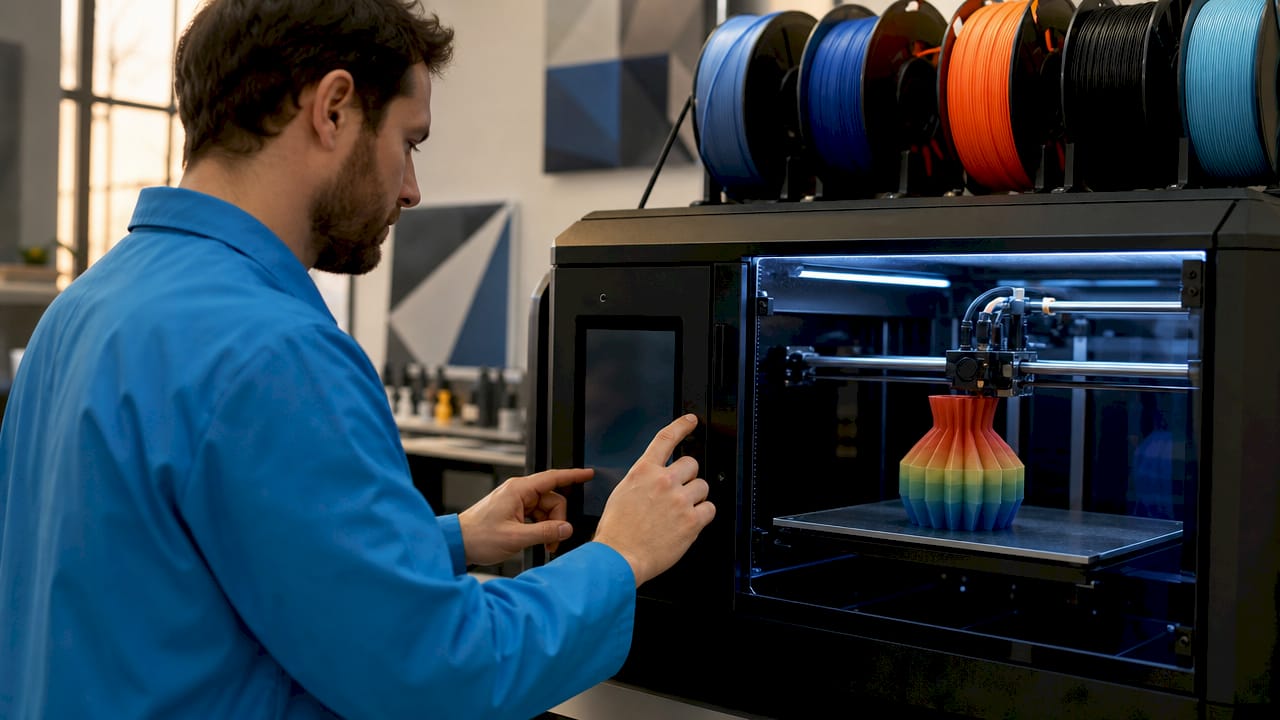
For 3D printing applications where color accuracy matters, such as multi-color prototypes or branded parts, this distinction is critical. Cc3dlabs handles multi-material and multi-color 3D printing projects where color fidelity directly affects client approval.
ICC profiles and how to use them correctly
An ICC profile is a standardized file that maps how a specific printer, ink, and paper combination reproduces color. Loading the correct ICC profile for your printer and media type tells your software exactly how to translate digital color values into physical ink.
The most important rule: let either the application or the printer driver handle color management, never both at the same time. Dual color management sends conflicting instructions to the printer and produces muddy, inaccurate output. This is a frequent hidden cause of color problems that professionals mistake for ink or hardware issues.
Printer driver settings that matter
Follow this sequence when configuring your printer driver for a quality print job:
- Set media type to match your actual paper or substrate. Selecting “plain paper” when printing on coated stock causes ink to spread and colors to bleed.
- Select the highest quality print mode available. Draft mode reduces ink passes and resolution to save time and ink. Never use it for production output.
- Disable automatic color correction in the driver if your application is handling color management through an ICC profile.
- Check print resolution settings. Many drivers default to a lower DPI than the printer’s maximum. Set it to the highest available for final output.
- Preview before printing. Most professional print dialogs include a soft-proof preview. Use it to catch color shifts before committing to a full print run.
Pro Tip: Save your driver configuration as a named preset for each media type you use regularly. This eliminates the risk of accidentally printing a production job with draft settings.
What are the best materials and printer maintenance practices to sustain high print quality?
The best settings in the world cannot compensate for a poorly maintained printer or the wrong print substrate. Hardware condition and material compatibility are the foundation of consistent output.
Choosing the right print media
Print media affects ink absorption, color saturation, and surface sharpness. Coated papers hold ink on the surface, producing sharper edges and more vibrant color. Uncoated papers absorb ink into the fibers, which softens fine detail. For manufacturing documentation, technical drawings, and prototype labels, coated or semi-gloss media delivers the clearest results.
In filament-based 3D printing, the “media” is the filament itself. Material choice directly affects surface finish, dimensional accuracy, and color consistency. Cc3dlabs works with a range of advanced filament materials to match the mechanical and visual requirements of each project.
Maintenance routines that prevent quality degradation
Neglecting printer maintenance is the fastest way to degrade output quality without realizing why. Monthly nozzle checks catch ink clogs before they cause visible print defects and reduce the need for deep cleaning cycles that consume ink and shorten head life.
Key maintenance practices to follow:
- Run a nozzle check pattern monthly. Compare the output to the reference pattern. Missing lines indicate a clogged nozzle.
- Use the manufacturer’s power button to shut down the printer. Proper shutdown triggers automated maintenance cycles that park and seal the print head. Unplugging the printer or using a power strip bypasses this and shortens head lifespan.
- Keep the printer in a low-dust environment. Dust on the print head or paper path causes streaks and smears.
- Control ambient humidity. Very low humidity causes static that attracts dust to media. Very high humidity causes paper to absorb moisture and warp during printing.
- Update firmware and drivers regularly. Manufacturers release updates that fix known print quality bugs and improve color processing.
Pro Tip: Run a head alignment print after every ink cartridge change. Misaligned heads cause color fringing on fine text and sharp edges, which is easy to mistake for a resolution problem.
How to troubleshoot and refine print quality issues effectively?
Most print quality complaints resolve through software and settings adjustments before any hardware replacement is needed. A systematic diagnostic approach saves time and money.
Step-by-step diagnostic process
- Print a nozzle check pattern first. This tells you immediately whether the problem is a clogged or misfiring nozzle rather than a settings issue.
- Run a head alignment test. Misaligned heads cause blurry text and color fringing that looks like a resolution problem but is not.
- Check your driver settings against your media type. Confirm you are not accidentally printing in draft mode or with the wrong paper type selected.
- Reinstall or update your printer driver. Driver corruption causes unpredictable quality issues including banding, color shifts, and incomplete prints.
- Print a test file with known good settings. Use a file you have printed successfully before. If it prints correctly, the problem is in your current file or settings, not the hardware.
3D print-specific quality adjustments
For filament-based 3D printing, the variables are different but the diagnostic logic is the same. Layer height, print speed, and nozzle temperature each affect surface quality and dimensional accuracy. Lowering layer height from 0.2mm to 0.1mm roughly doubles surface smoothness but doubles print time. Reducing print speed on perimeter passes improves edge definition on curved surfaces.
Common issues and their causes:
- Stringing between features: Nozzle temperature too high or retraction distance too low.
- Layer separation: Print temperature too low or cooling too aggressive for the filament type.
- Rough surface texture: Layer height too coarse or print speed too fast for the geometry.
- Dimensional inaccuracy: Incorrect extrusion multiplier or uncalibrated steps-per-mm on the extruder axis.
Avoid running excessive cleaning cycles on inkjet printers. Each cycle consumes a significant amount of ink and adds wear to the print head. Run one cleaning cycle, then test. If the problem persists, wait several hours and try again rather than running cycles back to back. For 3D printing quality challenges, Cc3dlabs has documented practical solutions in their guide on overcoming common 3D printing challenges.
Key Takeaways
Consistent, high-quality print output requires controlling resolution, color management, material selection, and maintenance as an integrated system, not as isolated variables.
| Point | Details |
|---|---|
| Resolution starts at 300 DPI | Files below 300 DPI at the intended print size produce visible pixelation regardless of printer quality. |
| Design in CMYK for print | Starting in CMYK prevents color dullness caused by late-stage RGB-to-CMYK conversion. |
| Never use dual color management | Let either the application or the driver handle color, not both, to avoid muddy output. |
| Maintain hardware monthly | Monthly nozzle checks and proper shutdown routines prevent head damage and quality degradation. |
| Diagnose settings before hardware | Most quality problems resolve through driver and settings corrections before any part replacement. |
What I’ve learned about print quality that most guides skip
The advice you find in most print quality guides focuses on settings in isolation. Adjust this slider, change that mode. What they miss is that print quality is a system. Every variable interacts with every other variable. I have seen professionals nail their resolution and color space, then ruin the output by printing on the wrong media type. The driver setting for paper type is not a minor detail. It controls how the printer times ink delivery, and getting it wrong undoes everything else you did right.
The other thing most guides understate is the cost of reactive maintenance. Running cleaning cycles after a problem appears is expensive in ink and head wear. Building a monthly check into your workflow costs almost nothing and catches problems before they affect a production run. I would rather spend five minutes on a nozzle check than reprint a batch of parts because a clog appeared halfway through a job.
For 3D printing specifically, I find that professionals underestimate how much print speed affects surface quality. Slowing perimeter passes by 20–30% on complex geometries produces a noticeably cleaner surface finish without adding much to total print time. That single adjustment has saved more post-processing time than any other setting change I have recommended. If you want to see what well-calibrated filament printing actually looks like in practice, the step-by-step quality guide from Cc3dlabs is worth reviewing.
The professionals who consistently get great output are not the ones with the most expensive equipment. They are the ones who document their settings, run their maintenance on schedule, and treat every print job as a system check rather than a one-off task.
— Justin
Cc3dlabs: professional 3D printing built for quality-critical work
Cc3dlabs specializes in filament-based 3D printing and scanning for prototypes, functional parts, and batch production near Philadelphia. Every project runs through a calibrated workflow that accounts for material properties, geometry complexity, and dimensional tolerances. Whether you need a single prototype or a production run, the team at Cc3dlabs applies the same quality controls covered in this guide at every stage. Explore the full range of 3D printing services to find the right fit for your next project, or request a free online estimate to get started.
FAQ
What is the minimum DPI for professional print quality?
The minimum standard for professional print quality is 300 DPI. Prints below this threshold show visible pixelation or blur at normal viewing distances.
Does changing DPI in Photoshop improve print quality?
No. Changing DPI metadata only changes the output size, not the pixel count. Real improvement requires adding pixels through upscaling.
What causes color to look different in print than on screen?
The most common cause is designing in RGB and printing in CMYK without a proper conversion. Using an ICC profile and designing in CMYK from the start prevents most color shift problems.
How often should I run printer maintenance?
Monthly nozzle checks are the recommended minimum for quality stability. Always use the manufacturer’s power button to shut down the printer so automated head-parking cycles can run.
What settings improve surface quality in filament 3D printing?
Reducing layer height and slowing perimeter print speed are the two most effective adjustments. Lower layer height increases surface smoothness, while slower perimeter passes improve edge definition on curved geometry.